Edit Pivot Tables
After creating a PivotTable, you can rename it, edit its summarization, and use its cell data in formulas.
Excel assigns a default name like PivotTable1 when you create it. This name isn't descriptive and can be confusing, especially if you reference the PivotTable in formulas on other worksheets. Renaming the PivotTable to something more descriptive helps clarify its content.

When a PivotTable includes at least one field in both the Rows and Columns areas, Excel adds grand total rows and columns to summarize the data. You can control which totals and subtotals appear and where they are placed to best suit your analysis needs.
Excel initially determines the best way to summarize data in the Values area, typically using the SUM function for numeric data. However, you can change the summarization function to better fit your data analysis requirements.

You can also modify how the PivotTable displays data in the Values area. Options include showing each value as a percentage of the grand total, row total, or column total, or as a running total.

If desired, you can create a formula that includes a value from a PivotTable cell. To do this, click the cell containing the value you want to use when you reach that point in your formula. This action generates a GETPIVOTDATA formula in the formula bar of the worksheet containing the PivotTable. Press Enter, and Excel will create the GETPIVOTDATA formula, displaying the contents of the PivotTable cell in the target cell.
Rename a PivotTable
- Click any cell in the body of the PivotTable
- On the PivotTable tool tab, in the PivotTable group, click in the PivotTable Name box
- Type the new name for the PivotTable and press Enter
Show or hide PivotTable grand totals and subtotals
- Click any cell in the body of the PivotTable
- On the PivotTable tool tab, in the Show group, click on Settings
- In the list, click any of the following items: • Show grand totals for rows • Show grand totals for columns • Show subtotal: Don't show, On top - at the top of each group, On bottom - at the bottom of each group
Change how Excel displays data in the Values area
- Click any cell in the body of the PivotTable
- On the PivotTable tool tab, in the Show group, click on Field Settings
- In the Sum Values click on the arrow to open the list
- Click on the Value Field Settings
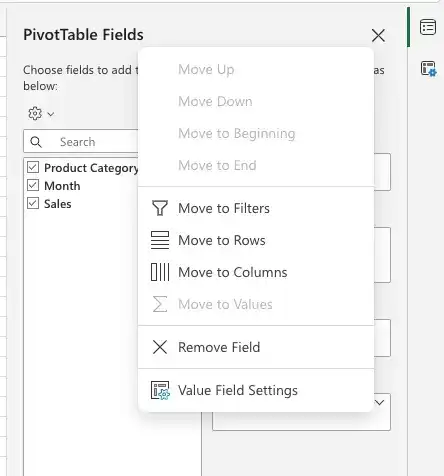
- In the Value Field Settings dialog box, on the Show Values As tab, click the Shows values as arrow
- Click the calculation you want to use
- If necessary, in the Base item list, click the value you want to base your calculation on
- Click OK
Create a formula that includes a PivotTable value
- Start entering a formula in a cell
- When you want to use data from a PivotTable cell in your formula, click the PivotTable cell that contains the data you want to use
- Complete the formula and press Enter.
Feedback
Was this page helpful?