Set up a workbook
Modify workbooks
You can use Excel workbooks to track business activities, with each worksheet representing a part of that activity. To view a worksheet, just click its tab at the bottom of the page. You can also create new worksheets when needed.
By default, Excel names worksheets like "Sheet1" or "Sheet2," but you should rename them to something more descriptive. You can also move or copy worksheets between workbooks. Moving removes the worksheet from one workbook, while copying creates a duplicate.
Within a workbook, you can rearrange worksheets, hide or unhide their tabs, and change tab colors. If you no longer need a worksheet, you can quickly delete it.
Display a worksheet
- On the tab bar in the lower-left corner of the app window, click the tab of the worksheet you want to display.

Create a new worksheet
- On the tab bar in the lower-left corner of the app window, click the tab of the workbook you want to add a new worksheet to. Click on "+" button.

or
- Right click on the workbook you want to add a new worksheet to and select "Insert".
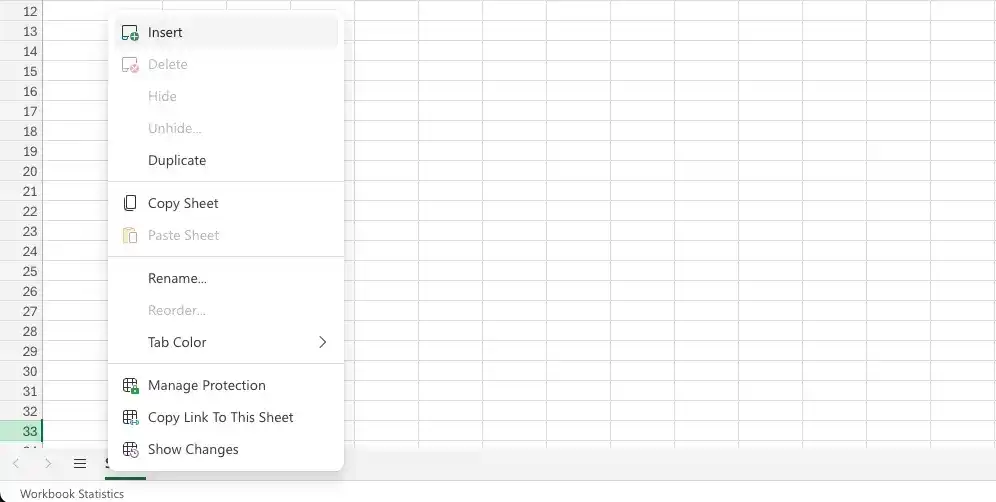
Rename a worksheet
- Double-click the tab of the worksheet you want to rename.
- Enter a new name for the worksheet.

or
- Right-click the tab of the worksheet you want to rename.
- Select "Rename"
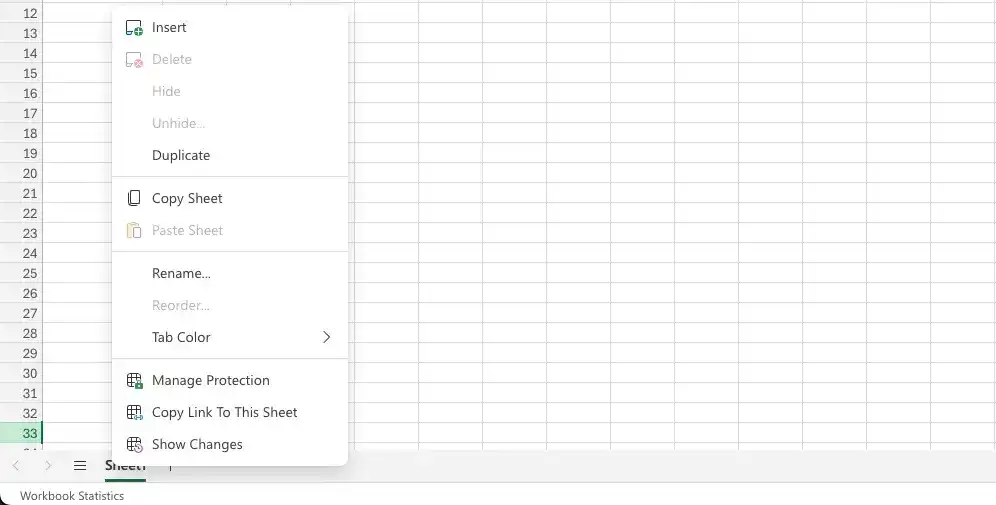
Move a worksheet
- On the tab bar in the lower-left corner of the app window, drag the sheet tab to the new location.
or
- Right-click the sheet tab of the worksheet you want to copy, and then click Reorder.
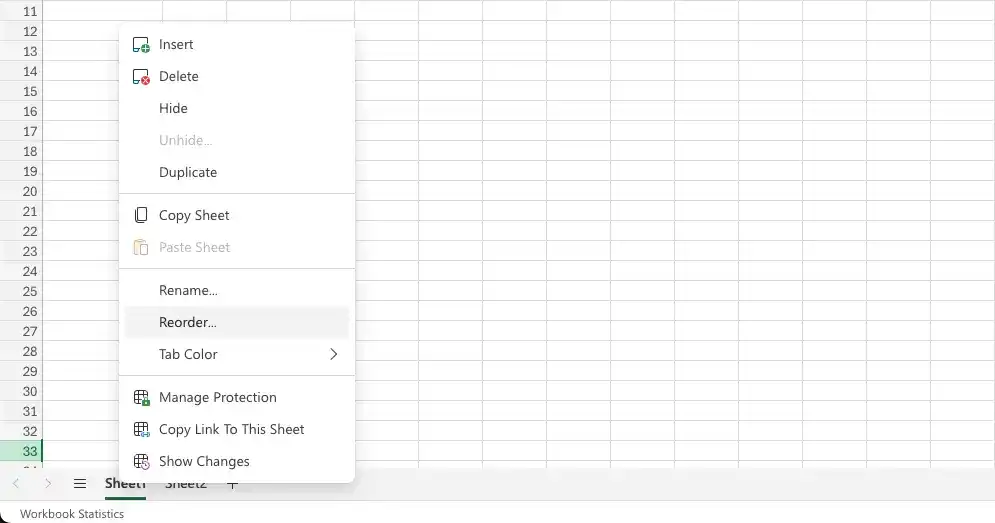
Copy a worksheet
- Right-click the sheet tab of the worksheet you want to copy, and then click Copy Sheet.
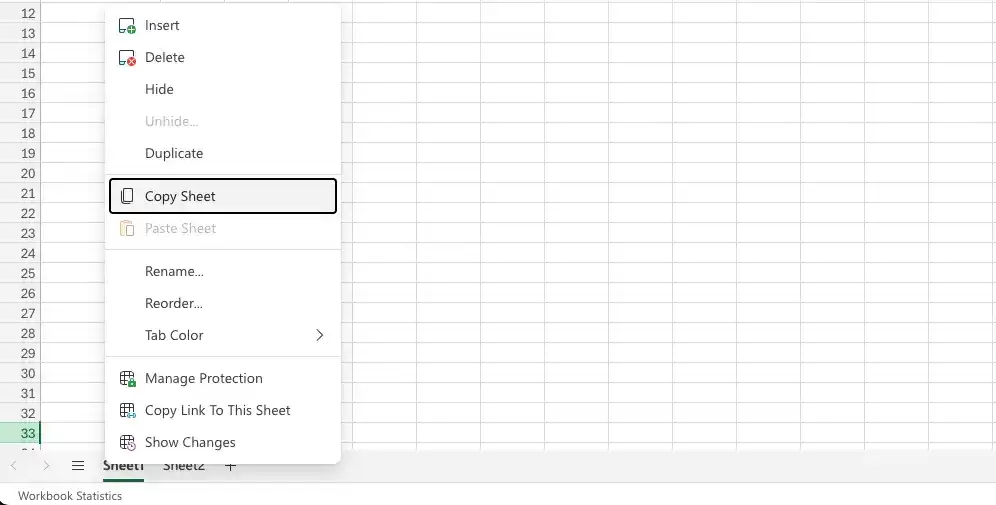
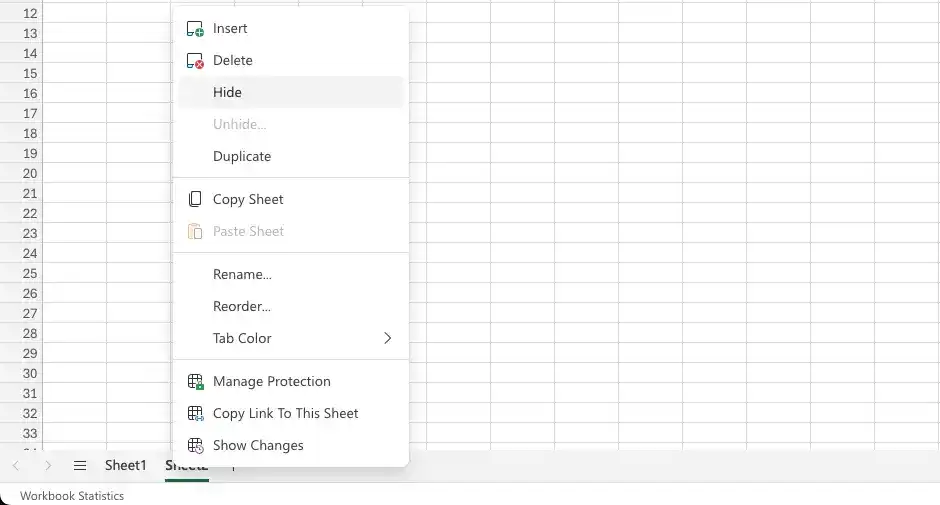
To hide a worksheet
- Right-click the sheet tab of the worksheet you want to hide, and then click Hide.
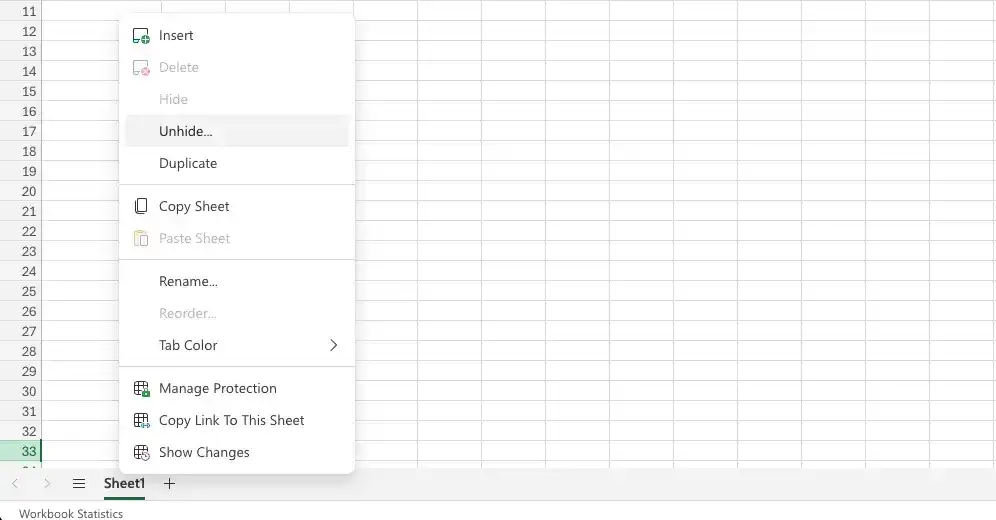
Unhide a worksheet
- Right-click any visible sheet tab, and then click Unhide.
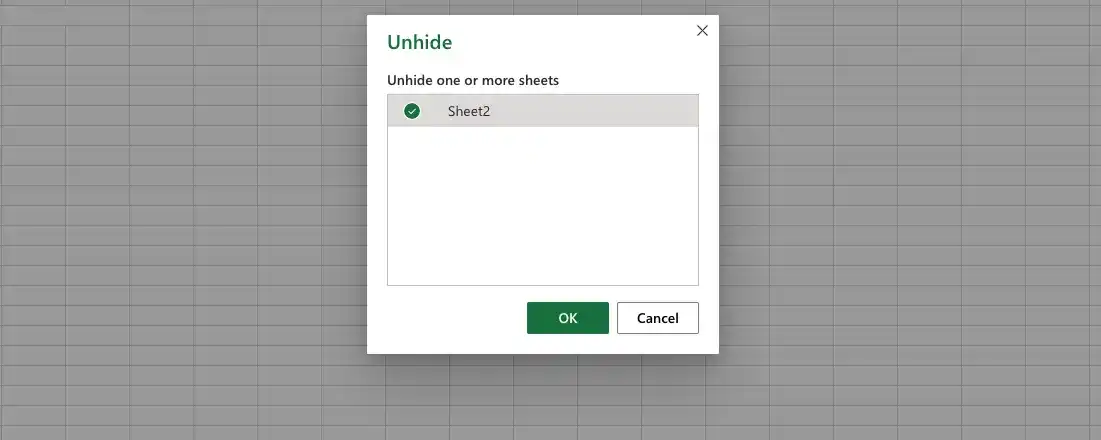
- In the Unhide dialog box, click the worksheet you want to redisplay.
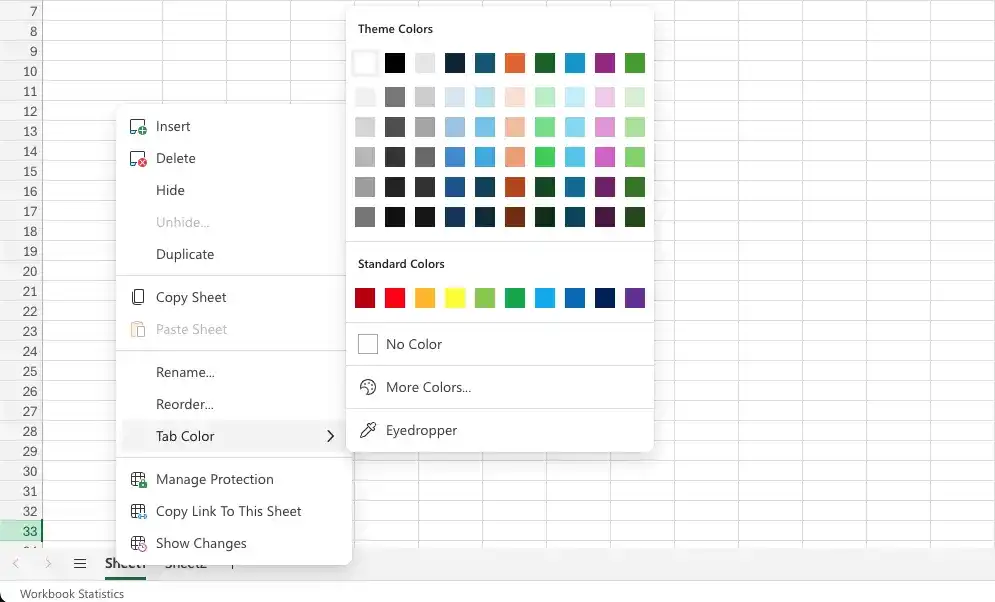
Change tab colors
- Right-click the sheet tab of the worksheet you want to change the color of, and then click Change tab color.
Delete a worksheet
- Right-click the sheet tab of the worksheet you want to delete, and then click Delete.
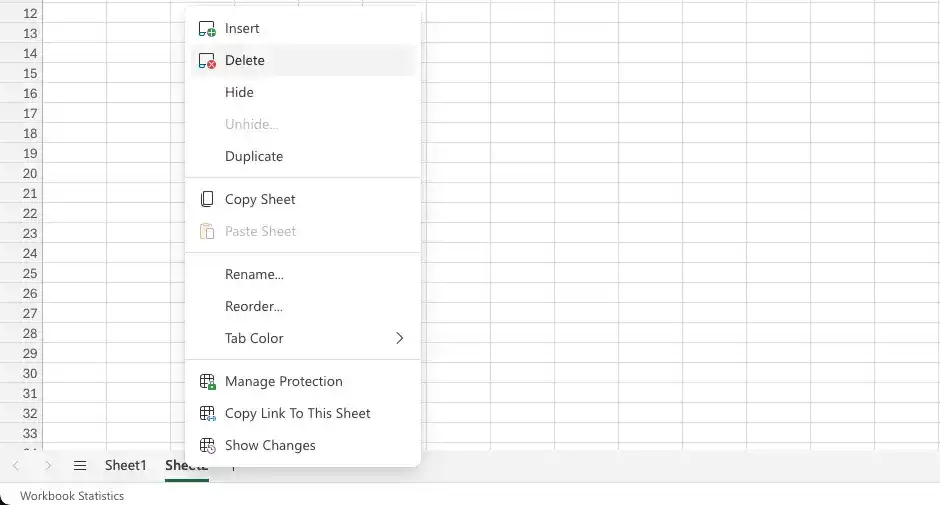
- If Excel displays a confirmation dialog box, click Delete.

Feedback
Was this page helpful?