Zoom in on a worksheet
You can change how Excel displays your worksheets; zoom in on worksheet data; add frequently used commands to the Quick Access Toolbar; hide, display, and reorder ribbon tabs; and create custom tabs to make groups of commands readily accessible.
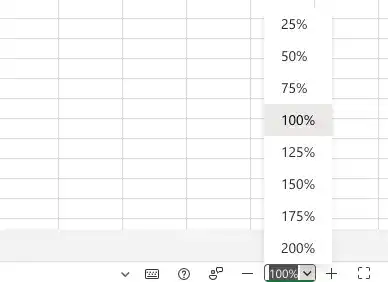
One way to make Excel easier to work with is to change the app’s zoom level. You can change the zoom level from the ribbon (View) or by using the Zoom control in the lowerright corner of the Excel window.

The minimum zoom level is 25 percent; the maximum is 400 percent.

Zoom in on a worksheet
Using the Zoom control in the lower-right corner of the app window, click the Zoom In button (which looks like a plus sign).
Zoom out on a worksheet
Using the Zoom control in the lower-right corner of the app window, click the Zoom Out button (which looks like a minus sign).
Set the zoom level to 100 percent
Click on Zoom Level selector and select 100% or write 100. If you are using Ribbon click on 100% button.
Set a specific zoom level
Click on Zoom Level selector and select what level do you prefer or write a specific number.
Feedback
Was this page helpful?