Analyze data dynamically by using PivotTables
In Excel worksheets, you can gather and present important data, but the standard worksheet configuration is not easily changeable. For example, consider a worksheet that records monthly sales figures for each of nine product categories. Each row represents a product category, and each column represents a month of the year.
While this neutral presentation is useful, it has limitations. Sorting and filtering can restrict the rows or columns shown, but reorganizing the worksheet's structure is difficult. For instance, you can't easily switch the rows to represent months and the columns to represent product categories.
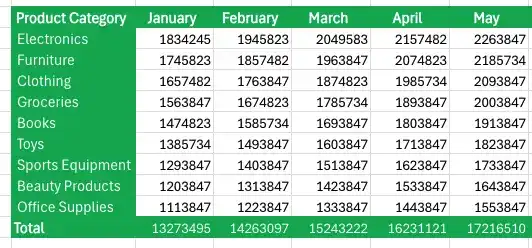
To dynamically reorganize and redisplay your data, you can use a PivotTable. In Excel, you can quickly create a PivotTable using the dialog box.
Just click the Insert tab, then click PivotTable in PivotTable group. Excel will display the Create PivotTable dialog box, where you can specify the data range and the location of the PivotTable.
You can create a PivotTable by adding individual fields. For instance, you can create a PivotTable with the same layout as the worksheet described previously, which emphasizes totals by month, and then change the PivotTable layout to have the rows represent the months of the year and the columns represent the product categories. The new layout emphasizes the totals by Category. distribution center.

To create a PivotTable quickly, ensure your data is organized in a list. Excel tables work seamlessly with PivotTable dynamic views due to their well-defined column and row structure. Referring to an Excel table by its name simplifies PivotTable creation and management.
In an Excel table used for a PivotTable, each row should contain values representing the attributes described by each column. Columns could include data on product categories, years, months, days, weekdays, and sales figures. Excel uses this data to maintain relationships when creating the PivotTable.
It’s okay if some cells in the source data list or Excel table are blank, but the source shouldn’t contain any blank rows. If Excel encounters a blank row while creating a PivotTable, it stops looking for additional data and displays an error message.

After you identify the data you want to summarize, you can start creating your PivotTable.
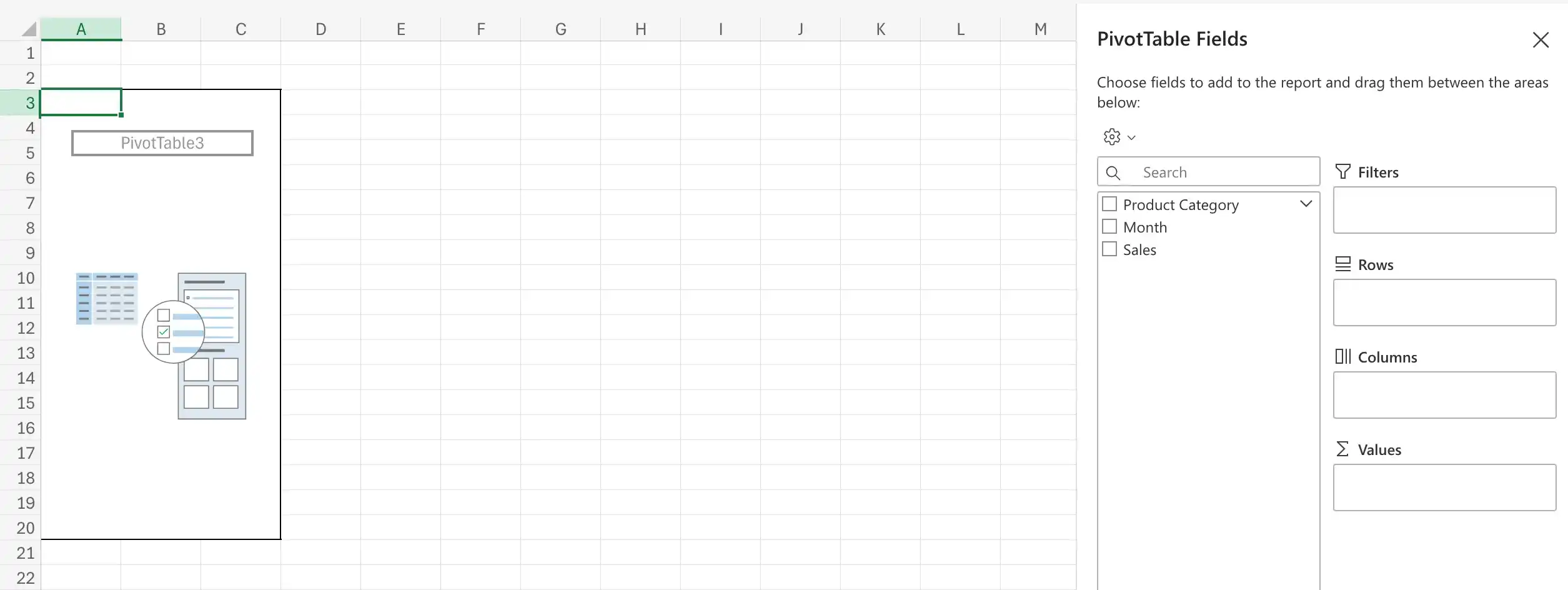
In most cases, it's best to place your new PivotTable on its own worksheet to avoid cluttering the display. However, if you prefer to include it on an existing worksheet, such as a summary worksheet with multiple visualizations, you can do that as well.
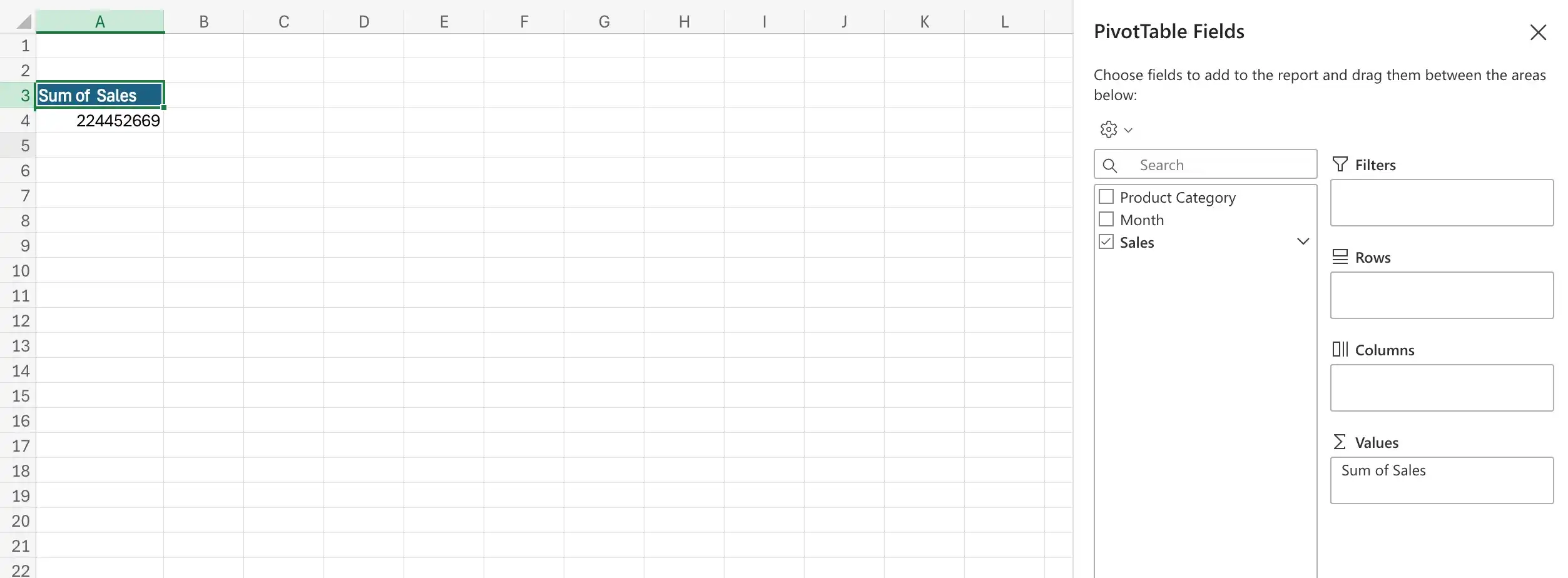
PivotTables have four areas where you can place fields: Rows, Columns, Values, and Filters. To define your PivotTable’s data structure, drag field names from the PivotTable field list to the four areas at the bottom of the PivotTable Fields task pane.
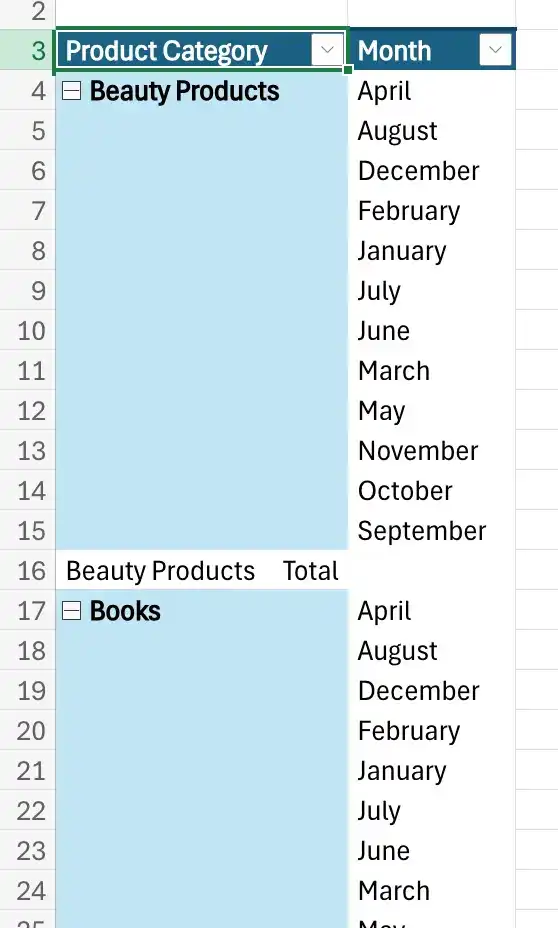
It’s important to note that the order in which you enter the fields in the Rows and Columns areas affects how Excel organizes the data in your PivotTable. As an example, consider a PivotTable that groups the PivotTable rows by product category and then by month.
The same PivotTable data could also be organized by month and then by category.
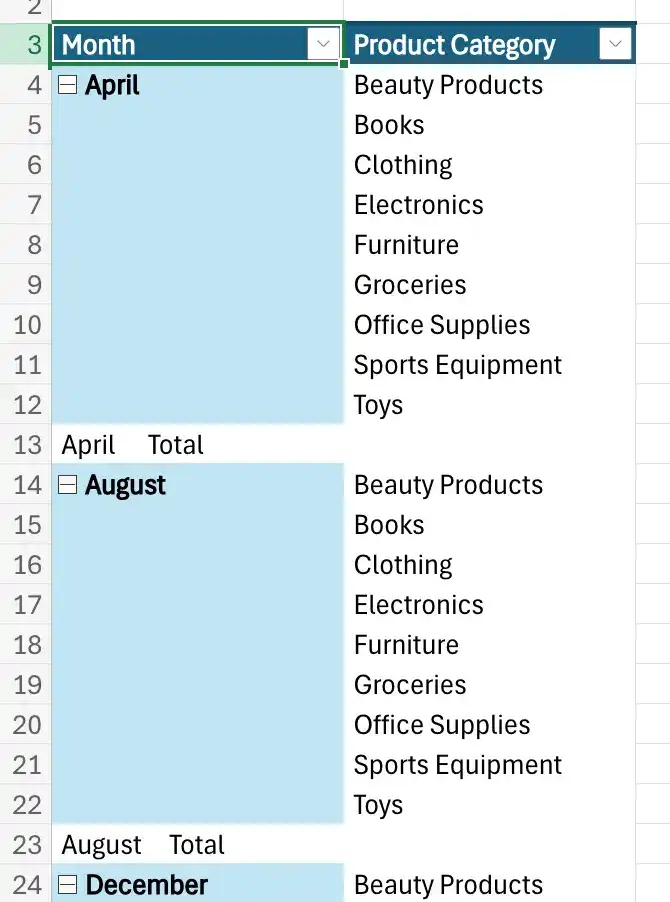
In the preceding examples, all the field headers are in the Rows area. If you drag the Product Category header from the Rows area to the Columns area in the PivotTable Fields pane, the PivotTable reorganizes (pivots) its data to form a different configuration.
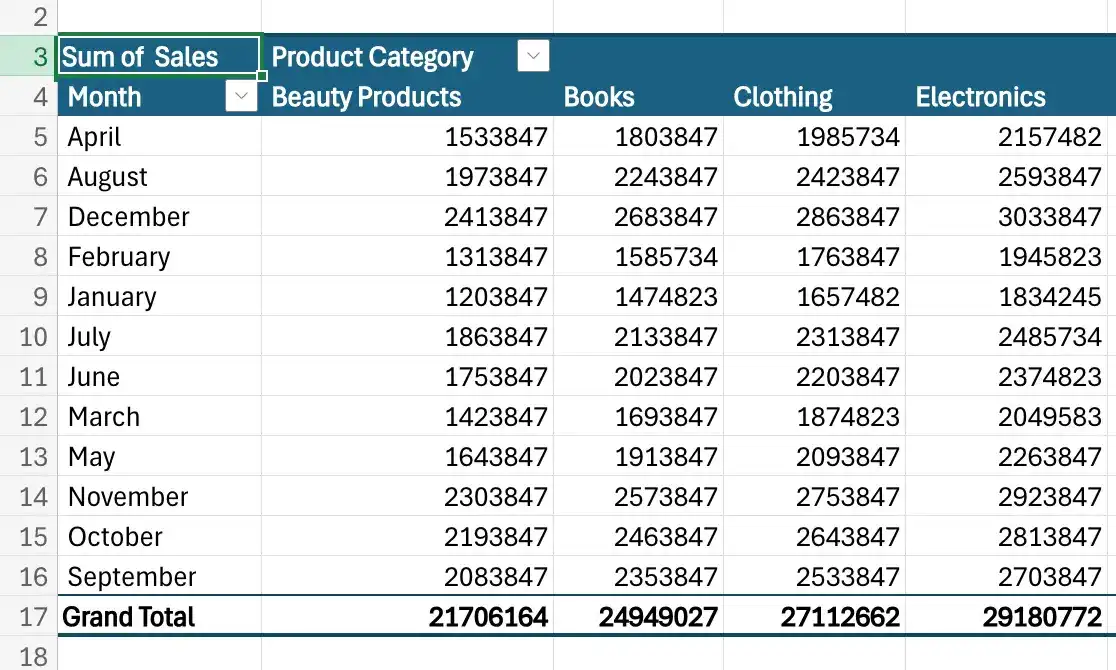
If your data set is large or based on a data collection from another computer, it might take some time for Excel to reorganize the PivotTable after a pivot. You can delay redrawing the PivotTable until you're ready for Excel to display the reorganized contents.
If you expect your PivotTable source data to change, such as when linked to an external database, ensure your PivotTable summarizes all available data. You can refresh the PivotTable connection to its data source. If Excel detects new data in the source table, it updates the PivotTable contents accordingly.
Organize your data for use in a PivotTable
Do either of the following:
- Create an Excel table.
- Create a data list that contains no blank rows or columns and has no extraneous data surrounding the list.
Create a PivotTable
- Click a cell in the Excel table or data list you want to summarize.
- In the Insert tab, Tables group, click PivotTable.
- In the Create PivotTable dialog box, verify that Excel has correctly identified the data source you want to use.
- Click New Worksheet.
Or
- Click Existing Worksheet, click in the Location box, and click the cell where you want the PivotTable to start.
- Click OK.
Add fields to your PivotTable
- If necessary, click a cell in the PivotTable and the PivotTable tab will be active. Click on Show dropdown button and select Field List.
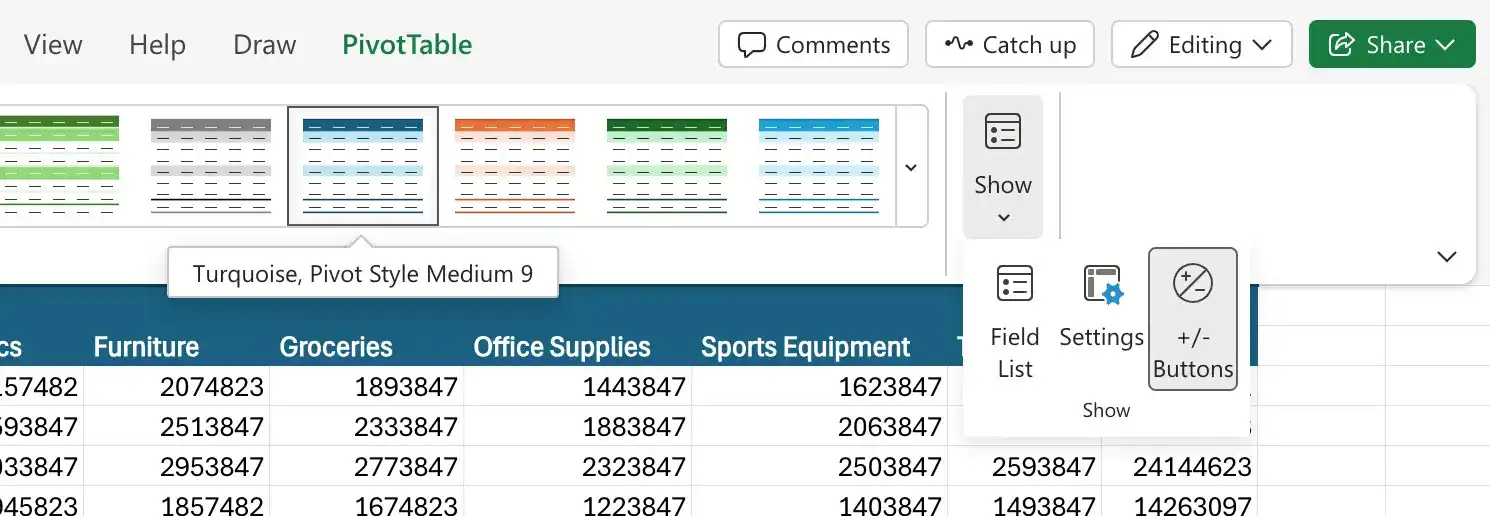
- Drag field names from the PivotTable field list to the Rows, Columns, Values, and Filters areas.
Remove a field from your PivotTable
- In the PivotTable Fields pane, drag a field header from the Data, Columns, Rows, or Filters area to the field list.
Pivot a PivotTable
- In the PivotTable Fields pane, drag a field header from the Data, Columns, Rows, or Filters area to another area.
Feedback
Was this page helpful?