Change the appearance of data based on its value
A method to improve data interpretation is by using Excel to change the appearance of your data based on its value. This is achieved through conditional formats, which apply specific formatting when data meets certain conditions defined in conditional formatting rules. In Excel, you can set up conditional formats to highlight cells with values above or below the average, near the top or bottom of the range, or with duplicate values within the selected range.
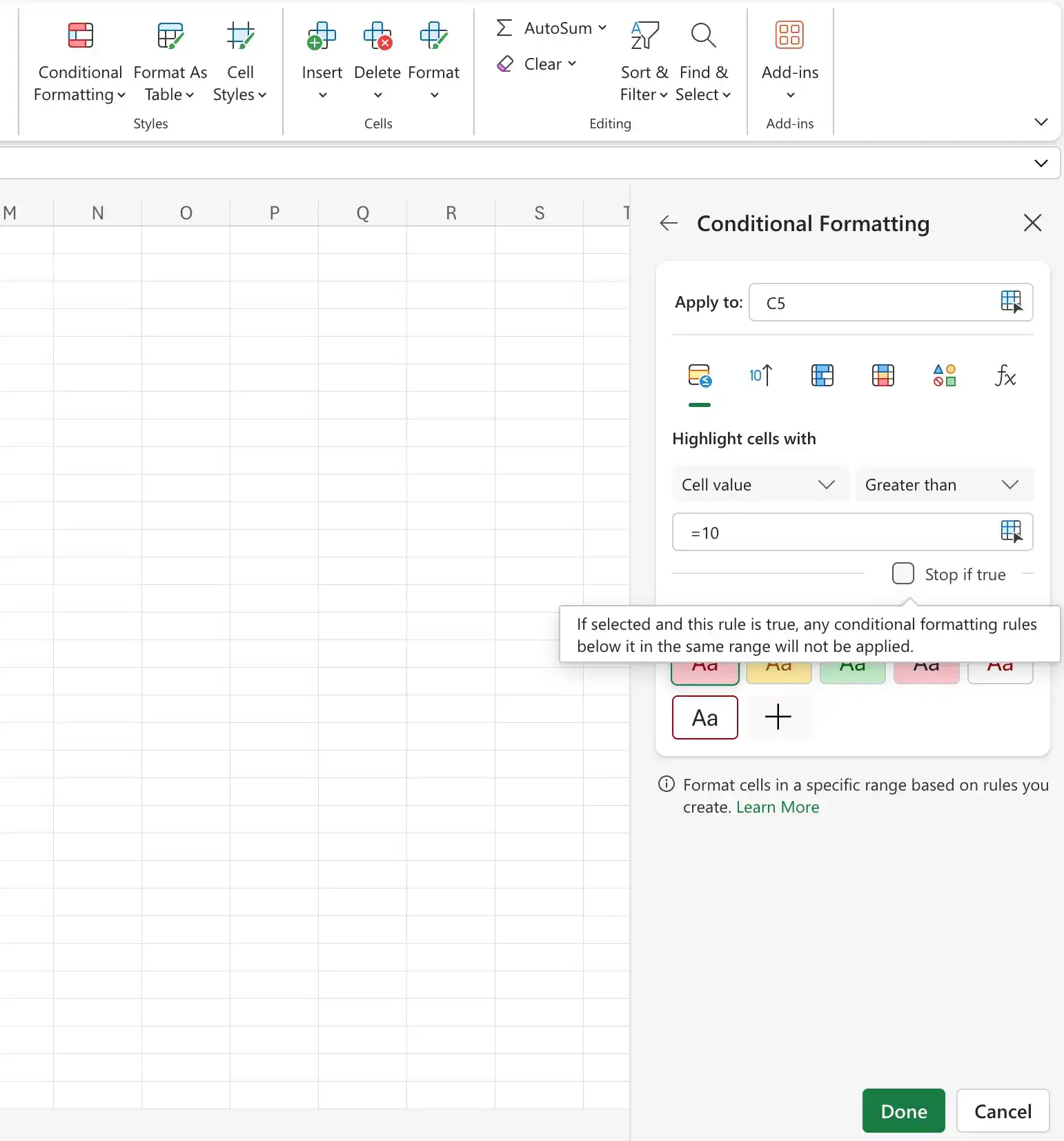
When creating a conditional format, Excel presents a dialog box with fields and controls to define your rule. If conditional formats are already applied to your cells, you can view and manage these formats.
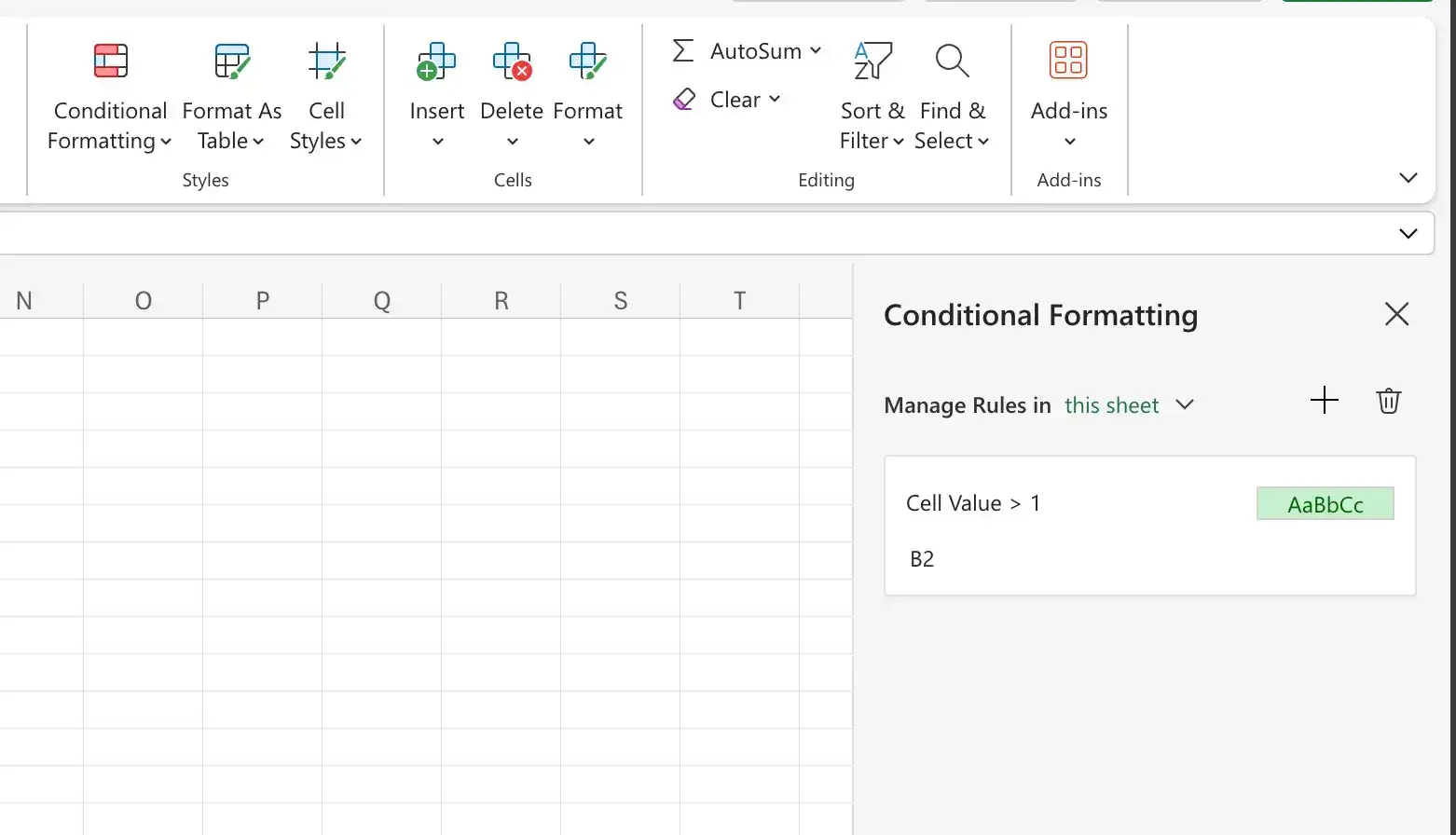
You can control your conditional formats in the following ways:
- Create a new rule.
- Change a rule.
- Remove a rule.
- Move a rule up or down in the order.
- Control whether Excel continues evaluating conditional formats after it finds a rule to apply.
- Save any rule changes and stop editing rules.
- Save any rule changes and continue editing.
- Discard any unsaved changes.
Clicking the New Rule button in the Conditional Formatting Rules Manager opens the New Formatting Rule dialog box. The commands in the New Formatting Rule dialog box duplicate the options displayed when you click the Conditional Formatting button in the Styles group on the Home tab. You can use those controls to define your new rule and the format to be displayed if the rule is true.
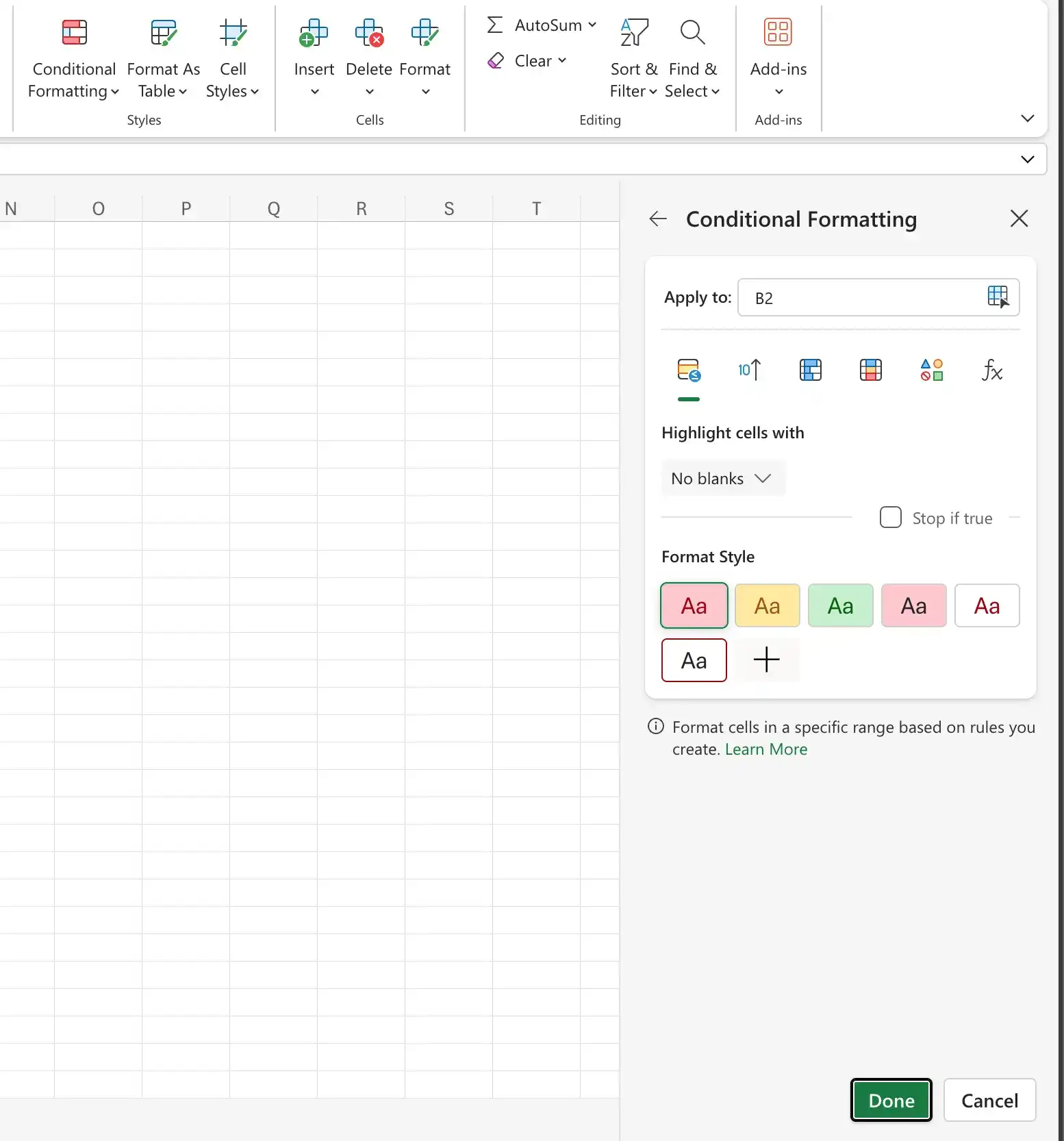
You can also create three other types of conditional formats in Excel: data bars, color scales, and icon sets. Data bars summarize the relative magnitude of values in a cell range by extending a band of color across the cell.

You can create two types of data bars solid fill and gradient fill.
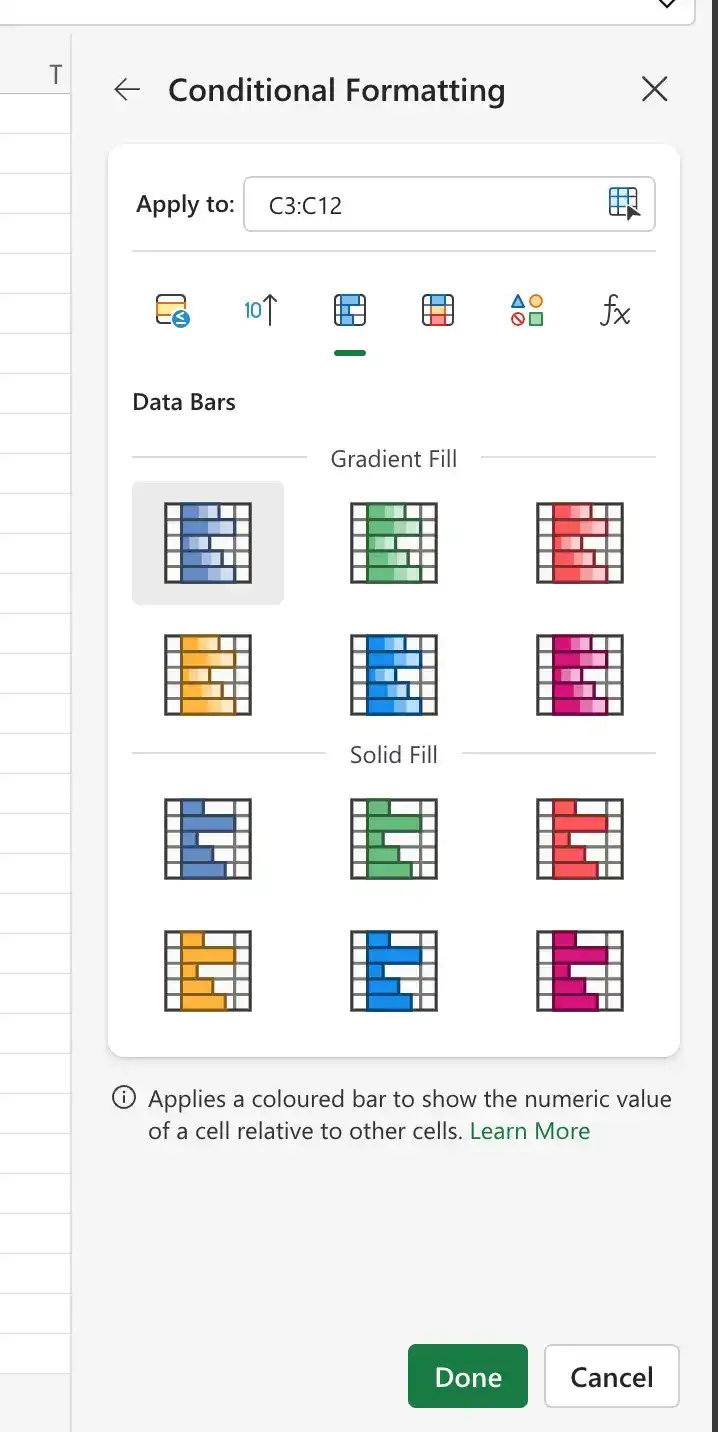
Color scales compare the relative magnitude of values in a cell range by applying colors from a two-color or three-color set to your cells. The intensity of a cell’s color reflects the value’s tendency toward the top or bottom of the values in the range.
Icon sets are collections of three, four, or five images that Excel displays when certain rules are met.

Create a conditional formatting rule
- Select the cells you want to format.
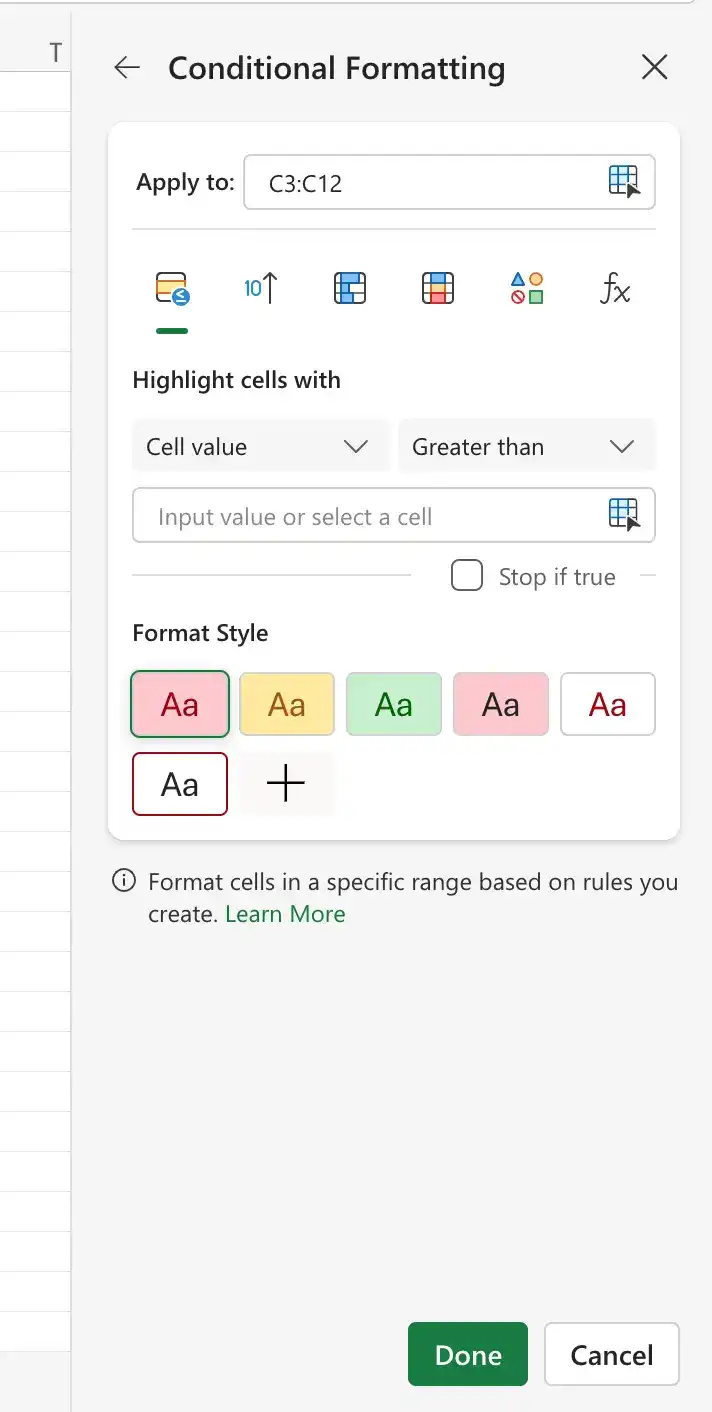
- On the Home tab, in the Styles group, click the Conditional Formatting button, point to Highlight Cells Rules, and then click the type of rule you want to create.
- In the rule dialog box that appears, set the rules for the condition.
- Apply a style
- Click Done
Edit a conditional formatting rule
- Select the cells to which the rule is applied.
- Click the Conditional Formatting button, and then click Manage Rules.
- In the Conditional Formatting Rules Manager, click the rule you want to edit.
- Click Edi
- Use the controls in the Edit Formatting Rule dialog box to change the rule settings.
- Click Done
Change the order of conditional formatting rules
- Select the cells to which the rules are applied.
- Click the Conditional Formatting button, and then click Manage Rules.
- In the Conditional Formatting Rules Manager, click the rule you want to move.
- Drag the rule up or down in the list.
Stop applying conditional formatting rules when a condition is met
- Select the cells to which the rule is applied.
- Click the Conditional Formatting button, and then click Manage Rules.
- In the Conditional Formatting Rules Manager, select the Stop If True check box next to the rule where you want Excel to stop.
Create a data bar conditional format
Click the Conditional Formatting button, point to Data Bars, and then click the format you want to apply.
Create a color scale conditional format
Click the Conditional Formatting button, point to Color Scales, and then click the color scale you want to apply.
Create an icon set conditional format
Click the Conditional Formatting button, point to Icon Sets, and then click the icon set you want to apply.
Delete a conditional format
- Select the cells to which the rules are applied.
- Click the Conditional Formatting button, and then click Manage Rules.
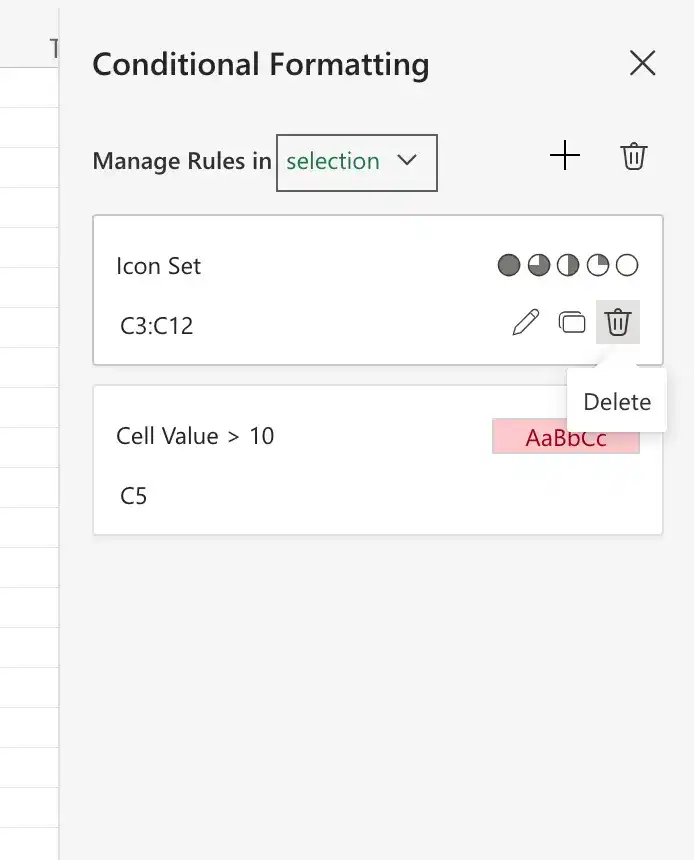
- In the Conditional Formatting Rules Manager, click the rule you want to delete.
Delete all conditional formats from a worksheet
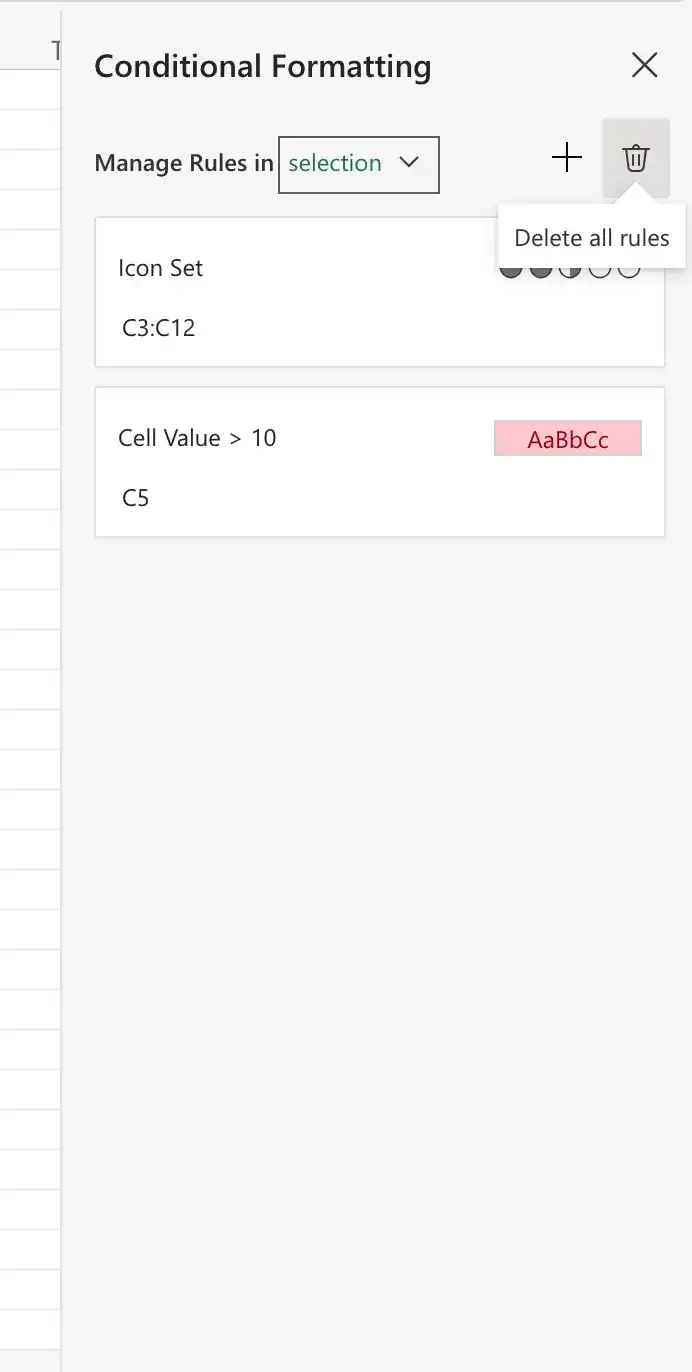
Click the Conditional Formatting button, and then click Delete all rules.
Feedback
Was this page helpful?