Name groups of data
When you work with large amounts of data, it’s often useful to identify groups of cells that contain related data.
For example, you can create a worksheet in which columns of cells contain data of daily temperature for a week.
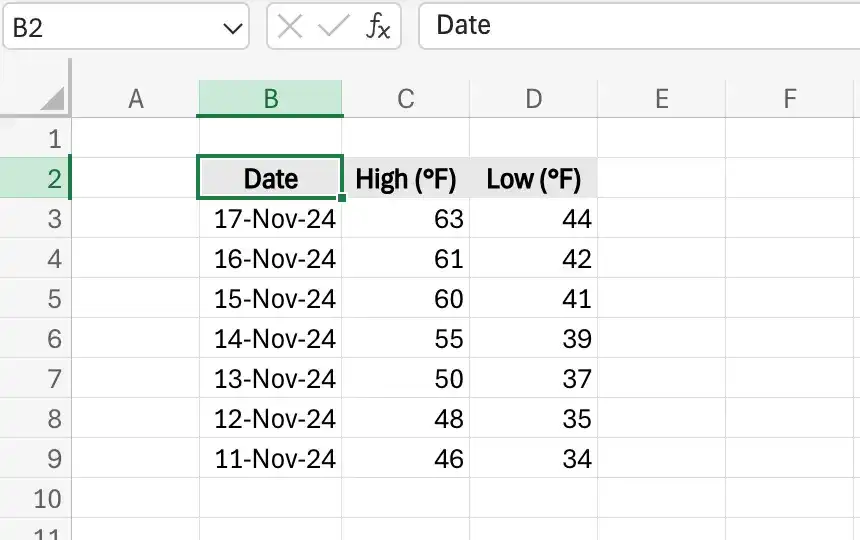
Instead of specifying the cells individually every time you want to use the data they contain, you can define those cells as a range.
For example, you can group high temperature into a group called HighTemperature. Whenever you want to use the contents of that range in a calculation, you can use the name of the range instead of specifying the range’s address.
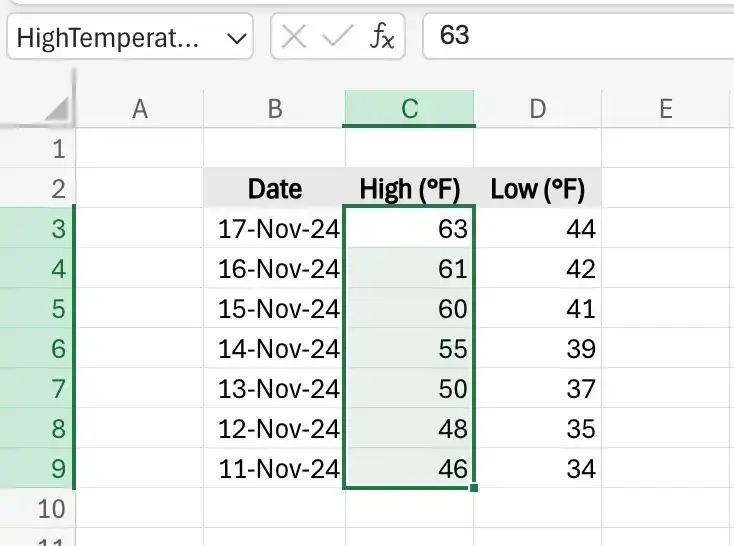
If the cells you want to define as a named range have labels in a row or column that’s part of the cell group, you can use those labels as the names of the named ranges.
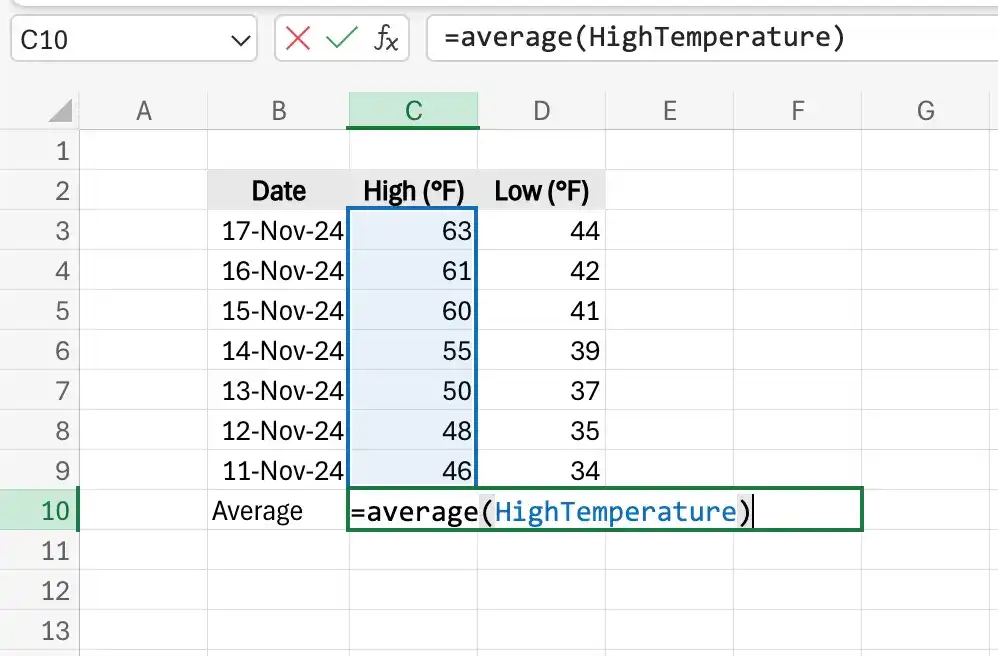
Create a named range
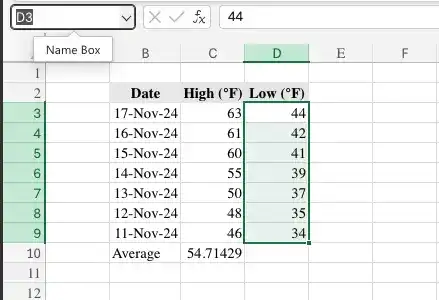
- Select the cells you want to include in the named range.
- In the Name box, which is next to the formula bar, enter the name for your named range.
Or
- Select the cells you want to include in the named range.
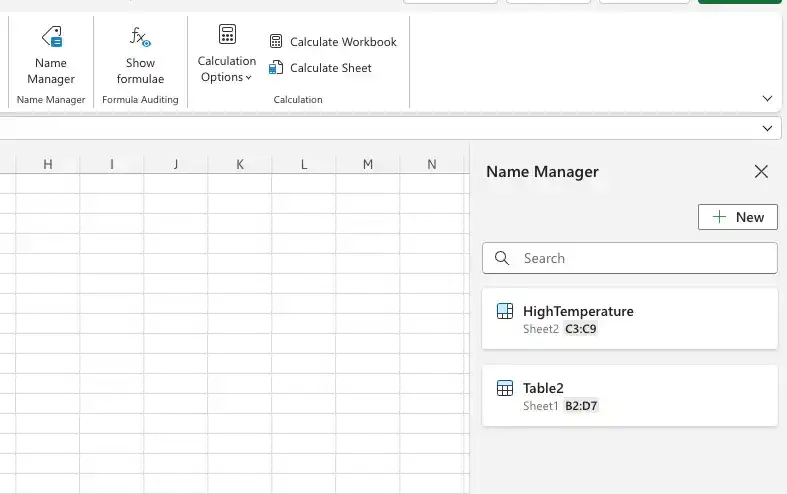
- On the Formulas tab of the ribbon, in the Name Manager group, click Name Manager.
- In the New Name dialog box, enter a name for the named range.
- Verify that the named range includes the cells you want.
Edit a named range
- In the Name Manager group, click Name Manager.
- Click the named range you want to edit.
- In the Refers to box, change the cells that the named range refers to.
Or
Click Edit, edit the named range in the Name Box, and press Enter.
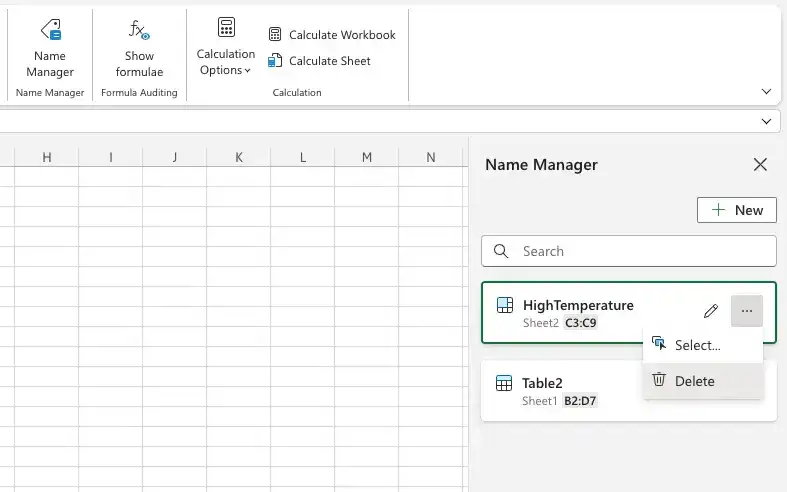
Delete a named range
- Click Name Manager.
- Click the named range you want to delete.
- Click Delete.
Feedback
Was this page helpful?