Manage worksheet data
Define valid sets of values for ranges of cells
Ensuring the accuracy of data entered into your worksheets is crucial for creating efficient and easy-to-use spreadsheets. While it's impossible to catch every typographical or transcription error, you can set up validation rules to ensure that the data entered into a cell meets specific standards. For example, you can specify the type of data, the range of acceptable values, and whether blank values are allowed. Accurate validation rules can help prevent errors such as entering a customer's name in a cell designated for a phone number or setting a credit limit above a certain level.
You can select the cells where you want to add a validation rule, even if those cells already contain data.
Add a validation rule to a cell
- On the Data tab, in the Data Tools group, click Data Validation.
- In the Data Validation dialog box, on the Settings tab, click the Allow arrow, and then click the type of values to allow.
- Use the controls to define the rule.
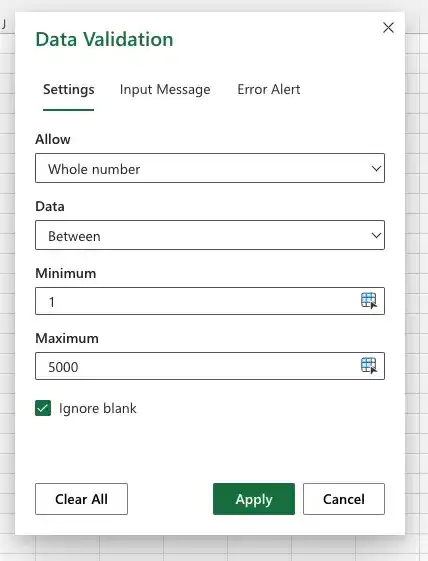
- Select the Ignore blank check box to allow blank values.
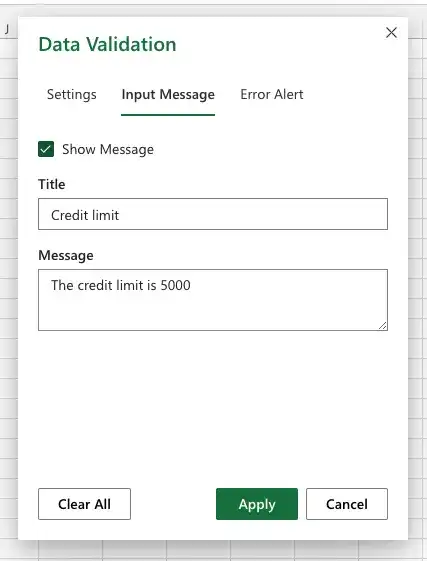
- On the Input Message tab, enter an input message for the cell.
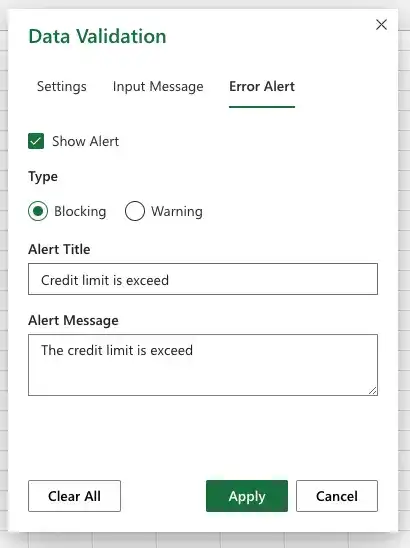
- On the Error Alert tab, create an error alert message for values that violate the rule.
- Click Apply.
Edit a validation rule
- Select one or more cells that contain the validation rule.
- Click Data Validation.
- On the Settings tab, select the Apply these changes.
- Use the controls in the dialog box to edit the rule, input message, and error alert.
- Click Apply.
Feedback
Was this page helpful?