Create formulas to calculate values
To write an Excel formula, you begin the cell’s contents with an equal (=) sign; Excel then knows that the expression following it should be interpreted as a calculation, not text.
After the equal sign, you enter the formula. For example, you can find the sum of the numbers in cells C2 and C3 by using the formula =C2+C3. After you have entered a formula into a cell, you can revise it by clicking the cell and then editing the formula in the formula bar. For example, you can change the preceding formula to =B3–B2, which calculates the difference between the contents of cells C3 and C2.
Entering the cell references for 10 or 20 cells in a calculation would be tedious, but in Excel you can easily enter complex calculations by using the Insert Function dialog box.

The following table describes some of the most useful functions in the list.
As an example, consider a worksheet that contains a two-column Excel table named Steps. The first column is labeled Day; the second is labeled Steps.

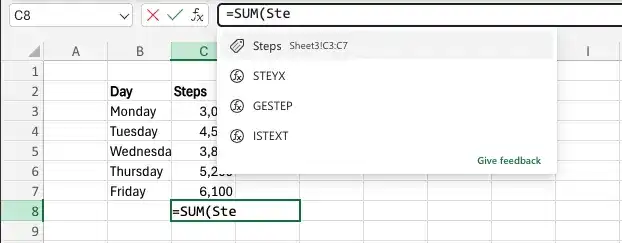
To create a formula that finds the total number of steps by using the SUM function, you begin by typing =SU. When you enter the letter S, Formula AutoComplete lists functions that begin with the letter S; when you enter the letter U, Excel narrows the list down to the functions that start with the letters SU.

To add the SUM function (followed by an opening parenthesis) to the formula, click SUM and then press Tab.
Excel will suggests the range (please see the image above), but you can manually added.
You can use Named Range and name the range: Steps. To begin adding the table reference, enter the letter S. Excel displays a list of available functions, tables, and named ranges that start with the letter S. Select Steps and close the bracket. Press Enter to add the reference to the formula. =SUM(Steps).
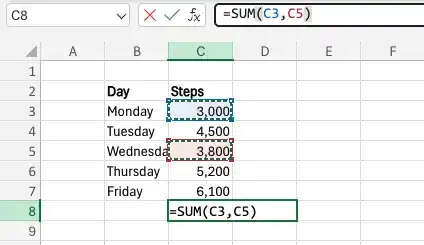
If you want to include a series of contiguous cells in a formula, but you haven’t defined the cells as a named range, you can click the first cell in the range and drag to the last cell. If the cells aren’t contiguous, hold down the Ctrl key and select all of the cells to be included. In both cases, when you release the mouse button, the references of the cells you selected appear in the formula.
In addition to using the Ctrl key to add cells to a selection, you can expand a selection by using a wide range of keyboard shortcuts.
The following table summarizes many of those shortcuts.
After you create a formula, you can copy it and paste it into another cell. When you do, Excel tries to change the formula so that it works in the new cells. For instance, using the example above, suppose you have a worksheet where cell C8 contains the formula =SUM(C3:C7). Clicking cell C8, copying the cell’s contents, and then pasting the result into cell D18 writes SUM(D13:D17) into cell D18. Excel has reinterpreted the formula so that it fits the surrounding cells. Excel knows it can reinterpret the cells used in the formula because the formula uses a relative reference, or a reference that can change if the formula is copied to another cell. A relative reference formula is a type of cell reference that changes dynamically when copied or moved to another cell. It is the default referencing mode in Excel and allows you to create formulas that automatically adjust based on their new location.
Relative references are useful when you summarize rows of data and want to use the same formula for each row.
As an example, suppose you have a worksheet with three columns of data, labeled Product, Unit sold, Price per Unit and you want to calculate total sales per product by multiplying Units and Price in a row. To calculate the total sales for the first product, you would enter the formula =C3*B3 in cell E3.
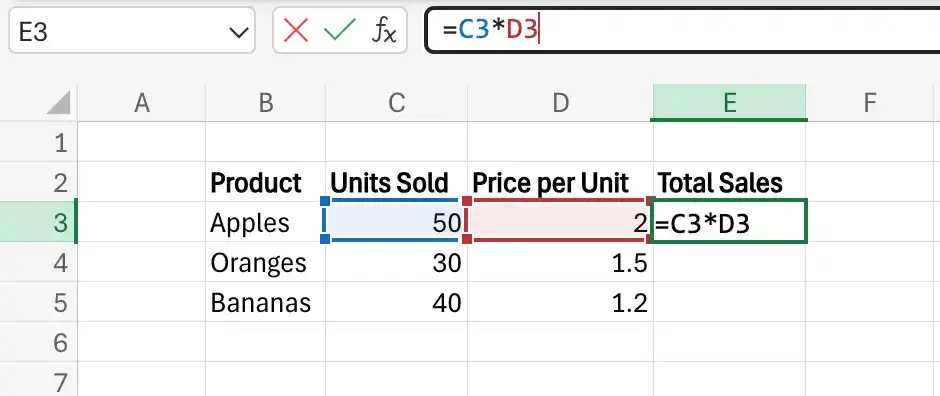
Selecting cell E3 and dragging the fill handle until it covers cells E3:E5 copies the formula from cell E3 into each of the other cells. Because you created the formula by using relative references, Excel updates each cell’s formula to reflect its position relative to the starting cell (in this case, cell E3.) The formula in cell E5, for example, is =C5*D5.
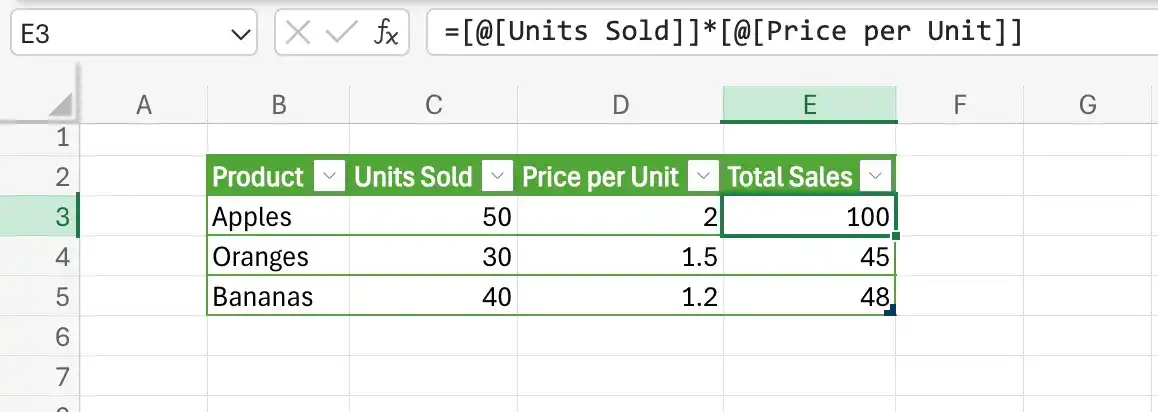
You can use a similar technique when you add a formula to an Excel table column. If the sale price and rate data were in an Excel table and you created the formula =C3*D3 in cell E3, Excel would apply the formula to every other cell in the column. Because you used relative references in the formula, the formulas would change to reflect each cell’s distance from the original cell.
If you want a cell reference to remain constant when you copy the formula that is using it to another cell, you can use an absolute reference. To write a cell reference as an absolute reference, you enter $ before the row letter and the column number. For example, if you want the formula in cell D18 to show the sum of values in cells E3 through E5 regardless of the cell into which it is pasted, you can write the formula as =SUM($E$3:$E$5).
One quick way to change a cell reference from relative to absolute is to select the cell reference in the formula bar and then press F4. Pressing F4 cycles a cell reference through the four possible types of references:
- Relative columns and rows (for example, E4)
- Absolute columns and rows (for example, $E$4)
- Relative columns and absolute rows (for example, E$4)
- Absolute columns and relative rows (for example, $E4)
Create a formula by entering it in a cell
- Click the cell in which you want to create the formula.
- Enter an equal sign (=).
- Enter the remainder of the formula, and then press Enter.
Create a formula by using the Insert Function dialog box
- On the Formulas tab, click the Insert Function button.
- Click the function you want to use in your formula.
or
- Search for the function you want, and then click it.
- In the Function Arguments dialog box, enter the function’s arguments.
Refer to a named range in a formula
- Click the cell where you want to create the formula.
- Enter = to start the formula.
- Enter the name of the named range in the part of the formula where you want to use its values.
- Complete the formula.
- Press Enter.
Refer to an Excel table column in a formula
- Click the cell where you want to create the formula.
- Enter = to start the formula.
- At the point in the formula where you want to include the table’s values, enter the name of the table.
Or
Use Formula AutoComplete to enter the table name.
- Enter an opening bracket ([) followed by the column name.
Or
- Enter [ and use Formula AutoComplete to enter the column name.
- Enter ]) to close the table reference.
- Press Enter.
Copy a formula without changing its cell references
- Click the cell that contains the formula you want to copy.
- Select the formula text in the formula bar.
- Press Ctrl+C.
- Click the cell where you want to paste the formula.
- Press Ctrl+V.
- Press Enter.
Move a formula without changing its cell references
- Click the cell that contains the formula you want to copy.
- Point to the edge of the cell you selected.
- Drag the outline to the cell where you want to move the formula.
Move a formula without changing its cell references
- Click the cell that contains the formula you want to copy.
- Press Ctrl+C.
- Click the cell where you want to paste the formula.
- Press Ctrl+V.
Create relative and absolute cell references
- Enter a cell reference into a formula.
- Click within the cell reference.
- Enter a $ in front of a row or column reference you want to make absolute.
Or
Press F4 to advance through the four possible combinations of relative and absolute row and column references.
Feedback
Was this page helpful?