Set up a workbook
Create workbooks
Create an Excel file
To create an Excel file using Microsoft Excel Online, follow these steps:
-
Log into Microsoft Excel Online:
- Go to www.office.com and sign in with your Microsoft account.
-
Create a new workbook
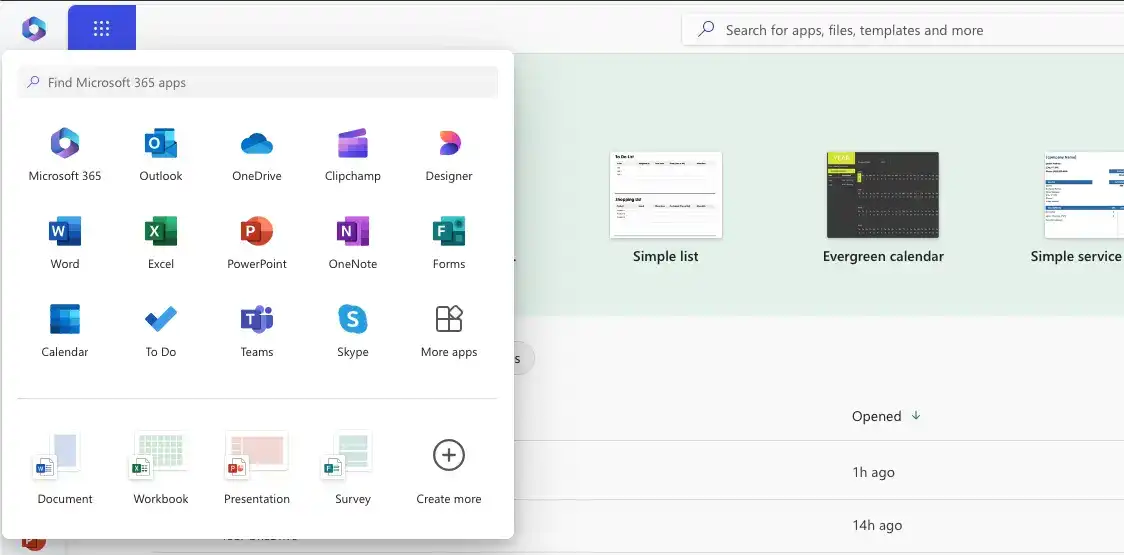
- Once logged in, you'll see the Excel icon in the app launcher.
- Click on Excel to open the Excel app.
- Start a new blank workbook
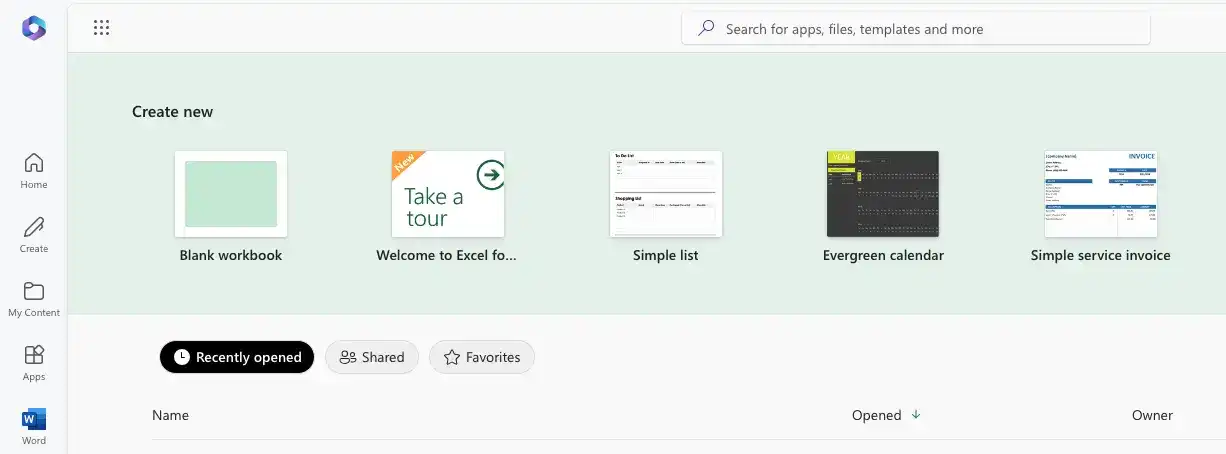
- On the Excel home page, click on New blank workbook to create a fresh Excel file.
- Save your Excel file
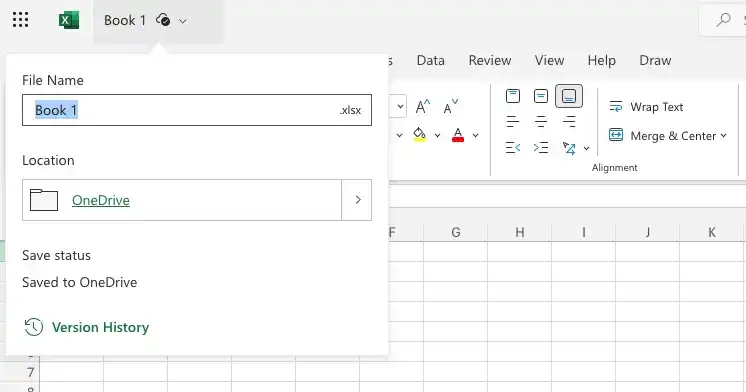
- Excel Online automatically saves your work to OneDrive as you make changes.
- To rename the file, click on the default file name (usually "Book1") at the top of the page and type in your desired file name.
Open an Excel file
To open an existing Excel file in Microsoft Excel Online, follow these steps:
-
Log into Microsoft Excel Online
- Go to Office.com and sign in with your Microsoft account
-
Go to OneDrive
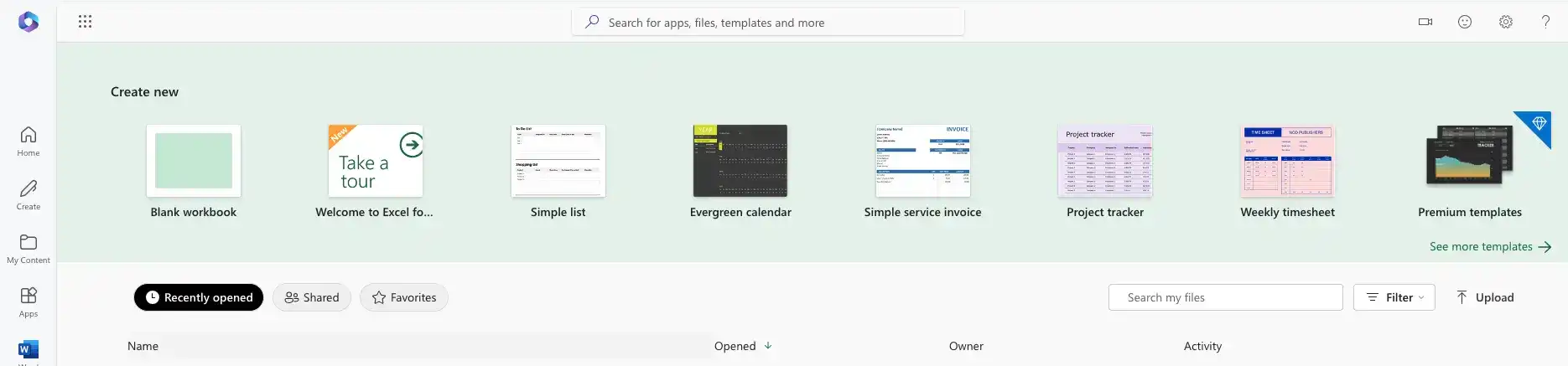
- On the Office home page, click on OneDrive from the list of available apps. OneDrive is where all your online Excel files are stored.

-
Find your Excel file:
- Browse through your folders in OneDrive, or use the search bar to locate the Excel file you want to open.
-
Open the file
- Once you find the file, simply click on it. It will automatically open in Excel Online for editing.
Alternatively:
If you're already in Excel Online, you can click Open on the toolbar, and then select OneDrive or Upload and Open to open a file from your computer.1
Feedback
Was this page helpful?