Enter and revise data
The simplest way to enter data is to click a cell and type a value. This method works very well when you’re entering a few pieces of data, but it is less than ideal when you’re entering long sequences or series of values.
For example, you could create a worksheet tracking your monthly groceries spendings.
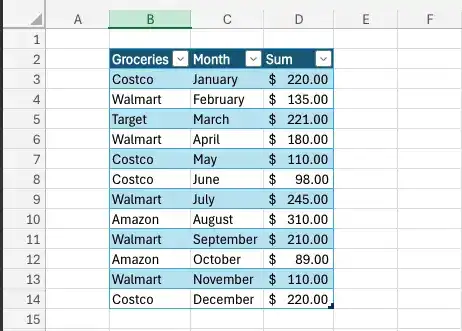
Enter values into a cell
Repeatedly entering the sequence January, February, March, and so on can be handled by copying and pasting the first occurrence of the sequence.
- Click the cell into which you want to enter the value.
- Type the value by using the keyboard.
- Press Enter to enter the value and move one cell down.
Or
- Press Tab to enter the value and move one cell to the right.
To quickly enter a sequence like months in Excel, use AutoFill. Type the first item (e.g., "January"), then drag the fill handle at the cell’s corner to extend the series.
- Select the cells that contain the series values.
- Drag the fill handle to cover the cells where you want the new values to appear.
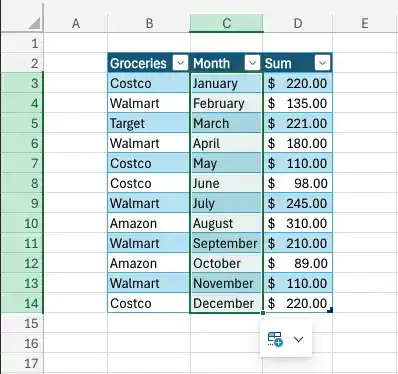
Similarly, FillSeries allows extending patterns by entering two values and dragging the handle.
Excel adjusts the series based on drag direction: dragging up or left fills previous values (e.g., dragging "January" up fills "December," "November," etc.).
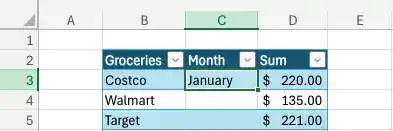
Holding down Ctrl while dragging repeats the initial value in each new cell instead of extending the sequence.
Enter cell data by using AutoComplete
- Start entering a value into a cell.
- Use the arrow keys or the mouse to highlight a suggested AutoComplete value.
- Press Tab
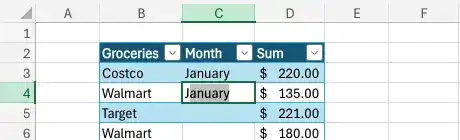
Control autofill options
- Create an AutoFill sequence.
- Click the AutoFill options button.
- Click the option you want to apply.
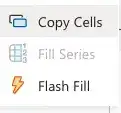
There are three options:
- Copy Cells: Copies the contents of the selected cells to the cells indicated by the fill operation.
- Fill Series: Fills the cells indicated by the fill operation with the next items in the series.
- Flash Fill: Enter values based on patterns established in the other cells in the columns.
Feedback
Was this page helpful?