Format cells
Excel worksheets can store and process large amounts of data, but managing multiple worksheets can make it difficult to recall the exact content based on their titles alone. Data labels provide valuable context about the worksheet's content, but formatting them effectively ensures they stand out visually. To emphasize your data labels or other key information, you can adjust the formatting of the cells containing your data.

Deleting a cell’s contents doesn’t delete the cell’s formatting. To delete a selected cell’s formatting, on the Home tab, in the Editing group, click the Clear button, and then click Clear Formats. Clicking Clear All from the same list will remove the cell’s contents and formatting.

Many of the formatting-related buttons on the ribbon have arrows at their right edges. Clicking the arrow displays a list of options for that button, such as the fonts available on your system or the colors you can assign to a cell.
Clicking the body of the Border, Fill Color, or Font Color button applies the most recently applied formatting to the currently selected cells.

You can display the most commonly used formatting controls by rightclicking a selected range.
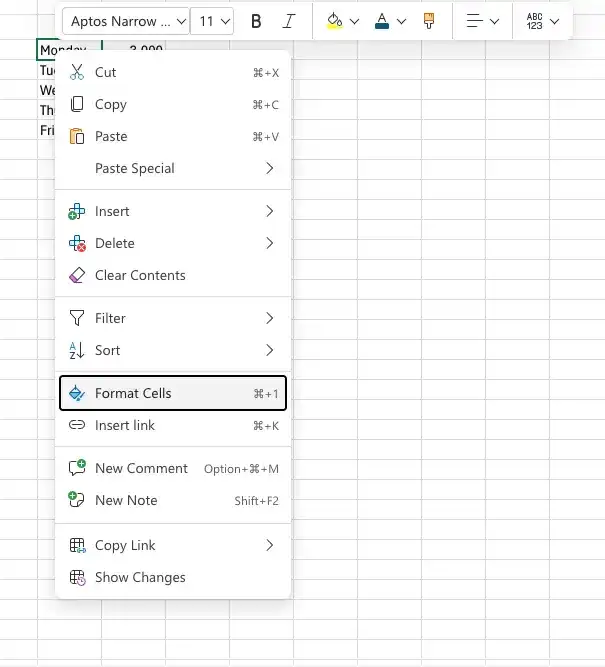
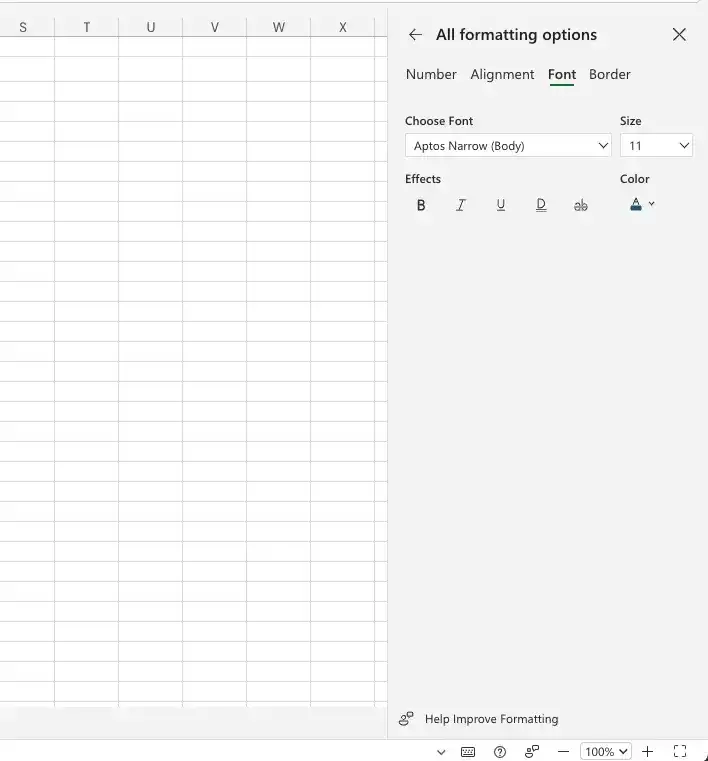
If you want to change the attributes of every cell in a row or column, you can click the header of the row or column you want to modify and then select the format you want.
Change the font used to display cell contents
- Select the cell or cells you want to format.
- On the Home tab of the ribbon, in the Font group, click the Font arrow.
- In the font list, click the font you want to apply.
Change the size of characters in a cell or cells
- Select the cell or cells you want to format.
- Click the Font Size arrow.
- In the list of sizes, click the size you want to apply.
Change the color of a font
- Select the cell or cells you want to format.
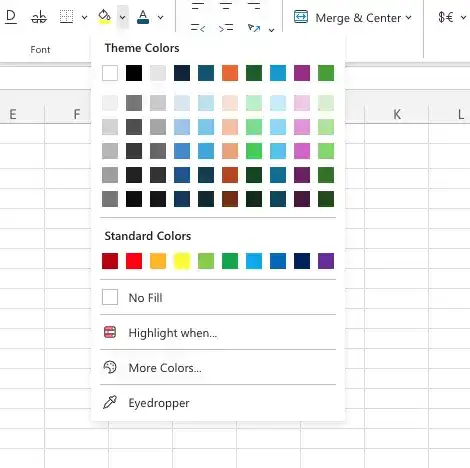
- Click the Font Color arrow (not the button).
- Click the color you want to apply.
Or
Click More Colors, select the color you want from the Colors dialog box, and then click OK.
Change the background color of a cell or cells
- Select the cell or cells you want to format.
- Click the Fill Color arrow (not the button).
- Click the color you want to apply.
Or
Click More Colors, select the color you want from the Colors dialog box, and then click OK.
Change font appearance by using the controls on the Font tab of the Format Cells dialog box
- Click the Font dialog box launcher.
- Make the formatting changes you want, and then click OK.
Copy formatting between cells
- Select the cell that contains the formatting you want to copy.
- Click the Format Painter button.
- Select the cells to which you want to apply the formatting.
Delete cell formatting
- Select the cell or cells from which you want to remove formatting.
- In the Editing group, click the Clear button.
- In the menu that appears, click Clear Formats.
Feedback
Was this page helpful?