Work with data
Correct and expand upon data
After you enter your data, you should take the time to check and correct it. You do need to verify visually that each piece of numeric data is correct, but you can make sure that your worksheet’s text is spelled correctly by using the Excel spelling checker.
Click on Spelling button on Review, Proofing Ribbon.
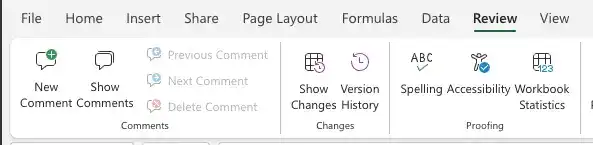
When the spelling checker encounters a word it doesn’t recognize, it highlights the cell where is the word and offers suggestions representing its best guess of the correct word. You can then edit the word directly, pick the proper word from the list of suggestions, or have the spelling checker ignore the misspelling.
Undo or redo an action
Do either of the following:
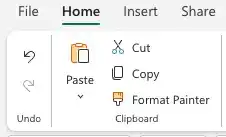
- Click the Undo button on the Ribbon, Home, Undo to undo the action.
- Click the Redo button on the Ribbon, Home, Undo to restore the change.
Check spelling in a worksheet
Click Spelling. For the first misspelled word, do one of the following:
- Click a word from the Suggestions list.
- Click Ignore Once to ignore this occurrence and move to the next misspelled word.
- Click Ignore All to ignore all occurrences of the word.
- Click the word with which you want to replace the misspelled word and click Change All.
- Repeat step 2 until you have checked spelling for the entire worksheet.
- Click Close.
Feedback
Was this page helpful?