Work with data
Find and replace data
Excel worksheets can hold over a million rows, making it impractical to scroll through each row manually. Instead, use the Find and Replace dialog box, which has two tabs—Find and Replace. The Find tab locates cells with specific values, while Replace lets you substitute one value for another.
For more precise searches, like finding cells with an exact match, expand the Find and Replace dialog to show additional options.
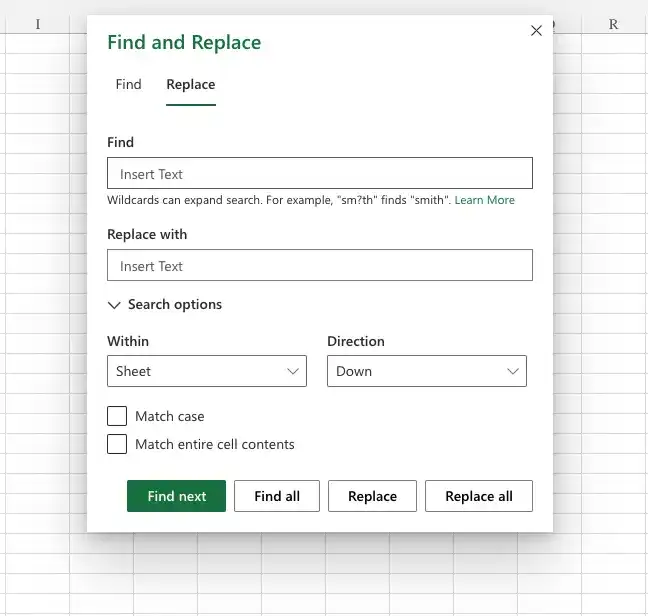
The following table summarizes the elements of the Find And Replace dialog box.
Find
Containes the value you want to find or replace
Replace with
Contains the value to overwrite the value in the Find field
Search options
Expands the Find and Replace dialog box to display additional capabilities
Match Case check box
When selected, requires that all matches have the same capitalization as the text in the Find field
Match Entire Cell Contents check box
Requires that the cell contain exactly the same value as in the Find field
Find Next button
Select the next cell that contains the value in the Find field
Find All button
Select every cell that contains the value in the Find field
Replace button
Replaces the highlighted occurrence of the value in the Find field and highlights the next cell that contains that value
Replace All button
Replace every instance of the value in the Find field with the value in the Replace field
Edit a cell’s contents
Do any of the following:
- Click the cell, enter a new value, and press Enter.
- Click the cell, edit the value on the formula bar, and press Enter.
- Double-click the cell, edit the value in the body of the cell, and press Enter.
Edit part of a cell’s contents
Click the cell.
- Edit the part of the cell’s value that you want to change on the formula bar.
- Press Enter.
Or
- Double-click the cell.
- Edit the part of the cell’s value that you want to change in the body of the cell.
- Press Enter.
Find the next occurrence of a value in a worksheet
- On the Home tab, in the Editing group, click the Find & Select button to display a menu of choices, and then click Find.
- In the Find what box, enter the value you want to find.
- Click Find Next.

Find all instances of a value in a worksheet
- On the Find & Select menu, click Find.
- In the Find what box, enter the value you want to find.
- Click Find All.
Replace a value with another value
- On the Find & Select menu, click Replace.
- In the Find what box, enter the value you want to change.
- In the Replace with box, enter the value you want to replace the value from the Find what box.
- Click the Replace button to replace the next occurrence of the value.
Or
- Click the Replace All button to replace all occurrences of the value.
Require Find or Replace to match an entire cell’s contents
- On the Find & Select menu, click either Find or Replace.
- Set your Find or Replace values.
- Click Options.
- Select the Match entire cell contents check box.
Complete the find or replace operation.
Require Find or Replace to match cell contents, including uppercase and lowercase letters
- On the Find & Select menu, click either Find or Replace.
- Set your Find or Replace values.
- Click Options.
- Select the Match case check box.
- Complete the find or replace operation.
Find or replace formats
- On the Find & Select menu, click either Find or Replace.
- Set your Find or Replace values.
- Click Options.
- Click the Find what row’s Format button, set a format by using the Find Format dialog box, and click OK.
- If you want to perform a Replace operation, click the Replace with row’s Format button, set a format by using the Find Format dialog box, and click OK.
- Finish your find or replace operation.
Feedback
Was this page helpful?