Limit data that appears on your screen
Excel worksheets can store vast amounts of data, but you may not always need to work with all of it simultaneously. For instance, you might want to view your company's revenue figures for the first, second, and final thirds of a month separately. You can limit the data displayed on a worksheet by creating a filter, which is a rule that selects specific rows to be shown.
When you enable filtering, Excel treats the cells in the active cell’s column as a range. To ensure proper filtering, always have a label at the top of the column you want to filter. Without a label, Excel will treat the first value in the list as the label and exclude it from the list of values you can use to filter the data.
When you enable filtering, a filter arrow appears next to each column label in the data list. Clicking the filter arrow opens a menu with filtering options and a list of unique values in the column. Each item has a checkbox that you can use to create a selection filter. Some commands vary based on the data type in the column. For instance, if the column contains dates, you will see commands specific to date filtering.
In Excel tables, filter arrows are turned on by default.
When a column contains several types of data, the filter command for it is Number Filters.
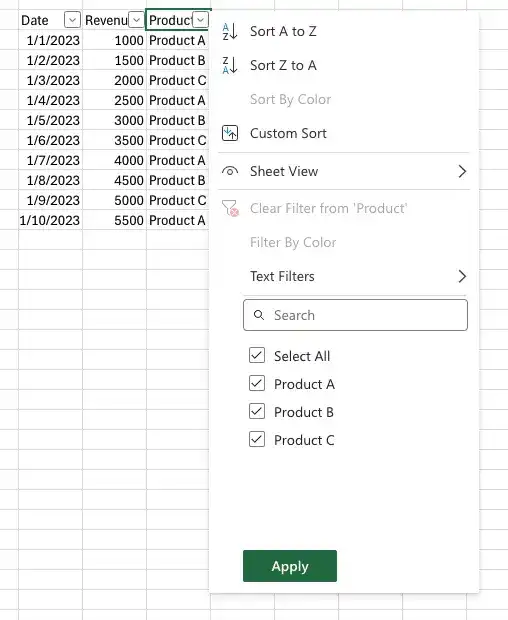
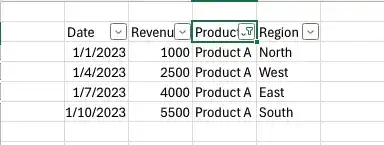
When you click a filtering option, Excel displays a dialog box in which you can define the filter’s criteria. As an example, you could create a filter that displays only dates for Product A.
To display the highest or lowest values in a data column, you can create a Top 10 filter. This filter allows you to choose whether to show values from the top or bottom of the list, specify the number of items to display, and decide whether that number represents the actual count of items or a percentage of the total items.
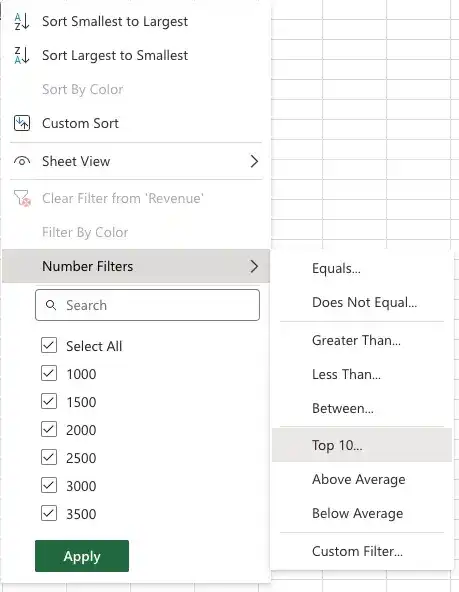
Top 10 filters can be applied only to columns that contain number values.
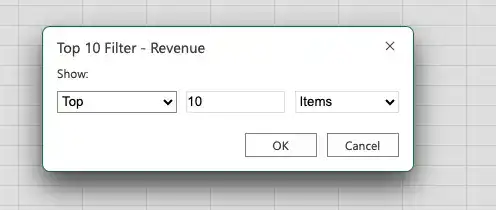
When you apply a Top 10 filter, Excel displays a dialog box where you can specify the filter’s criteria.
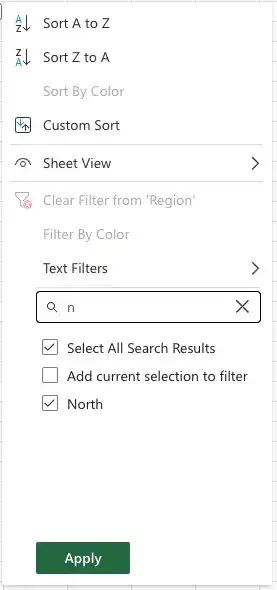
Excel includes a feature called the search filter, which allows you to enter a search string to identify items to display in an Excel table or data list. By entering the desired character string, Excel filters the data to show only the values that contain that string.
When you create a custom filter, you can define a rule that Excel uses to decide which rows to show after the filter is applied. For instance, you can create a rule to display only days with production volumes of less than 10,000. With these results, you might determine whether weather or other factors contributed to slower business on those days.
Excel indicates that a column has a filter applied by changing the appearance of the column’s filter arrow to include a funnel icon. After examining your data using a filter, you can clear the filter or turn off filtering entirely to hide the filter arrows.
Turn on filter arrows
- Click any cell in the list of data you want to filter
- On the Home tab of the ribbon, in the Editing group, click Sort & Filter, and then click Filter
Or
- On the Data tab of the ribbon, in the Sort & Filter group, click Filter
Create a selection filter
- Click Sort & Filter, and then click Filter.
- Click the filter arrow for the column by which you want to filter your data.
- Clear the check boxes next to the items you want to hide.
Or
- Clear the Select All check box and select the check boxes next to the items you want to display.
- Click Apply
Create a filter rule
- Display the filter arrows for your list of data.
- Click the filter arrow for the field by which you want to filter your data.
- Point to the Type Filters item to display the available filters for the column’s data type.
- Click the filter you want to create.
- Enter the arguments required to define the rule.
- Click Apply
Create a Top 10 filter
- Display the filter arrows for your list of data.
- Click the filter arrow for a column that contains number values, point to Number Filters, and then click Top 10.
- In the Top 10 AutoFilter dialog box, click the arrow for the first list box, and select whether to display the top or bottom values.
- Click the arrow for the last list box, and select whether to base the rule on the number of items or the percentage of items.
- Click in the middle box and enter the number or percentage of items to display.
- Click Apply
Create a search filter
- Display the filter arrows for your list of data.
- Click the filter arrow for the field by which you want to filter your data.
- Enter the character string that should appear in the values you want to display in the filter list.
- Click Apply.
Clear a filter
- Click the filter arrow for the field that has the filter you want to clear.
- Click Clear Filter From Field.
Turn off filter arrows
- Click any cell in the list of data.
- Click Sort & Filter, and then click Filter.
Feedback
Was this page helpful?