Look up information in a worksheet
Whenever you create a worksheet containing a list of distinct items, such as products offered by a company, ensure that at least one column has a unique value distinguishing each row (and the item it represents) from every other row. This unique value allows you to associate data in one list with data in another. For example, assigning each customer a unique ID number lets you store their contact information in one worksheet and their orders in another. You can then link the customer's orders with their contact information without duplicating the contact details in every order.
Technically, the column with a unique value for each row is called the primary key column. When looking up information in an Excel worksheet, it is useful to place the primary key column as the first column in your data list.
If you know an item's primary key value, finding it in a list of 30 or 40 items is easy. However, in a list of thousands of items, manually searching would be time-consuming. Instead, you can use the VLOOKUP function to quickly find the value you need.
The VLOOKUP function finds a value in the leftmost column of a named range, such as a table, and then returns the value from the specified cell to the right of the cell with the found value. A properly formed VLOOKUP function has four arguments (data that is passed to the function), as shown in the following definition: =VLOOKUP(lookup_value, table_array, col_index_num, range_lookup).
The following table summarizes the values Excel expects for each of these arguments.
When range_lookup is left blank or set to TRUE, for VLOOKUP to work properly, the rows in the named range specified in the table_array argument must be sorted in ascending order based on the values in the leftmost column of the named range.
The VLOOKUP function works a bit differently depending on whether the range_lookup argument is set to TRUE or FALSE. The following list summarizes how the function works based on the value of range_lookup:
- If the range_lookup argument is left blank or set to TRUE, and VLOOKUP doesn’t find an exact match for lookup_value, the function returns the largest value that is less than lookup_value.
- If the range_lookup argument is left blank or set to TRUE, and lookup_value is smaller than the smallest value in the named range, an #N/A error is returned.
- If the range_lookup argument is left blank or set to TRUE, and lookup_value is larger than all values in the named range, the largest value in the named range is returned.
- If the range_lookup argument is set to FALSE, and VLOOKUP doesn’t find an exact match for lookup_value, the function returns an #N/A error.
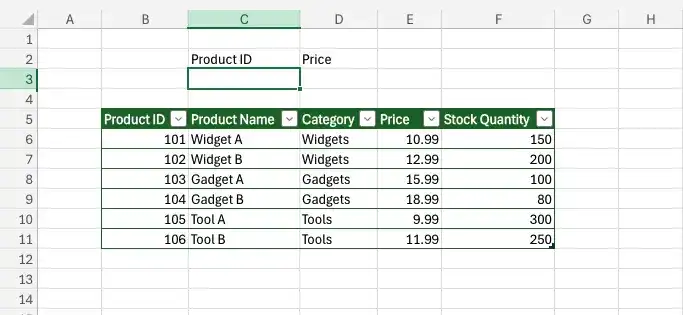
As an example of a VLOOKUP function, consider the following data:
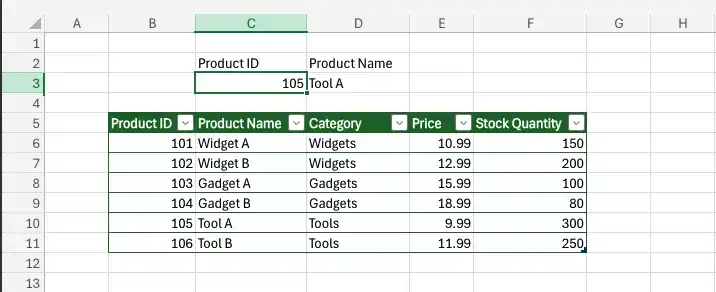
If the =VLOOKUP(C3,B6:F11,2,FALSE) formula is used, when you enter 105 in cell C3 and press Enter, the VLOOKUP function searches the first column of the table, finds an exact match, and returns the value Tool A to cell D3.
Be sure to give the cell in which you type the VLOOKUP formula the same format as the data you want the formula to display. For example, if you create a VLOOKUP formula in cell H14 that finds a date, you must apply a date cell format to cell H14 for the result of the formula to display properly.
The related HLOOKUP function matches a value in a column of the first row of a table and returns the value in the specified row number of the same column. The letter H in the HLOOKUP function name refers to the horizontal layout of the data, just as the V in the VLOOKUP function name refers to the data’s vertical layout. For more information on using the HLOOKUP function, click the Excel Help button, enter HLOOKUP in the search terms box, and then click Search.
Look up worksheet values by using VLOOKUP
- Ensure that the data list includes a unique value in each cell of the leftmost column and that the values are sorted in ascending order.
- In the cell where you want to enter the VLOOKUP formula, enter a formula of the form =VLOOKUP(lookup_value, table_array, col_index_num, range_lookup).
- Enter TRUE for the range_lookup argument to allow an approximate match.
Or
Enter FALSE for the range_lookup argument to require an exact match.
- Enter a lookup value in the cell named in the VLOOKUP formula’s first argument, and press Enter.
Feedback
Was this page helpful?