Format Pivot Tables
PivotTables are excellent tools for summarizing and analyzing large datasets, even those with over 10,000 rows. While PivotTables often result in compact summaries, it's important to enhance data readability. One way to do this is by applying a number format to the PivotTable Values field.
For more information about selecting and defining cell formats by using the Format Cells dialog box, see Format cells
Analysts frequently use PivotTables to summarize and analyze organizational data for making key decisions. Excel enhances PivotTable functionality by allowing you to apply conditional formatting to PivotTable cells. You can choose to apply the conditional format to every cell in the Values area, to every cell at the same level as the selected cell (such as a regular data cell, a subtotal cell, or a grand total cell), or to every cell that contains or derives its values from the selected cell’s field.
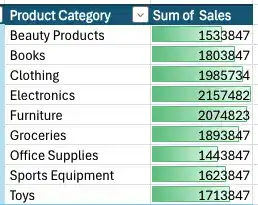
Apply a conditional format to a PivotTable
- Click any cell in the PivotTable.
- On the Home tab, in the Styles group, click Conditional Formatting button and define the conditional format you want to apply.
Apply an existing PivotTable style
- click any cell in the PivotTable.
- in the PivotTable Styles gallery, click the style you want to apply.
Feedback
Was this page helpful?