Work with data
Manage data by using Flash Fill
When you manage data in Excel, you will often find that you want to combine values from several cells into a single value.
For example, you can have client's first name and last name in separated cells.

In this example, the clients’ names appear in two columns: LastName, FirstName. You could combine the names manually or by creating a formula, but Flash Fill can figure out the pattern if you give it a few examples.
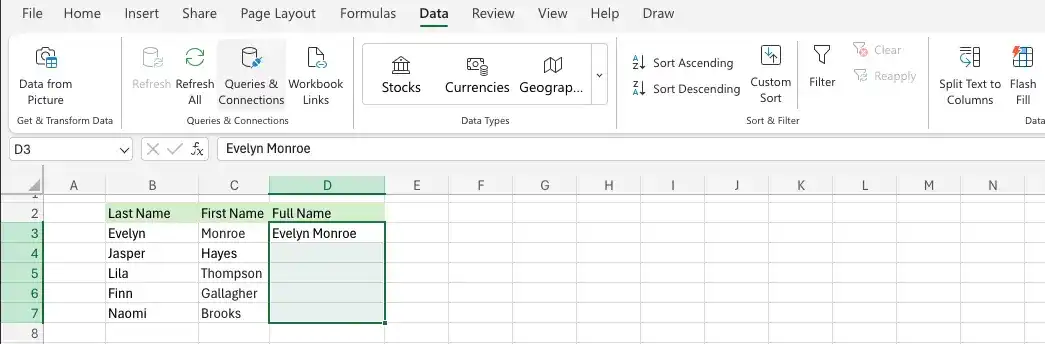
In D3 write the full name

Select all the cells where do you want that the system to insert data and click "Flash Fill" button from the Ribbon.
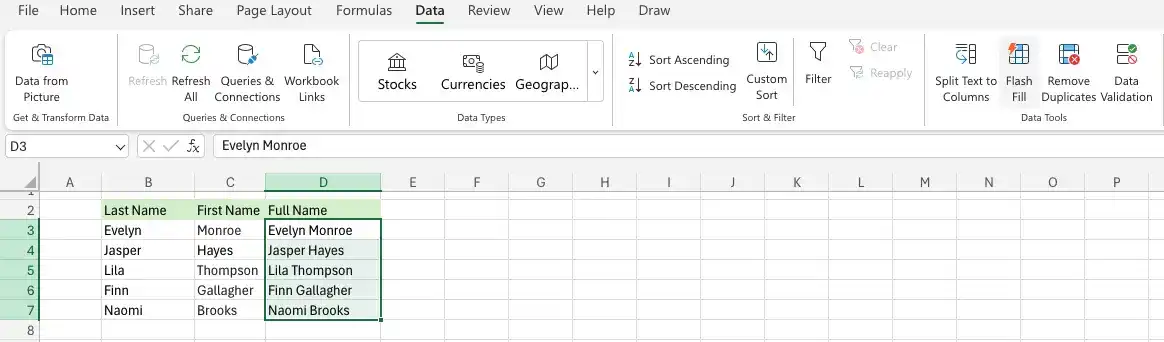
The system will insert the data according to the pattern.
Feedback
Was this page helpful?