Create shapes
You can augment your worksheets by adding objects such as geometric shapes, lines, flowchart, symbols, and banners.
After you create a shape, you can use the controls on the Shape tab to change its formatting. You can apply predefined styles or use the Shape Fill, Shape Outline options to change those aspects of the shape’s appearance.
If you want to use a shape as a label or header in a worksheet, you can add text to the shape’s interior by double clicking the shape and typing. If you want to edit a shape’s text, point to the text. When the mouse pointer is in position, it will change from a white pointer with a four-pointed arrow to a I-bar. You can then click the text to start editing it or change its formatting.
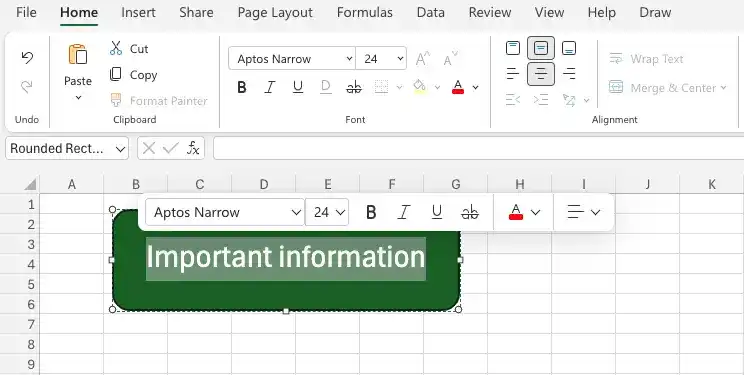
You can move a shape within your worksheet by dragging it to a new position.
When you have multiple shapes on a worksheet, Excel arranges them from front to back, with newer shapes placed in front of older shapes. To change the order of shapes, you can use the Bring Forward and Send Backward options on the Shape tab. You can also use the Bring to Front and Send to Back options to move a shape to the front or back of the worksheet.
Add a shape to a worksheet
- On the Insert tab, in the Illustrations group, click the Shapes button to display the Shapes list.
- Click the shape you want to add.
Move a shape
- Click the shape you want to move and drag it to its new location.
Resize a shape
- Grab a handle on a corner or edge of the shape to move one or more edges.
Rotate a shape
- Drag the rotate handle (it looks like a clockwise-pointing circular arrow) above the shape to a new position.
Change shape formatting
- Click the shape you want to format.
- Use the tools on the Shape tab to change the shape’s appearance
Add text to a shape
- Click the shape.
- Enter the text you want to appear in the shape.
- Click outside the shape to stop editing its text.
Edit shape text
- Point to the text in the shape. When the mouse pointer changes to a thin I-bar, click once.
- Edit the shape’s text.
- Click outside the shape to stop editing its text.
Format shape text
- Point to the text in the shape. When the mouse pointer changes to a thin I-bar, click once.
- Select the text you want to edit.
- Use the tools on the mini toolbar and the Home tab of the ribbon to format the text.
- Click outside the shape to stop editing its text.
Change the order of shapes
- Click the shape you want to move.
- On the Shape tab, in the Arrange group, click the Bring Forward or Send Backward button.
Delete a shape
- Click the shape you want to delete.
- Press the Delete key.
Feedback
Was this page helpful?