Filter, show, and hide PivotTable data
PivotTables often summarize huge data sets in a relatively small worksheet. The more details you can capture and write to a table, the more flexibility you have in analyzing the data. As an example, consider sales on a daily basis. We can have product category, date, year, month, week, day, and sales amount. You could filter this data to only display values for Sundays.
More information about filtering data in Excel can be found in the
Limit data that appears on your screen, create a filter rule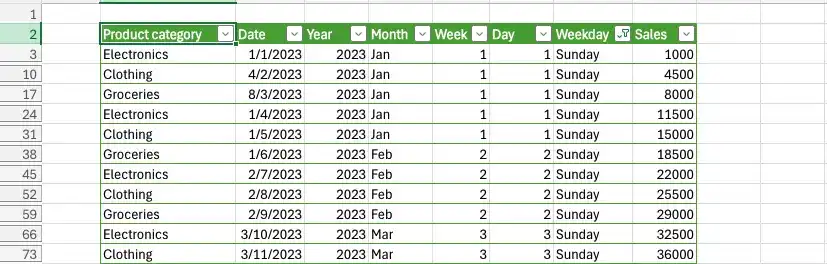
Just as you can filter the data that appears in an Excel table or other data collection, you can filter the data displayed in a PivotTable by selecting which values you want the PivotTable to include.
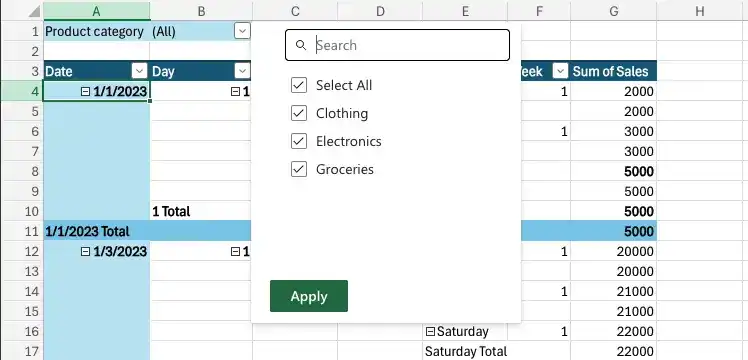
Clicking the column header in the PivotTable shows sorting options, filter commands for different categories, and a list of items in the field you want to filter. Each item has a check box next to it. Items with selected check boxes are displayed in the PivotTable, while items with cleared check boxes are hidden.
At the top of the list is the Select All check box, which can be in one of three states: selected (check mark), partially selected (black square), or cleared. If selected, all items in the list are displayed. If cleared, no items are selected. If partially selected, some items are displayed. For example, selecting only the Clothing check box will display only the data for the Clothing category in the PivotTable.

If you prefer to display PivotTable data across the entire worksheet, you can hide the PivotTable Fields pane and use the filter arrows on the Row Labels and Column Labels headers within the PivotTable. Excel shows that a PivotTable has filters applied by placing a filter indicator next to the Column Labels or Row Labels header and next to the filtered field name in the PivotTable Fields pane.
Filtering the PivotTable by different fields can change the data organization. However, adding certain fields might create unwanted complexity. For instance, filtering by month might expand the PivotTable unnecessarily if the Month field is added to the body of the table.

Instead of adding the Month field to the Rows or Columns area, adding the field to the Filters area leaves the body of the PivotTable unchanged, but adds a new filter control above the PivotTable in its worksheet. When you click the filter arrow of a field in the Filters area, Excel displays a list of the values in the field. You can choose to filter based on one or more values.

If your PivotTable has multiple fields in the Rows area of the PivotTable Fields pane, you can filter values by hiding or collapsing levels of detail within the report. To do this, click the Hide Detail control (a box with a minus sign) or the Show Detail control (a box with a plus sign) next to a header.
Excel provides two other ways for you to filter PivotTables: search filters and Slicers.
By using a search filter, you can enter a series of characters for Excel to use to filter that field’s values.

Search filters look for the character string you specify anywhere within a field’s value, not just at the start of the value. In the previous example, the search filter string “ro” would return both Electronics and Groceries.
When you’re ready to create a Slicer, you display the Insert Slicers dialog box and select the data you want to filter.
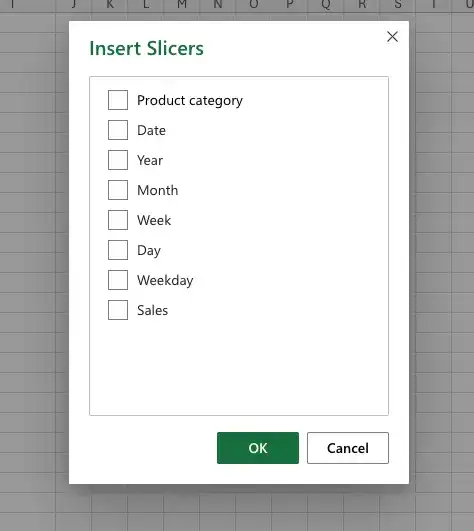
After you make your selections, Excel displays a Slicer for each field you identified.
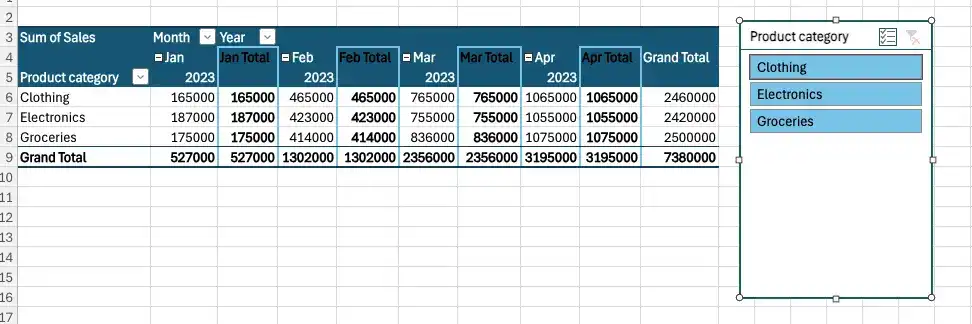
If you have already applied a filter to the field for which you display a Slicer, the Slicer reflects the filter’s result.
A Slicer shows the values within the PivotTable field you selected. Values displayed in color (or gray in a gray-and-white scheme) appear in the PivotTable, while values in light gray or white do not. Clicking an item in a Slicer toggles its state—if the value is displayed, clicking it hides it, and if it is hidden, clicking it displays it. You can use the Shift and Ctrl keys to define multiple selections.
Clicking a value creates a filter that limits the displayed data to that value, and clicking a selected value removes it from the filter. To display values related to multiple items, click the Multi-Select button on the Slicer’s title bar.

Now when you click additional items, Excel adds them to the Slicer instead of replacing the original selection. You can also select multiple values by holding down the Ctrl key and clicking individual values, or by holding down the Shift key and clicking two values in sequence, which selects the two values you clicked and all values between them.
As with other drawing objects in Excel, you can move and resize the Slicer as needed. When you’re done filtering values, you can clear the Slicer filter and get rid of the Slicer entirely.
You can change a Slicer’s formatting by clicking the Slicer and then, on the Slicer Tools Options tool tab on the ribbon, clicking a style in the Slicer Styles gallery.
Filter a PivotTable by using the values in a field
- In the body of a PivotTable, click the filter arrow at the right edge of a field header.
- Use the controls in the filter list to create your filter.
Hide the PivotTable Fields pane
- Click the Close button in the upper-right corner of the PivotTable Fields pane.
Show the PivotTable Fields task pane
- Click a cell in the body of the PivotTable.
- On the PivotTable Tools Analyze tool tab, in the Show group, click Field List.
or
- right click in the PivotTable.
- Click Show Field List.
Filter a PivotTable by using a field in the Filters area of the PivotTable Fields pane
- Display the PivotTable Fields pane.
- Drag a field to the Filters area.
- In the Filter area of the PivotTable, click the field’s filter arrow.
- Click the value by which you want to filter.
Hide a level of detail in a PivotTable
- Click the Hide Detail control next to a PivotTable field’s row header.
Show a level of detail in a PivotTable
- Click the Show Detail control next to a PivotTable field header.
Add a Slicer to your workbook
- Click a cell in the body of the PivotTable.
- On the Analyze tool tab, in the Filter group, click the Insert Slicer button.
- In the Insert Slicers dialog box, select the check box next to the field for which you want to create a Slicer.
Select multiple values in a Slicer filter
- Click the Multi-Select button on the Slicer’s title bar.
- Click the values you want to select.
Filter a field by using a Slicer
- Click the single value you want to display.
- Hold down the Ctrl key and click the values you want to display.
- Hold down the Shift key and click two values to display those values and all values between them.
Clear a Slicer filter
- On the Slicer title bar, click the Clear Filter button.
Change the appearance of a Slicer
- Right-click the Slicer’s title bar and then click Slicer Settings.
- Use the settings in the Format Slicer pane to change the Slicer’s appearance.
- Click the pane’s Close button to close it and apply the changes.
Remove a Slicer from your workbook
- Right-click the Slicer and then click Remove field.
Feedback
Was this page helpful?