Make numbers easier to read
Changing the format of cells in your worksheet can significantly enhance data readability. This can be achieved by distinguishing data labels from the actual data and adding borders to clearly define boundaries. However, formatting options for font and appearance do not address specific data types like dates, phone numbers, or currency values.
For instance, US phone numbers, which are 10 digits long, are typically formatted as (###) ###-####. While you can manually enter a phone number in this format, it is easier to input a 10-digit sequence and let Excel format it automatically. You can observe this by comparing the active cell's content with the formula box when the Phone Number format is applied.
If you enter a 9-digit number in a phone number field, Excel will display it with a 2-digit area code (e.g., 524560013 becomes (52) 456-0013). An 11-digit number will show a 4-digit area code. Incorrect phone number formatting usually indicates a missing or extra digit, so verify your entry.
Similarly, you can set Excel to expect dates or currency amounts in cells. Excel offers various date, currency, and other formats to match your worksheet's content, company standards, and user expectations.
To apply common formats, go to the Home tab and use the Number group to click a built-in format button or select a format from the Number Format list.
You can also create custom numeric formats to add specific words or phrases to numbers. For example, you can append "per month" to a cell showing average monthly sales, ensuring clarity. If a built-in format is similar to your desired custom format, you can modify it to suit your needs.
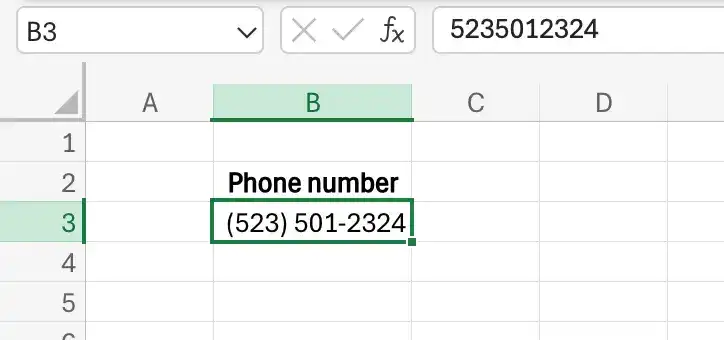
Apply a special number format
- Select the cells to which you want to apply the format.
- On the Home tab, in the Number group, click the Number Format arrow, and then click More Number Formats.
- In the Format Cells dialog box, in the Category list, click Special.
- In the Type list, click the format you want to apply.
Create a custom number format
- On the Number Format menu, click More Number Formats.
- In the Format Cells dialog box, in the Category list, click Custom.
- Click the format you want to use as the base for your new format.
Feedback
Was this page helpful?