Manage Comments
Excel allows you and your colleagues to insert comments in workbook cells, providing additional insights beyond the cell data. When a comment is added to a cell, a flag appears in the upper-right corner. Hovering over the cell displays the comment in a box next to the cell, along with the user name of the person who created the comment.
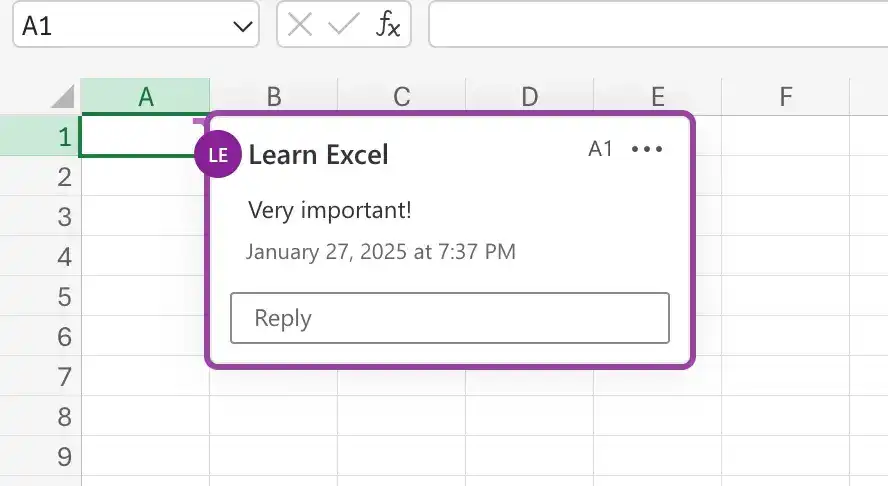
Note that the name attributed to a comment might not always match the person who actually created it. Access controls, such as requiring users to enter account names and passwords when accessing a computer, can help track who made a comment or change.
Normally, Excel only displays a cell’s comment when you point to the cell. You can change this behavior to display an individual comment or show all comments within a worksheet. Additionally, you can edit or delete comments as needed.
When someone other than the original user edits a comment, that person’s input is marked with the new user’s name and is added to the original comment.
You can control whether a cell displays just the comment indicator or the indicator and the comment itself. Also, if you’ve just begun to review a worksheet, you can display all of the comments on the sheet or move through them one at a time.
Add a comment to a cell
- Click the cell where you want to add a comment.
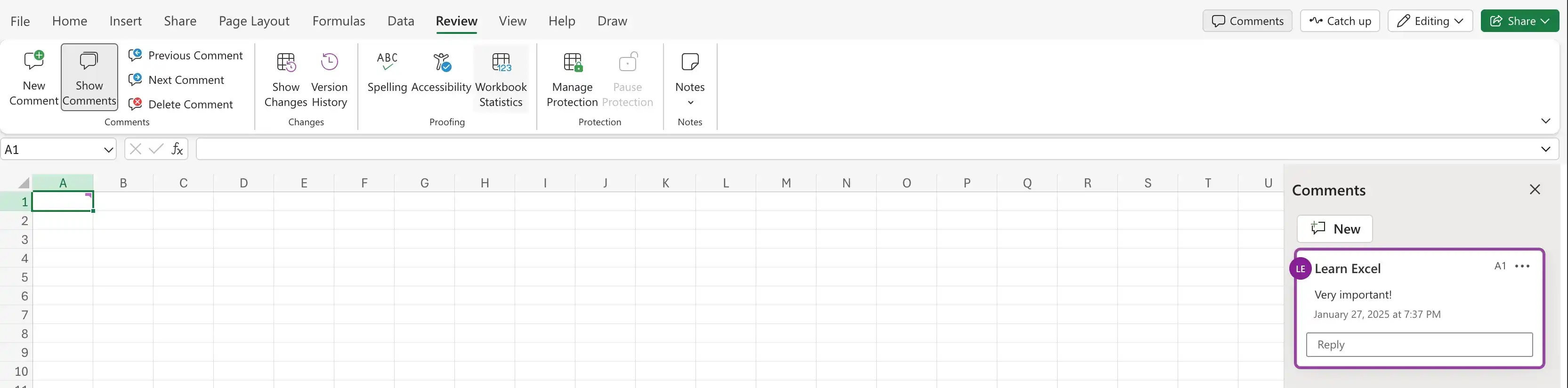
- On the Review tab of the ribbon, in the Comments group, click New Comment.
Or
- Right-click the cell, and then click New Comment.
- In the comment box that appears, enter a comment.
- Click on Post comment button.
Display a comment
- Point to the cell that contains the comment.
Show or hide a comment
- Click the cell that contains the comment.
- On the Review tab of the ribbon, in the Comments group, click Show Comments.
Edit a comment
- Click the cell that contains the comment.
- On the Review tab of the ribbon, in the Comments group, click Show Comments.
- Click the comment you want to edit.
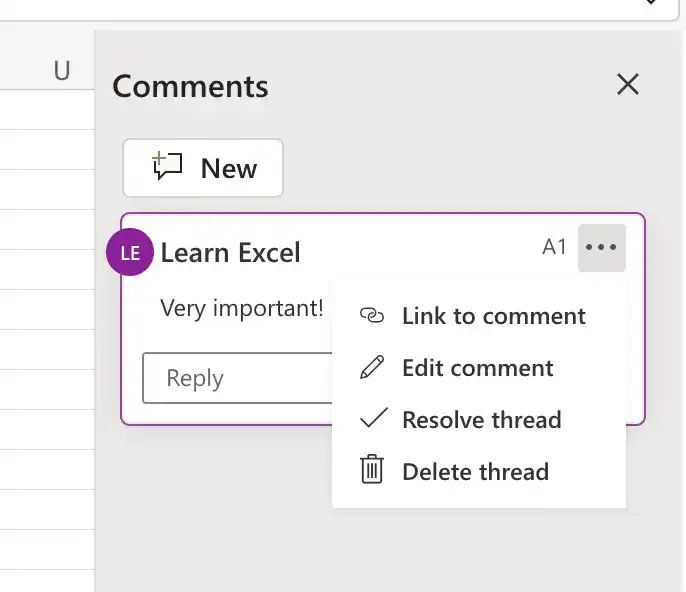
- In the right corner of the comment box, click More button.
- Select Edit Comment.
- Make your changes, and then click Post comment.
Delete a comment
- Click the cell that contains the comment.
- On the Review tab of the ribbon, in the Comments group, click Delete Comment.
Or
- Click the cell that contains the comment.
- Right click, select Comment, and then click Delete Comment.
Display all comments in a worksheet
- On the Review tab of the ribbon, in the Comments group, click Show Comments.
Feedback
Was this page helpful?