Merge and unmerge cells
Most Excel worksheets contain data about a specific subject. One of the best ways to communicate the contents of a worksheet is to use a label.
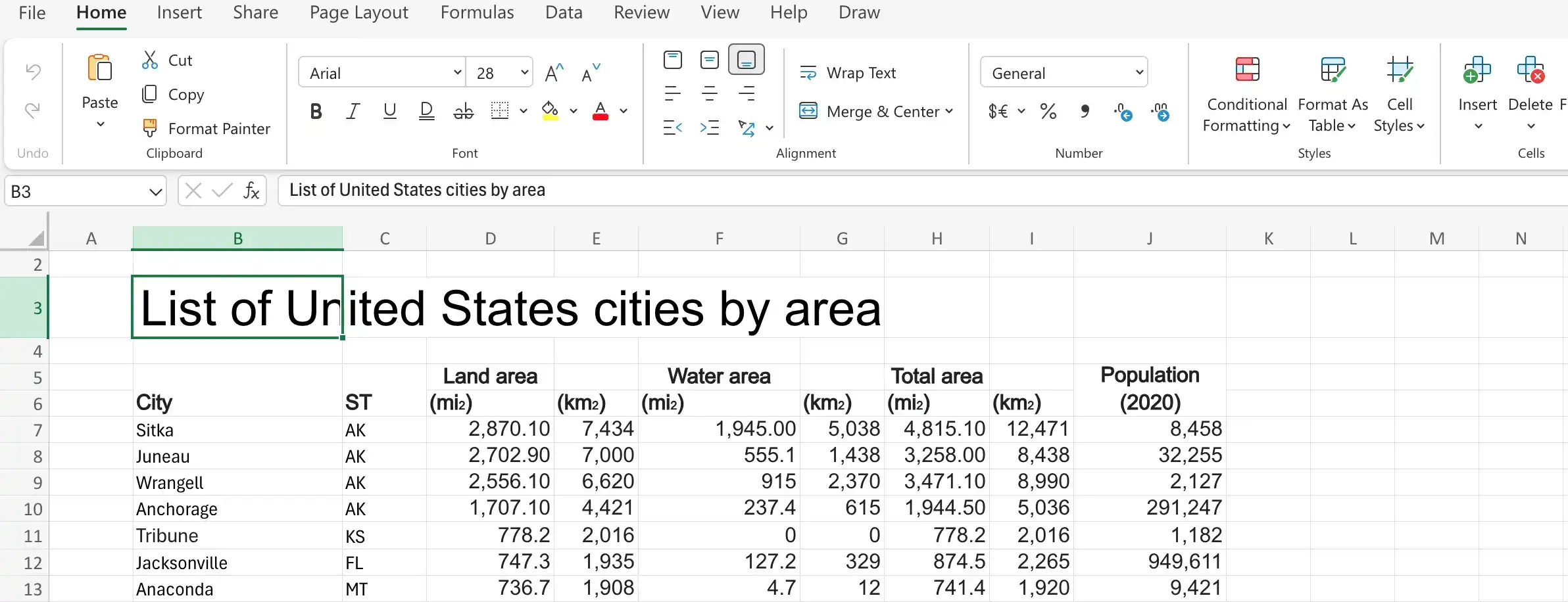
For example, consider a worksheet in which the label text List of United States cities by area appears to span three cells, B3:G3, but is in fact contained within cell B3. If you select cell B3, Excel highlights the cell’s border, which obscures the text.
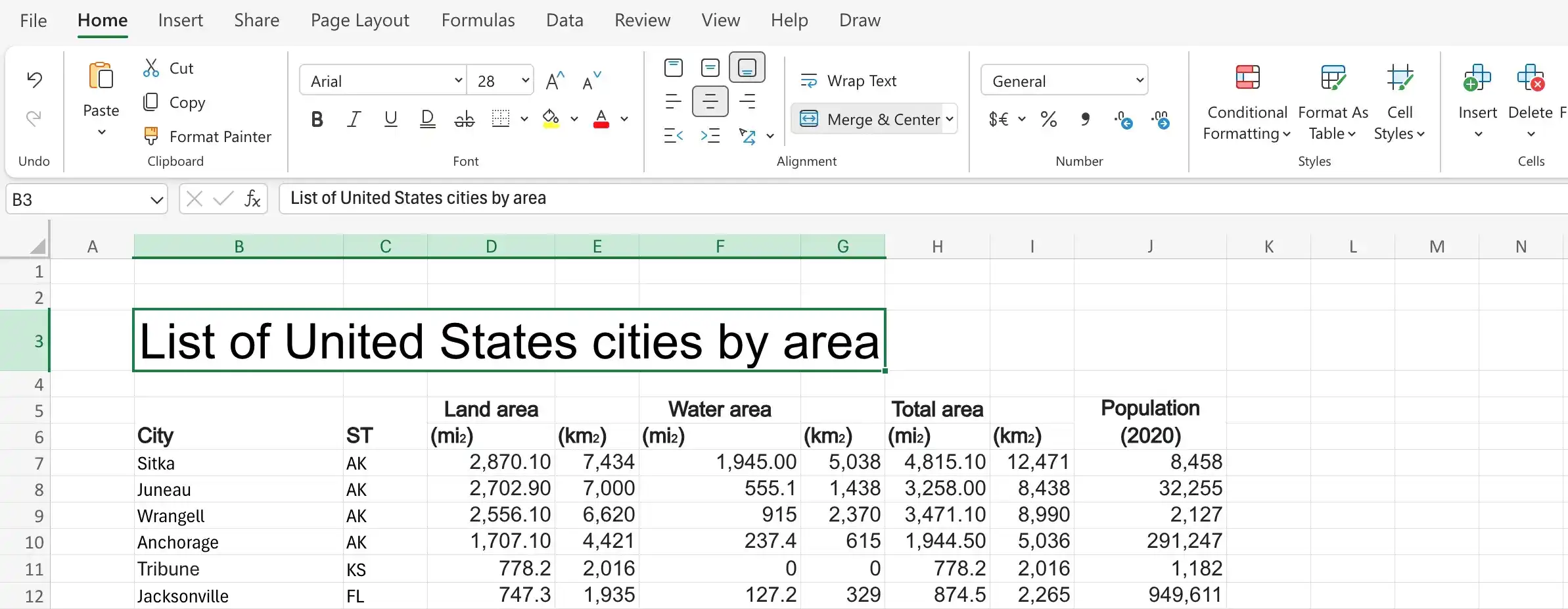
If you want to combine cells B3:G3 into a single cell, you can do so by merging the cells into a single cell.
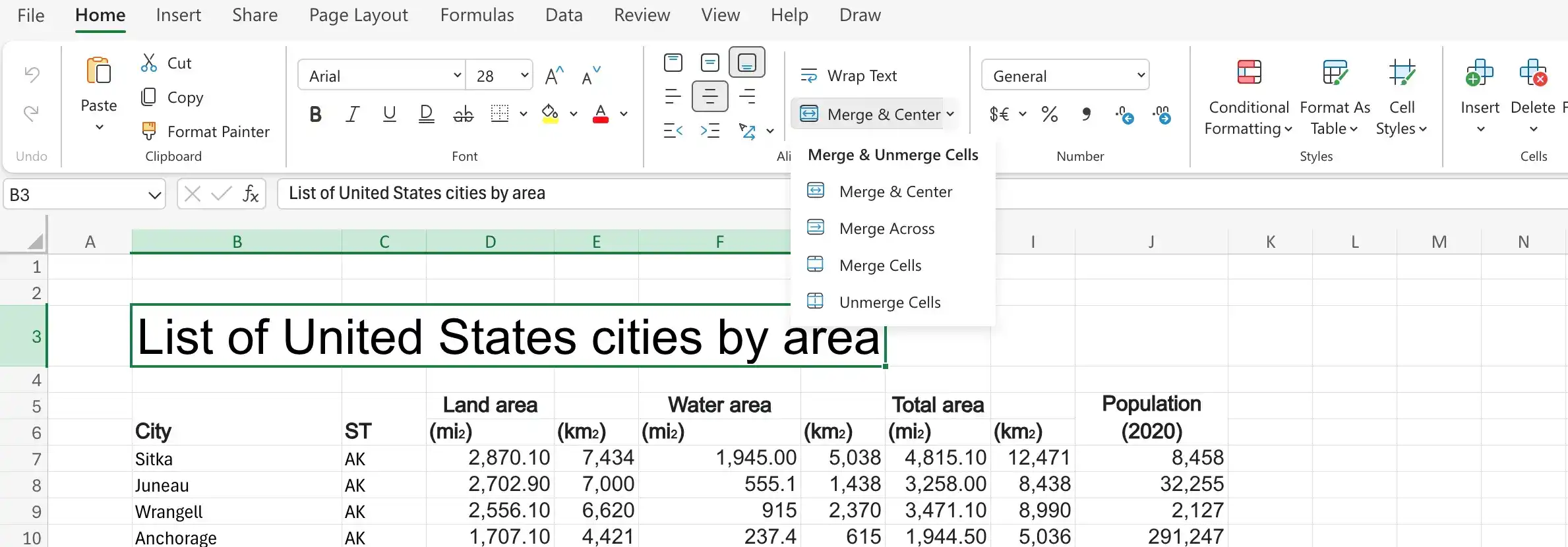
When you click the Merge & Center button, a list of options appears. In addition to merging cells, you can click Merge & Center to combine the selected cells into a single cell and center the text within the merged cell.
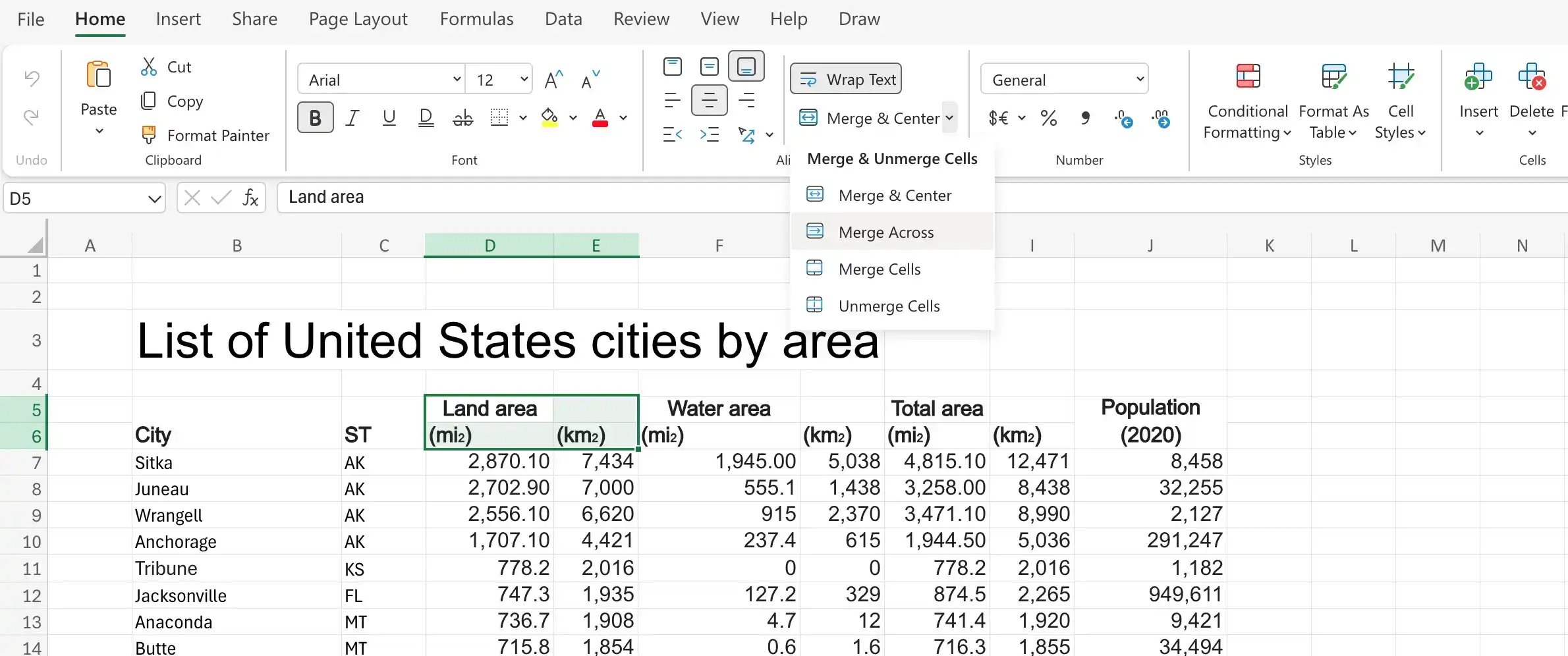
You can also merge the cells in multiple rows at the same time by using Merge Across.
Selecting the header cells, clicking the Home tab, clicking Merge & Center, and then clicking either Merge & Center or Merge Cells will delete any text that is not in the upper-left cell of the selected range.
If you want to split merged cells into their individual cells, you can always unmerge them.
Merge cells
- Select the cells you want to merge.
- On the Home tab, in the Alignment group, click the Merge & Center arrow (not the button), and then click Merge Cells.
Merge and center cells
- Select the cells you want to merge.
- Click the Merge & Center arrow (not the button), and then click Merge & Center.
Merge cells in multiple rows by using Merge Across
- Select the cells you want to merge.
- Click the Merge & Center arrow (not the button), and then click Merge Across.
Split merged cells into individual cells
- Select the cells you want to merge.
- Click the Merge & Center arrow (not the button), and then click Unmerge Cells.
Feedback
Was this page helpful?