Move data within a workbook
To move to a cell, click on it to make it the active cell, which is outlined in green and shows its contents in the formula bar. To select multiple cells (a range), click and drag, then you can cut, copy, delete, or format as needed.
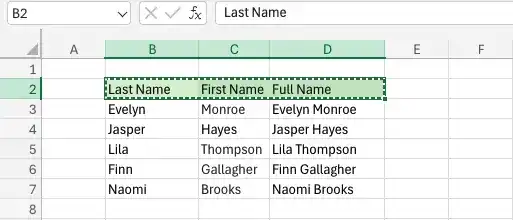
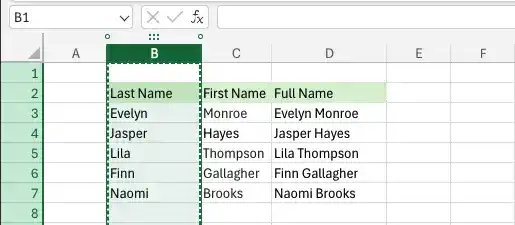
To move an entire column or row, click its header to highlight it. This allows you to copy or cut the entire column or row and paste it elsewhere.
After copying or cutting you can paste.
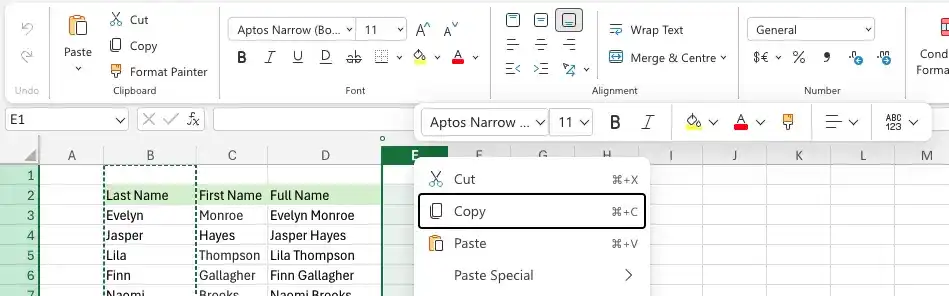
There are two options: 'Paste' and 'Paste Special'.
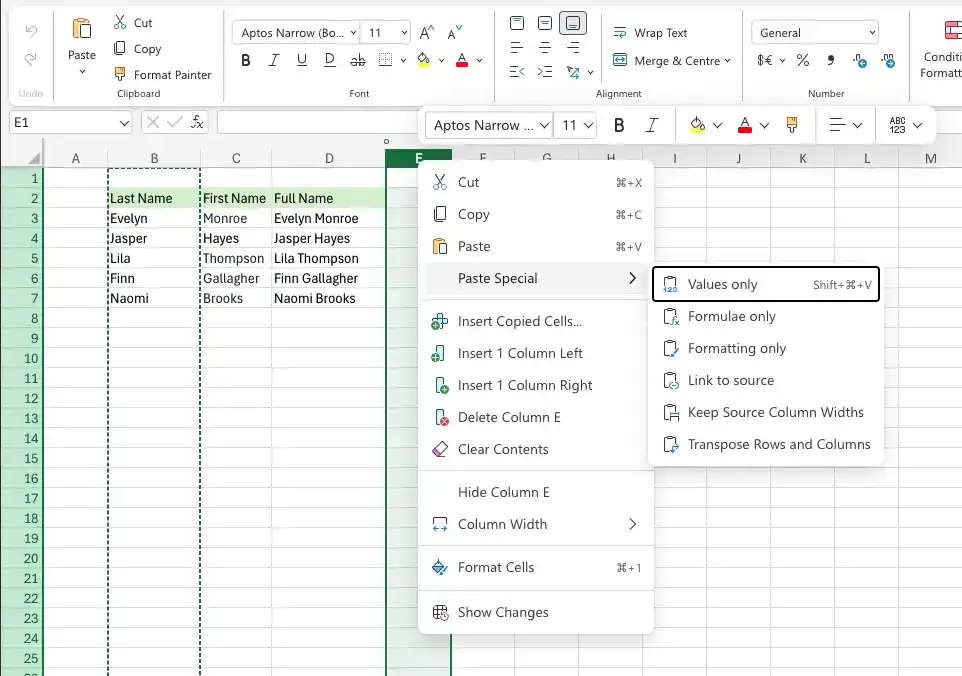
Select a cell or cell range
Click the first cell you want to select, and then drag to highlight the other cells you want to select.
Select disconnected groups of cells
- Select a cell range.
- Hold down the Ctrl key and select subsequent groups of cells.
Move a cell range
- Select a cell range.
- Point to the edge of the selection.
- Drag the range to its new location.
If you move the cell range to cover cells that already contain values, Excel displays a message box asking if you want to replace the existing data.

Select one or more rows
Do any of the following:
- At the left edge of the worksheet, click the row’s header.
- Click a row header and drag to select other row headers.
- Click a row header, press and hold the Ctrl key, and click the headers of other rows you want to copy. The rows do not need to be adjacent to the first row.
Select one or more columns
Do any of the following:
- At the top edge of the worksheet, click the column’s header.
- Click a column header and drag to select other column headers.
- Click a column header, press and hold the Ctrl key, and click the column headers of other columns you want to copy. The columns do not need to be adjacent to the first column.
Copy a cell range
- Select the cell range you want to copy.
- On the Home tab of the ribbon, in the Clipboard group, click Copy.
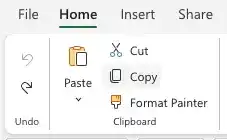
Or
Press Ctrl+C.
Cut a cell range
- Select the cell range you want to cut.
- In the Clipboard group, click Cut. Or Press Ctrl+X.
Paste a cell range
- Cut or copy a cell range.
- Click the cell in the upper-left corner of the range where you want the pasted range to appear.
- In the Clipboard group, click Paste.
Or
Press Ctrl+V.
Paste a cell range by using paste options
- Copy a cell range.
- Click the cell in the upper-left corner of the range where you want the pasted range to appear.
- In the Clipboard group, click the Paste arrow (not the button).
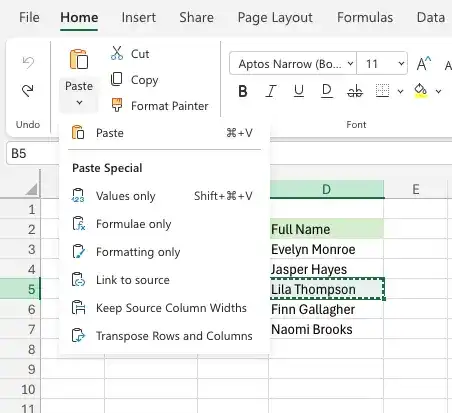
- Click the icon representing the paste operation you want to use.
Feedback
Was this page helpful?