Prepare worksheets for printing
When you are ready to print your workbook, you can adjust the workbook’s properties to ensure that your worksheets display all your information and that printing is centered on the page. In Excel, all these printing functions are conveniently located in the Backstage view.
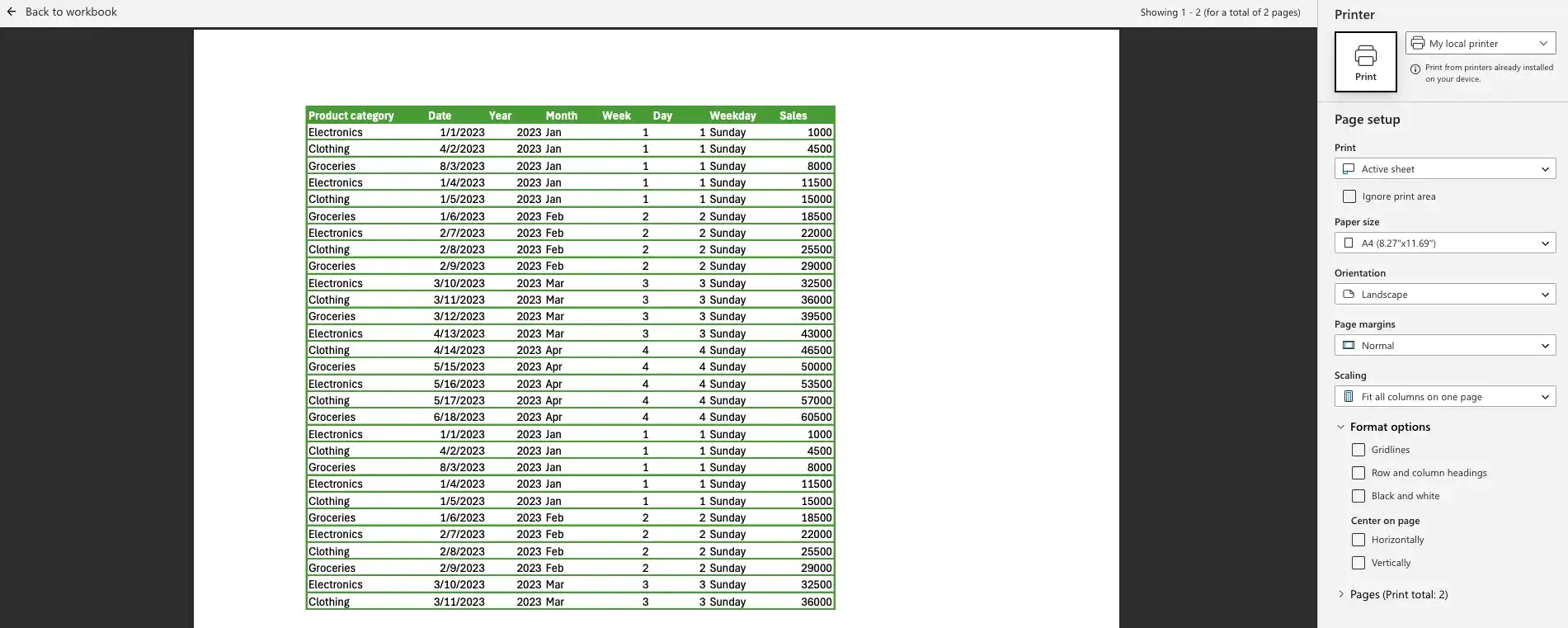
You can adjust the number of copies to print, select the printer, choose between landscape or portrait orientation, specify the paper size, set the margins, and scale the worksheet’s contents to fit a specific number of printed pages.
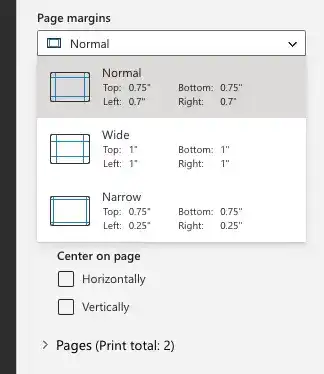
Fit your worksheet contents to the printed page. Excel comes with three margin settings: Normal, Wide, and Narrow. Excel applies the Normal setting by default, but you can select any of the three options you want, or you can set your own custom margins.
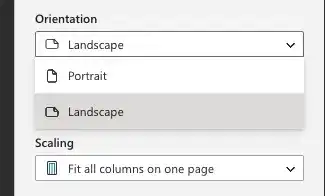
A common issue with printing worksheets is that the data often extends wider than a standard sheet of paper. To address this, you can change the alignment of the rows and columns on the page. When the columns run parallel to the long edge of the paper, the page is in portrait mode. When the columns run parallel to the short edge, the page is in landscape mode. Switching between portrait and landscape mode can help achieve a better fit.
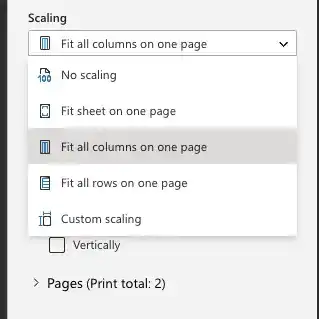
If changing the orientation doesn't fit your worksheet contents on a single page, you can adjust its scale. Scaling a worksheet for printing allows you to specify the number of printed pages the worksheet will occupy. You can scale your worksheet to fit everything on a specified number of pages, or specify the number of pages for the columns or rows. For example, if you have a list of data that is 15 columns wide and 100 rows long, you can scale it so that all columns fit on each page of your printout.
Select landscape or portrait mode for a printed worksheet
- Click the File tab and select Print.
- On the Print page, in the Settings section, click Orientation button.
- Select Portrait or Landscape.
Scale a worksheet for printing
- Click the File tab and select Print.
- On the Print page, in the Settings section, click the Scale and select option you want.
Change page breaks in a worksheet.
Another way to control how your worksheet appears on the printed page is by adjusting the page breaks. A page break is where Excel starts printing data on a new sheet of paper.
Add a page break to a worksheet
- Click the row or column header where you want to add the page break.
- Click the Page Layout tab.
- In the Page Setup group, click Breaks button and select Insert Page Break.
Remove a page break from a worksheet
- Click the row header below the page break.
- Click the Page Layout tab, and in the Page Setup group, click Breaks button and select Remove Page Break.
Reset all page breaks
- Click the Breaks button and select Reset All Page Breaks.
Feedback
Was this page helpful?