Define Excel tables
Excel makes it easy to manage data lists by allowing you to sort by column values, filter based on criteria, and create formulas to summarize visible cells.
To create a table from an existing cell range, make sure there are no blank rows or columns. If your data is formatted, Excel can keep the formatting or apply table formatting. Adding data to a cell adjacent to the table automatically expands it; if this isn’t desired, click Undo Table AutoExpansion.
You can resize tables by dragging the handle, and if headers follow a sequence (like Region1, Region2), Excel auto-labels new columns (e.g., Region3). To summarize table data, add a total row, which calculates sums, averages, or other functions; you can change these functions from a dropdown.
Excel tables are named generically (Table1, Table2), but renaming them can make your formulas clearer and easier to understand.
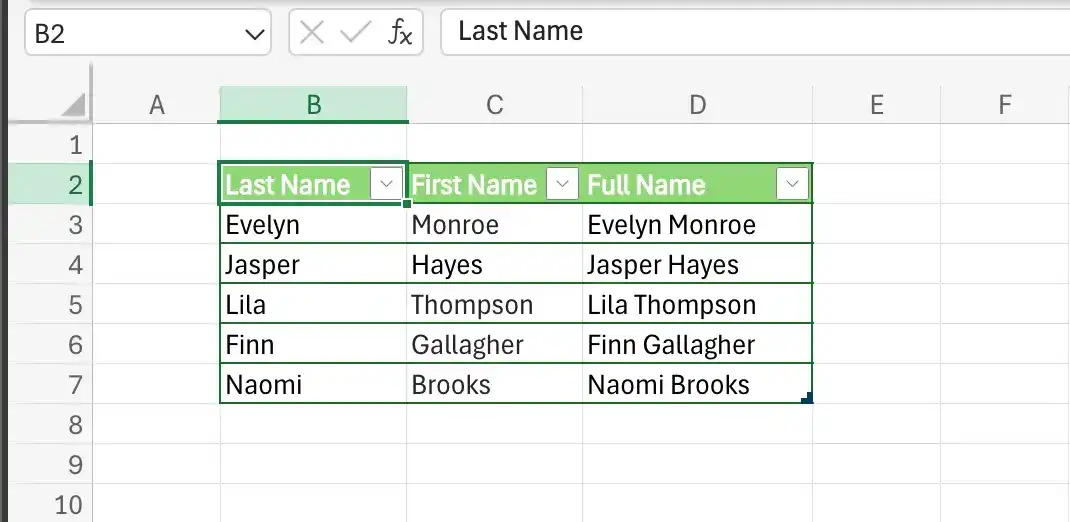
You can resize tables by dragging the handle, and if headers follow a sequence, Excel auto-labels new columns.
Excel tables often contain data you can summarize by calculating a sum or average, or by finding the maximum or minimum value in a column. To summarize one or more columns of data, you can add a total row to your Excel table.
Create an Excel table
- Click a cell in the list of data you want to make into an Excel table.
- On the Home tab, in the Styles group, click Format as Table.
- Click the style you want to apply to the table.
- Verify that the cell range is correct.

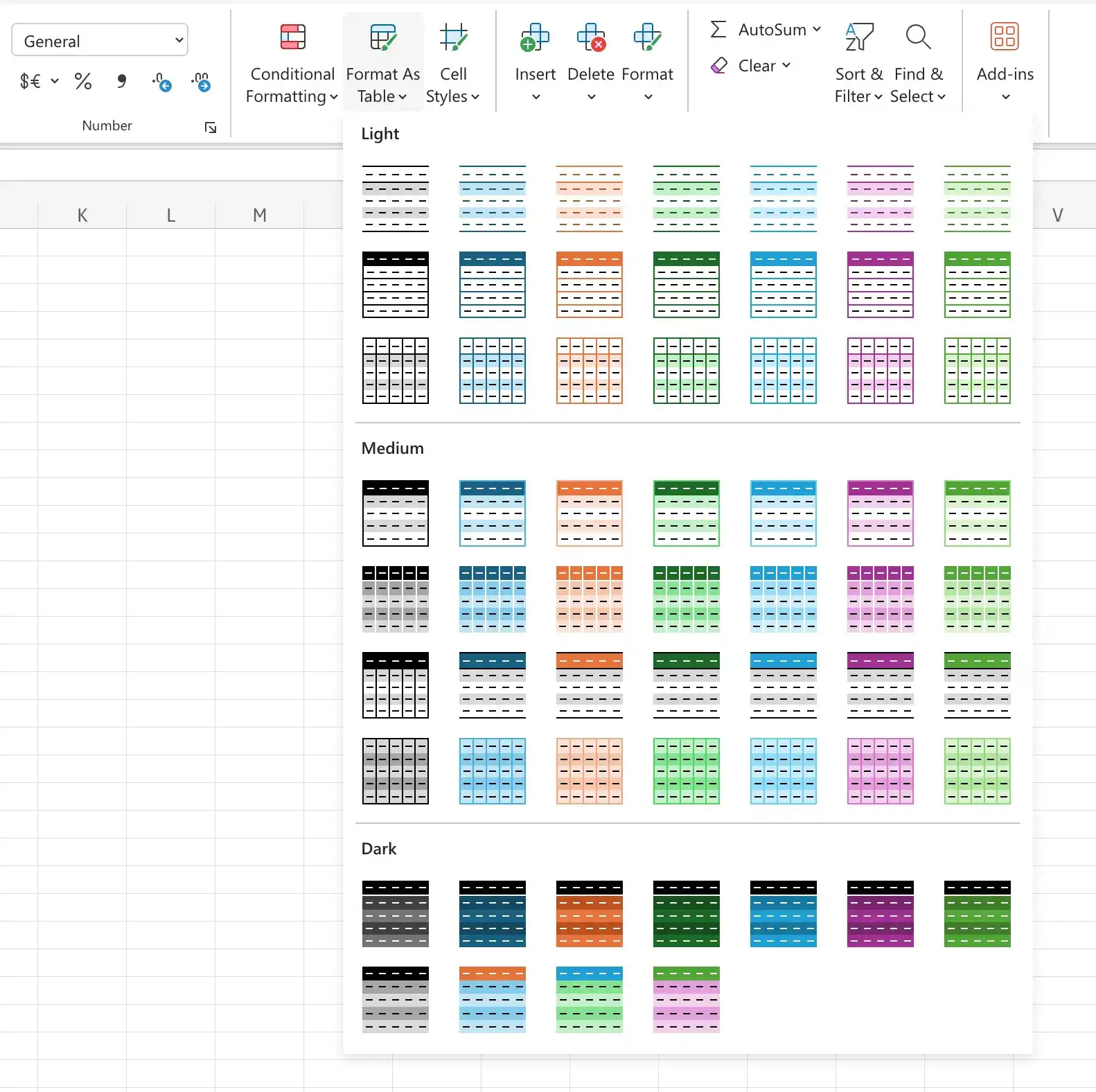
Create an Excel table with default formatting
- Click a cell in the range that you want to make into an Excel table.
- Press Ctrl+L.
- Click OK.
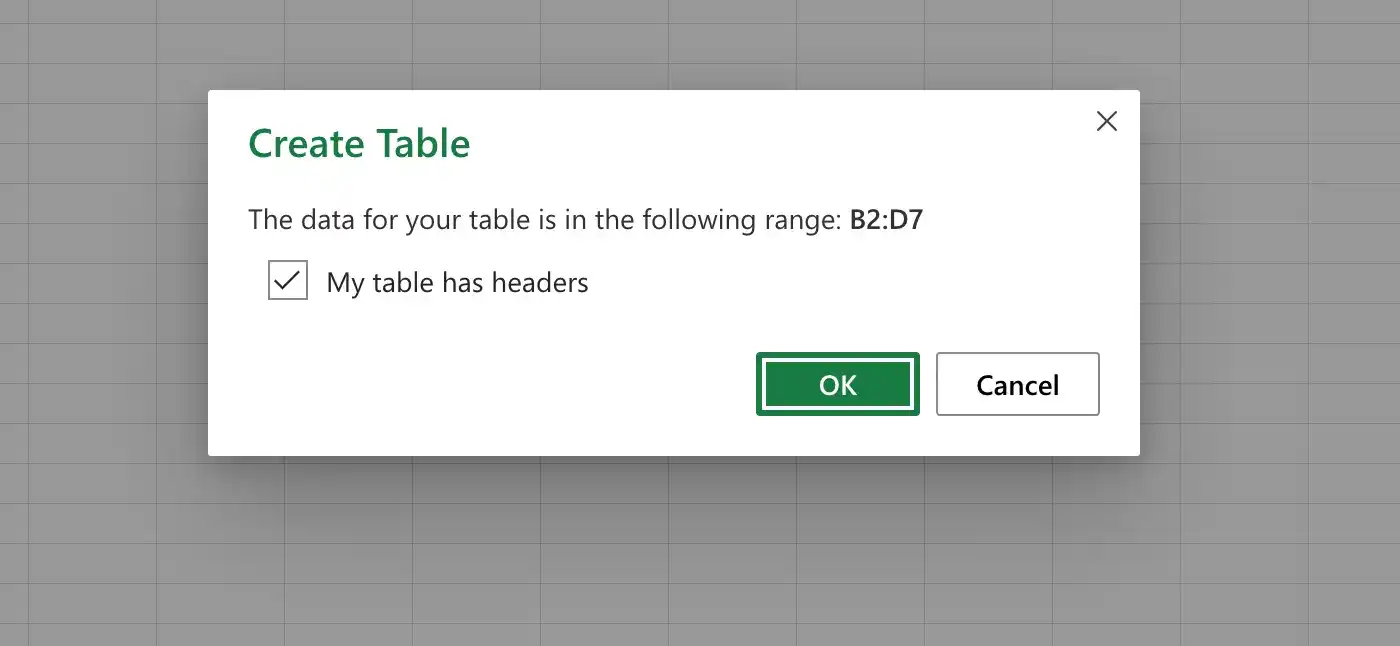
Add a column or row to an Excel table
- Click a cell in the row below or the column to the right of the Excel table.
- Enter the data and press Enter.
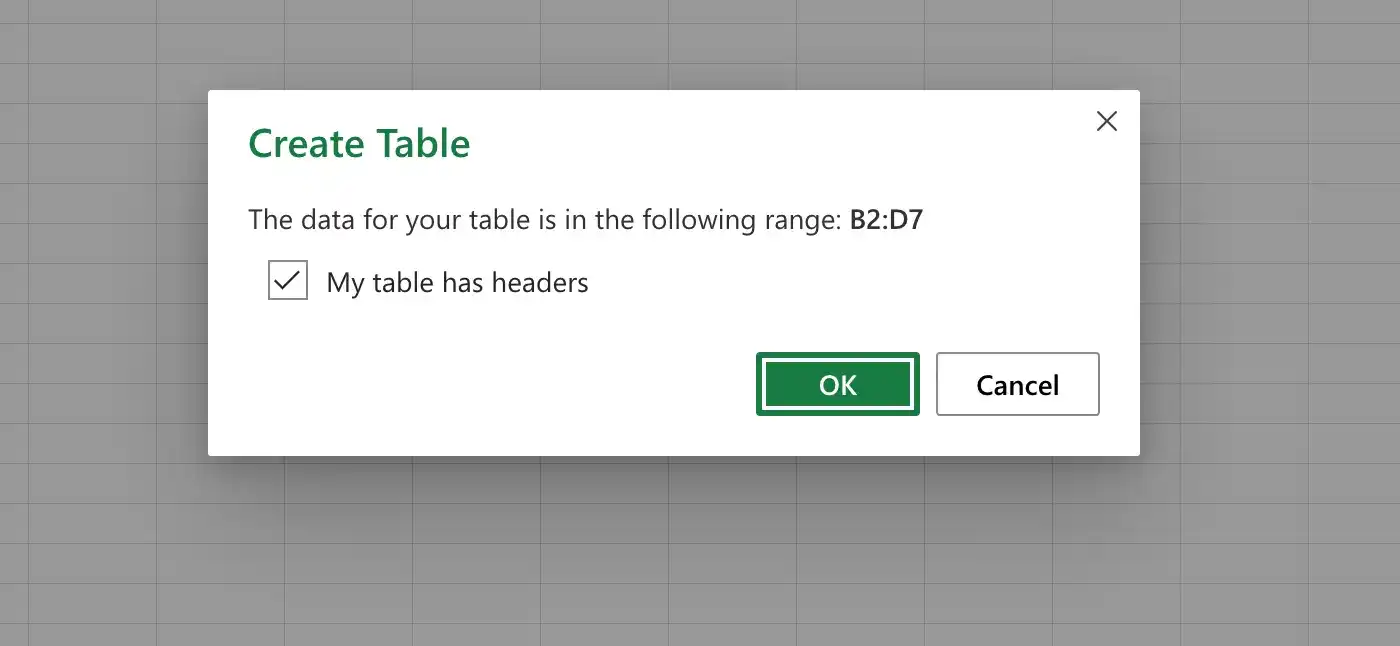
Expand or contract an Excel table
- Click a cell in the row below or the column to the right of the Excel table.
- Enter the data and press Enter.
Add a total row to an Excel table
- Click any cell in the Excel table.
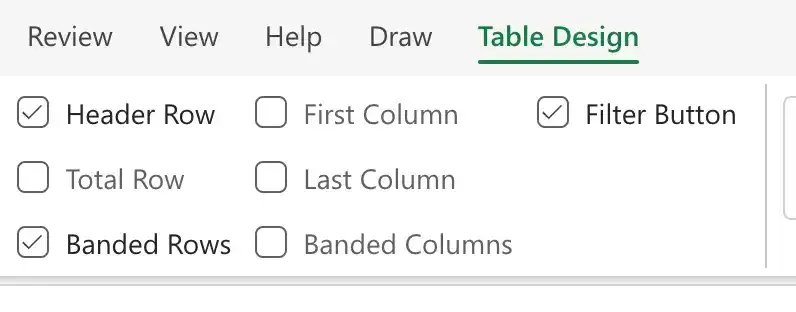
- On the Table Design tab of the ribbon, in the Table Style Options group, select the Total Row check box.
Rename an Excel table
- Click any cell in the Excel table.
- On the Table Design tool tab, in the Properties group, enter a new name for the Excel table in the Table Name box.
- Press Enter.

Convert an Excel table to a cell range
- Click any cell in the Excel table.
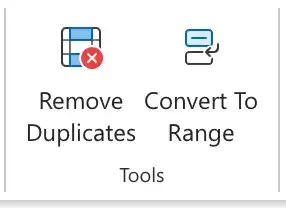
- On the Table Design tool tab, in the Tools group, click Convert to Range.
Feedback
Was this page helpful?