Sort Worksheet Data
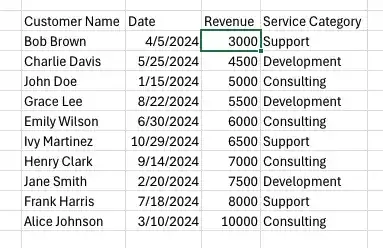
When you sort data in a worksheet, you rearrange the rows based on the contents of cells in a specific column or set of columns. For example, you can sort a worksheet to identify your highest-revenue services.
To sort a group of rows, first identify the column that contains the values by which the rows should be sorted. In the revenue example, you can find the highest revenue totals by sorting the cells in the Revenue column. This can be done using the commands available from the Sort & Filter button on the Home tab of the ribbon.
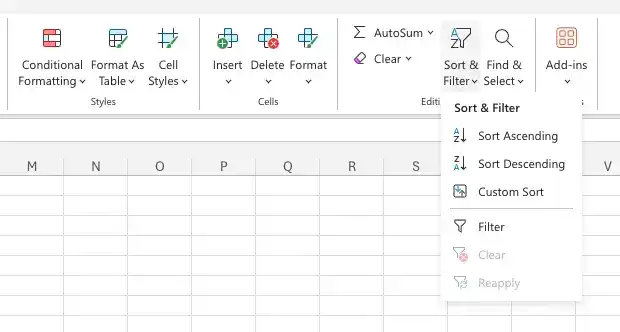
The Sort Ascending and Sort Descending options let you sort rows in a worksheet quickly, but you can use them only to sort the worksheet based on the contents of one column, even though you might want to sort by two columns.
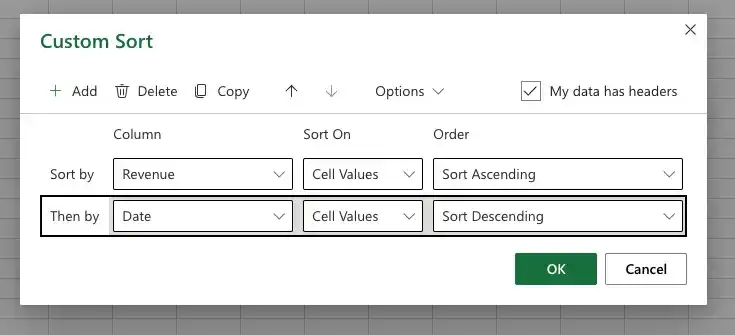
You can sort rows in a worksheet by the contents of more than one column by using the Sort Custom, in which you can pick any number of columns to use as sort criteria and choose whether to sort the rows in ascending or descending order. If you want to create two similar rules, perhaps changing just the field to which the rules are applied, you can create a rule for one field, copy it within the Sort dialog box, and change the field name. If your data cells have fill colors applied to them, perhaps representing cells with values you want your colleagues to notice, you can sort your list of data by using those colors. In addition, you can create more detailed sorting rules, change the order in which rules are applied, and edit and delete rules by using the controls in the Sort dialog box.
Sort worksheet data based on values in a single column
- Click a cell in the column that contains the data by which you want to sort.
- On the Home tab of the ribbon, in the Editing group, click the Sort & Filter button to display a menu of sorting and filtering choices.
- Click Sort A to Z to sort the data in ascending order.
Or
- Click Sort Z to A to sort the data in descending order.
Sort worksheet data based on values in multiple columns
- Click a cell in the list of data you want to sort.
- On the Sort & Filter menu, click Custom Sort.
- If necessary, select the My data has headers check box.
- In the Sort by list, select the first field; in the Sort On list, select the option by which you want to sort the data (Values, Cell Color, Font Color, or Cell Icon). Then, in the Order list, select an order for the sort operation.
- Click the Add Level button.
- In the Then by list, create another rule by using the techniques described in step 4.
- When you are done creating sort levels, click OK to sort the values.
Sort by cell color
- Select a cell in the list of data.
- On the Sort & Filter menu, click Custom Sort.
- If necessary, select the My data has headers check box.
- In the Sort by list, select the field by which you want to sort.
- In the Sort On list, select Cell Color.
- In the Order list, select the cell color on which you want to sort.
- In the last list box, select the position you want for the color you identified (On Top or On Bottom).
Copy a sorting level
- Select a cell in the list of data.
- On the Sort & Filter menu, click Custom Sort.
- Select the sorting level you want to copy.
- Click the Copy Level button, and edit the rule as needed.
- Click OK.
Move a sorting rule up or down in priority
- On the Sort & Filter menu, click Custom Sort.
- Select the sorting rule you want to move.
- Click the Move Up button to move the rule up in the order.
Or
- Click the Move Down button to move the rule down in the order.
- Click OK.
Delete a sorting rule
- On the Sort & Filter menu, click Custom Sort.
- Select the sorting level you want to delete.
- Click the Delete Level button.
- Click OK.
Feedback
Was this page helpful?