Link to data in other worksheets and workbooks
Copying and pasting data from one workbook to another is quick and easy, but it has a significant limitation: changes in the original cell are not reflected in the copied cell. In other words, copying and pasting does not create a relationship between the original and target cells.
To ensure that the target cell reflects any changes in the original cell, create a link between the two cells. Instead of typing or pasting a value into the target cell, create a formula that references the source cell. This way, the target cell updates automatically when the source cell changes.
To link to a cell in another workbook copy the cell or range of cells you want to link to, then paste it into the target cell. Excel automatically creates a formula that references the source cell.

For example, to link to cell A1 in a workbook named Source.xlsx, enter in 'Source.xlsx' copy cell A1, then paste it into the target cell. Excel creates a formula that references the source cell, like this:
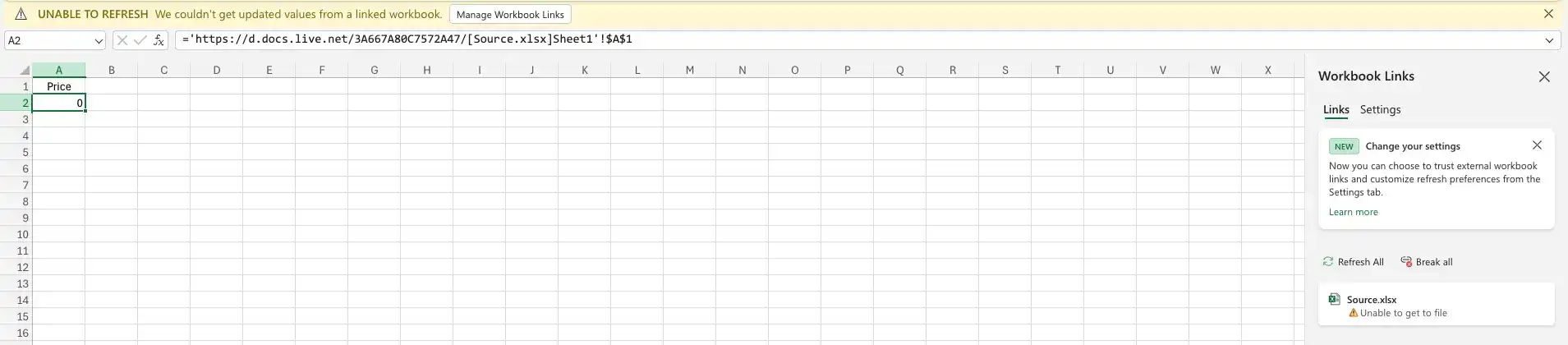
='https://d.docs.live.net/3A667A80C7572A47/[Source.xlsx]Sheet1'!$A$1
The formula includes the path to the source workbook, the name of the source worksheet, and the cell reference. To update the link, open the source workbook and make the necessary changes then press Refresh All in Dialog box that appears.

If you move the source workbook to a different location, the link breaks. To fix the link, update the path in the formula to reflect the new location of the source workbook.
If you want to link to a cell in another worksheet in the same workbook, you can use the same method. Copy the cell or range of cells you want to link to, then paste it into the target cell. Excel automatically creates a formula that references the source cell.
If you move the source cell by adding or deleting rows or columns, the link remain but the value is '0'. To fix the link, update the cell reference in the formula to reflect the new location of the source cell.
If you change the name of the source worksheet, the link breaks. To fix the link, update the worksheet name in the formula to reflect the new name of the source worksheet.
You can open the source workbook from the target workbook by hovering over the link, clicking the Option button and select Open workbook.

The system doesn't automatically update the data from the source file. To update the data, you need to click the Refresh All button from Data, Query & Connections tab.
Create a link to a cell or cell range on another worksheet
- Start creating a formula that will include a value from a cell or cell range on another worksheet.
- Click the sheet tab of the worksheet with the cell or cell range you want to include in the formula.
- Select the cell or cells to include in the formula.
- Press Enter.
Create a link to a cell or cell range in another workbook
- Open the workbook where you want to create the formula that references an external cell or cell range.
- Open the workbook that contains the cell or cell range you want to include in your formula and copy.
- Switch back to the original workbook and start creating a formula that will include a value from a cell or cell range in the other workbook and paste.
- Press Enter.
Open the source of a linked value
- Open a workbook that contains a link to an external cell or cell range.
- In ribbon select Data, in the Query & Connections group, click Workbook Links.
- A dialog box appears with a list of all the links in the workbook.
- Click the link you want to open, on options.
- Click Open Workbook.
Fix a link that returns an error because it references the wrong workbook
- Open a workbook that contains a link to an external cell or cell range.
- In ribbon select Data, in the Query & Connections group, click Workbook Links.
- A dialog box appears with a list of all the links in the workbook.
- Click the link you want to open, on options.
- Click Open Change Source.
Break a link to an external cell or cell range
- Open a workbook that contains a link to an external cell or cell range.
- In the ribbon select Data, in the Query & Connections group, click Workbook Links.
- A dialog box appears with a list of all the links in the workbook.
- Click the Break all button or hover the file source you want, options and Break Links button.
Feedback
Was this page helpful?