Create charts
To create a chart in Excel, you need to select the data you want to use and then click on the chart type you want to create. You can also use the Insert tab to create a chart.
Click on the menu, Insert and then click on the chart type you want to create in the Charts tab.
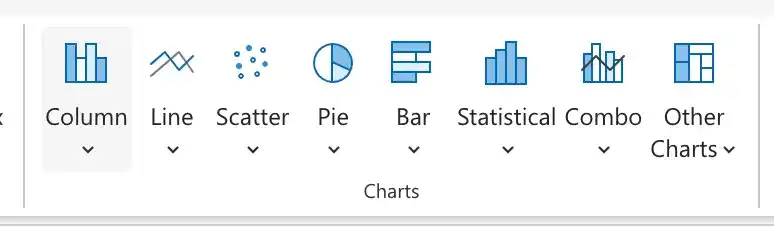
When you click a chart subtype, Excel creates the chart using the default layout and color scheme defined in your workbook’s theme.
If Excel doesn’t plot your data as desired, you can change the axis on which Excel plots a data column. The most common reason for incorrect data plotting is that the column intended for the horizontal axis contains numerical data instead of textual data. For example, if your data includes a Month column and a Sales column, Excel might plot both columns in the chart body and create a sequential series for the horizontal axis instead of plotting volume data for each consecutive year along the horizontal axis.
To correct this issue, you can change the horizontal axis to the Month column. To do this, click on the chart to select it, then click on the Chart tab. Click on the Select Data button in the Data group. In the Select Data Source dialog box, click on the horizontal axis label, then click on the Edit button. In the Axis Labels dialog box, select the range of cells that contains the textual data you want to use as the horizontal axis labels. Click OK to close the Axis Labels dialog box, then click OK to close the Select Data Source dialog box.
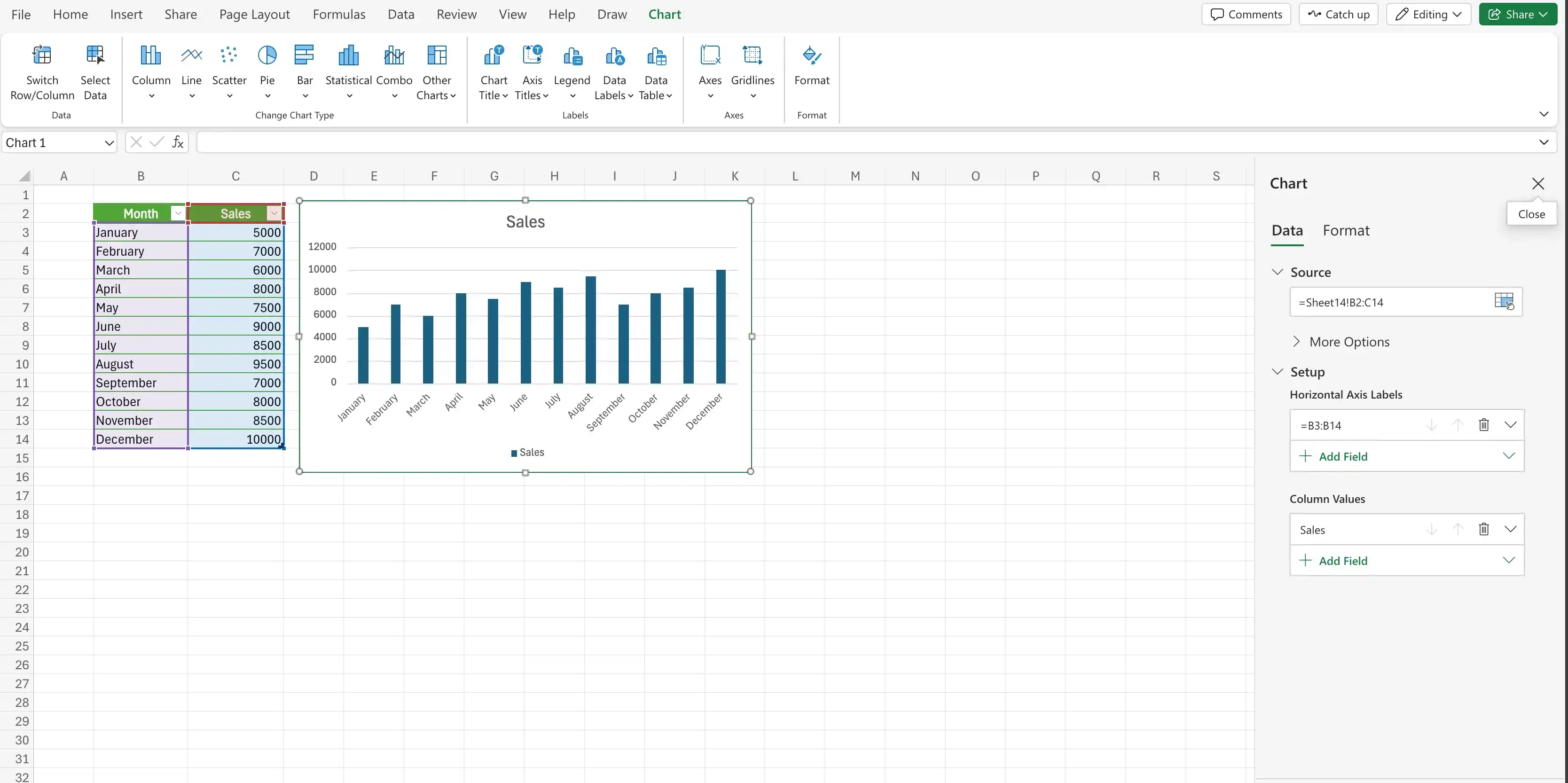
After you create your chart, you can change its size to reflect whether the chart should dominate its worksheet or take on a role as another informative element on the worksheet.
Create a chart
- Select the data you want to use in the chart.
- Click on the Insert tab.
- Click on the chart type you want to create in the Charts tab.
Create a chart of the default type by using a keyboard shortcut
- Select the data you want to use in the chart.
- Press Alt+F1
Change how Excel plots your data in a chart
- Click the chart you want to change
- Click on the Chart tab
- Click on the Select Data button in the Data group
Switch between row and column data
- Click the chart you want to change
- Click on the Chart tab
- Click on the Switch Row/Column button in the Data group
Change the axes in a chart
- Click on the chart you want to change
- Click on the Chart tab
- On Axes group click on Axes dropdown and select the axis you want to change
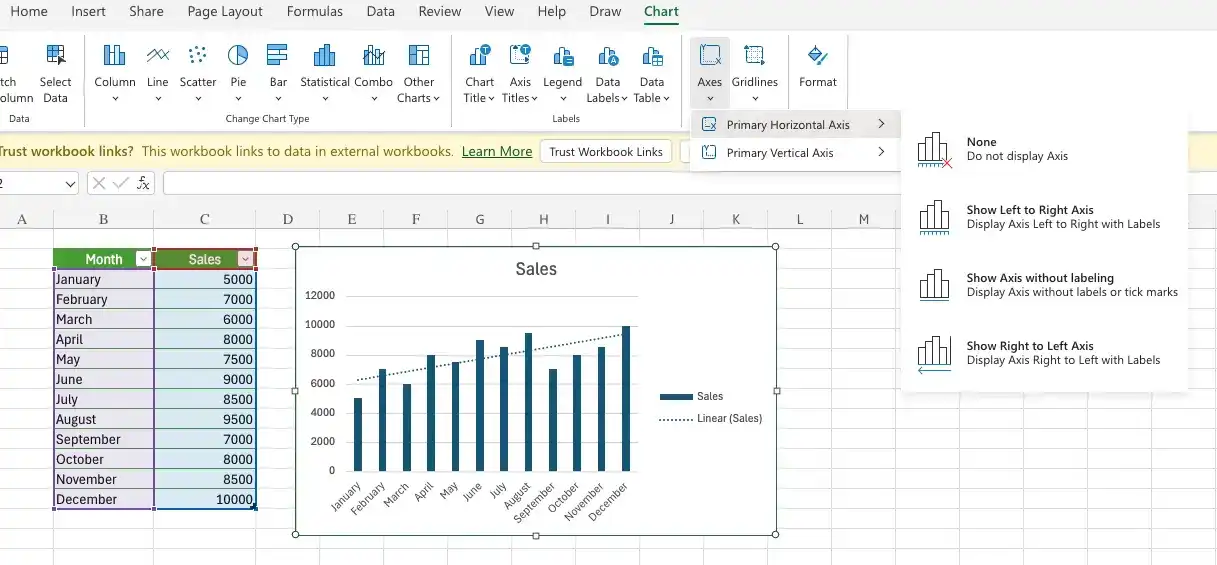
Change the Legend, Title, and Data Labels in a chart
- Click on the chart you want to change
- Click on the Chart tab
- On Label group click on the Legend, Title, or Data Labels dropdown and select the option you want to change
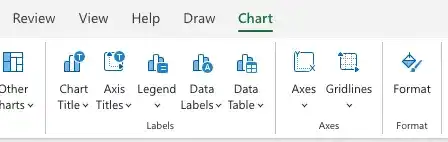
or
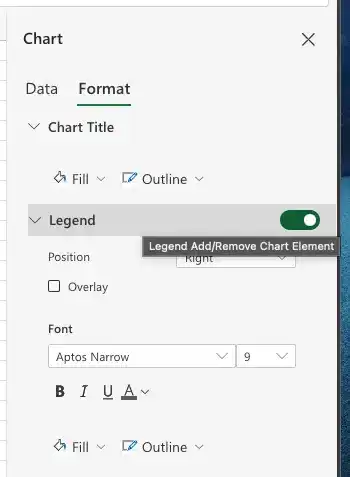
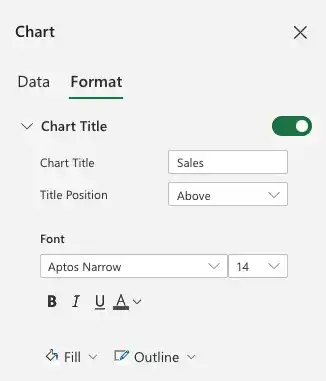
- In the Select Data Source dialog box, click on Format and do any of the following:
- Delete / Add a Legend Entries (Series) data set by clicking the Toggle button
- Delete / Add a Title data set by clicking Format and clicking the Toggle button
Change the size of a chart
- Click on the chart you want to change
- Drag the chart’s corner to resize it
Reposition a chart within a worksheet
- Click the chart.
- Drag it to its new position.
Feedback
Was this page helpful?