Modify worksheets
You're viewing information for Excel Desktop Version.
Need web version?Change the width of a column or the height of a row
You can you can make the data in your workbooks easier to work with. For example, you can change the width of a column or the height of a row in a worksheet by dragging the column’s right border or the row’s bottom border to the position you want. Increasing a column’s width or a row’s height increases the space between cell contents, making your data easier to read and work with.
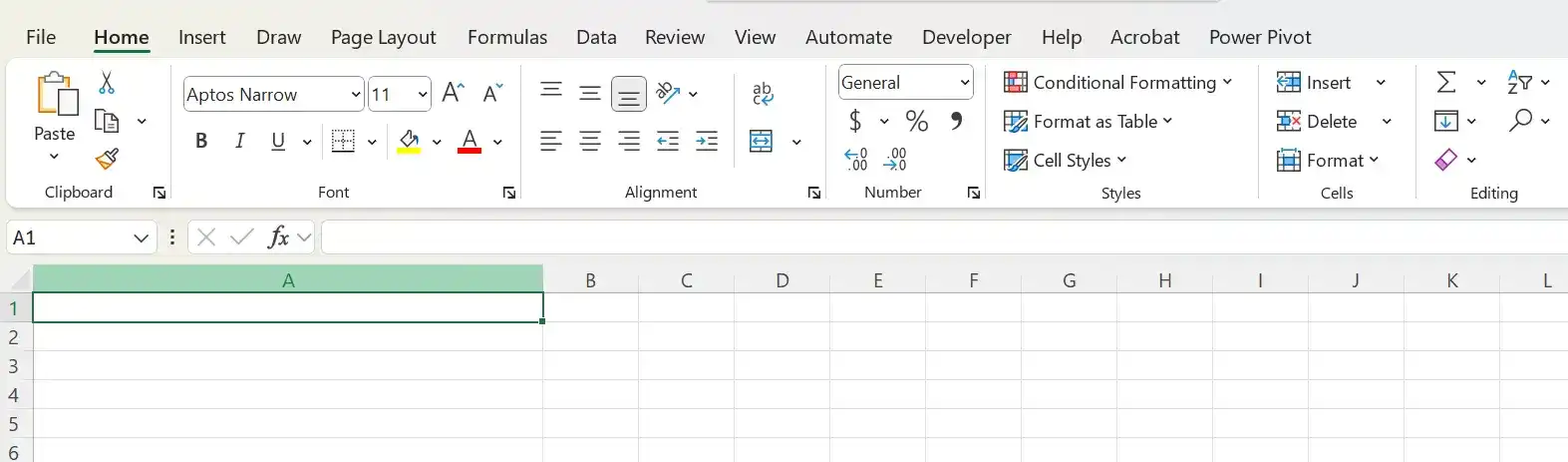
Video tutorial: Change the width of a column
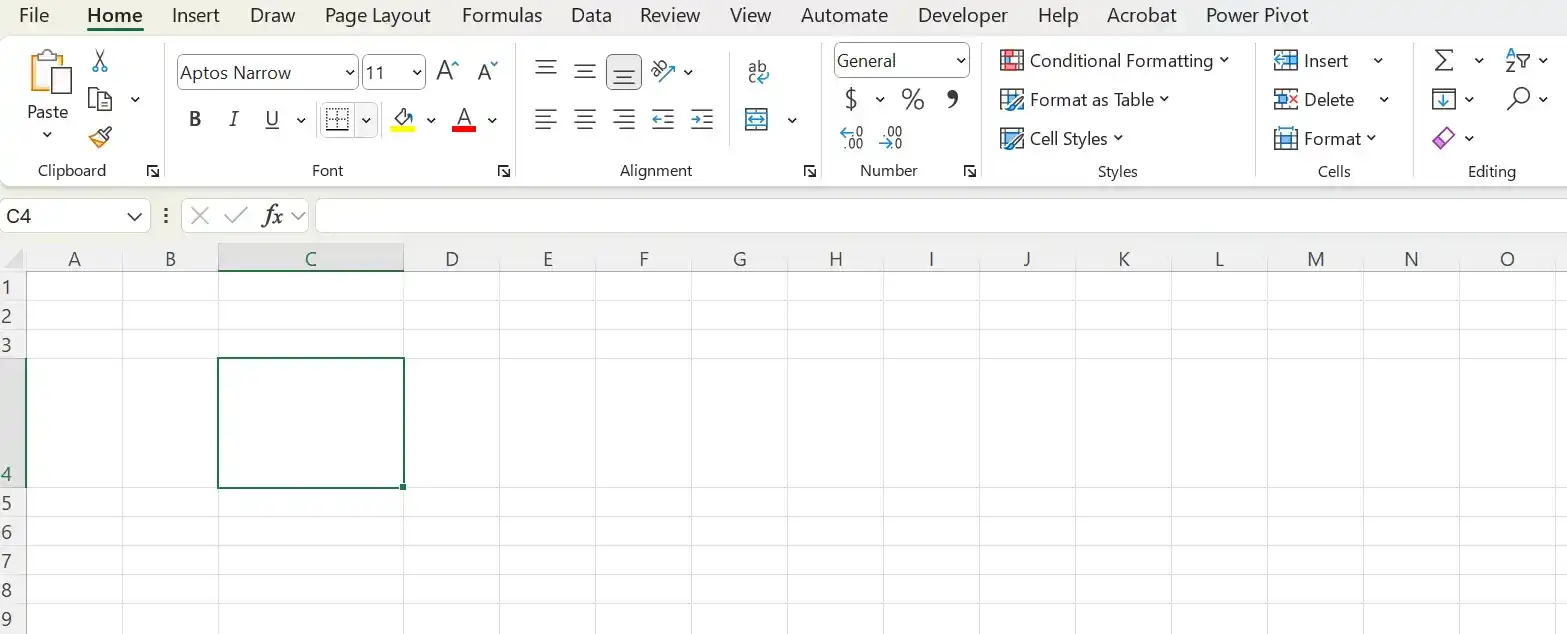
Video tutorial: Change the height of a row
You can apply the same change to more than one row or column by selecting the rows or columns you want to change and then dragging the border of one of the selected rows or columns to the location you want. When you release the mouse button, all the selected rows or columns change to the new height or width.
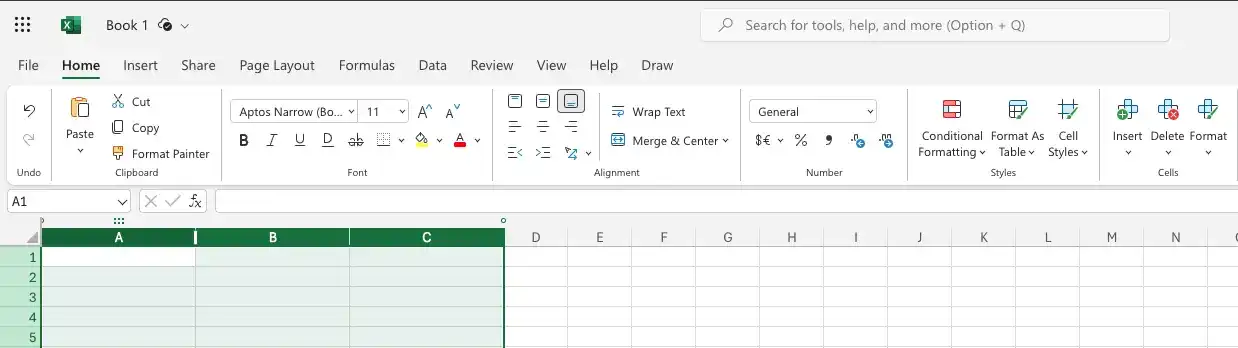
Adjusting row height and column width helps make data easier to read. You can also insert rows or columns to add space between data, which can make the worksheet look less crowded.
Insert a column
Right-click a column header, and then click Insert Column Left of Insert Column Right.
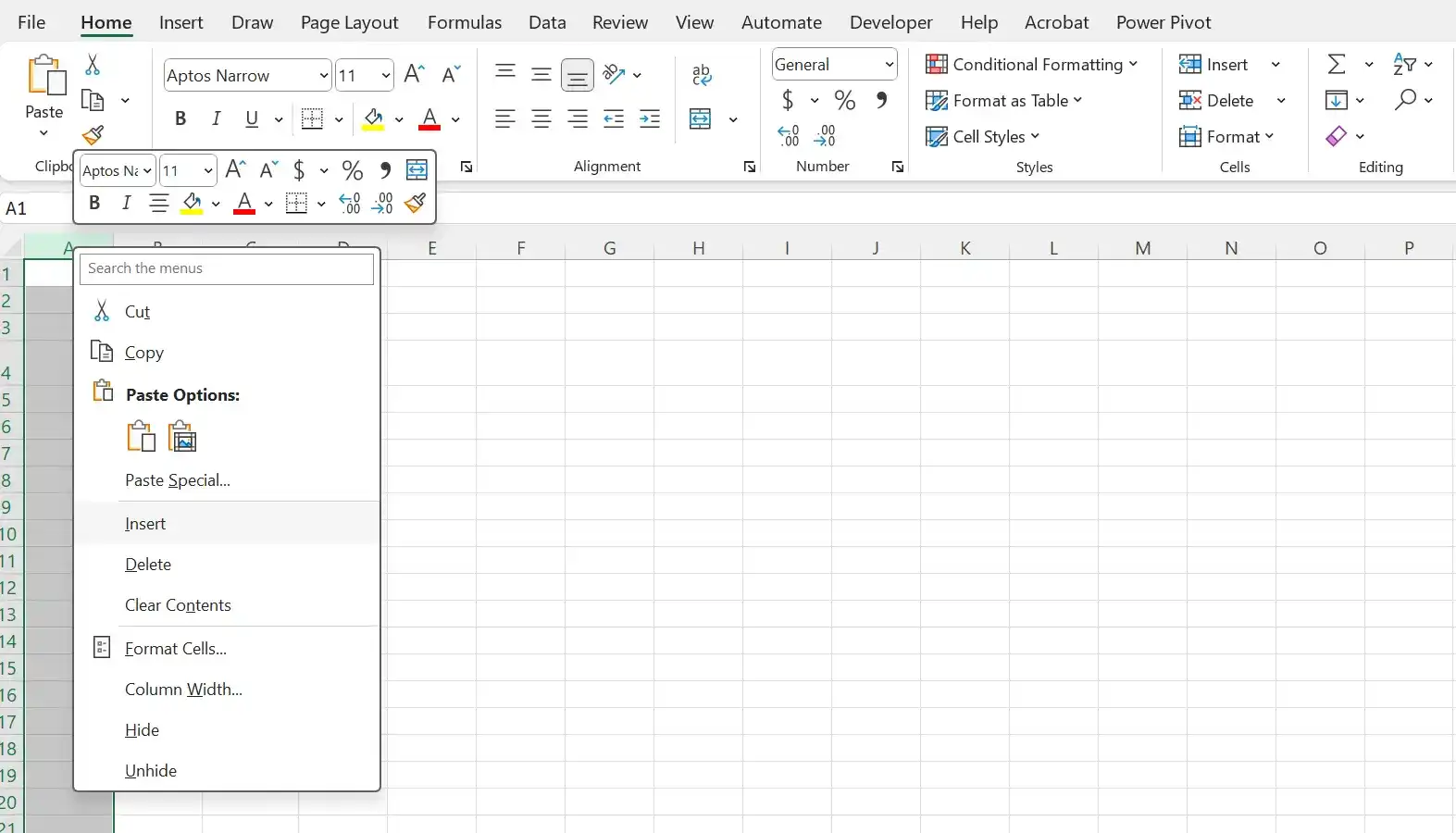
Video tutorial: How to insert a column in Excel desktop version
Insert multiple column’s
Select a number of column headers equal to the number of columns you want to insert. Right-click any selected column header, and then click Insert.
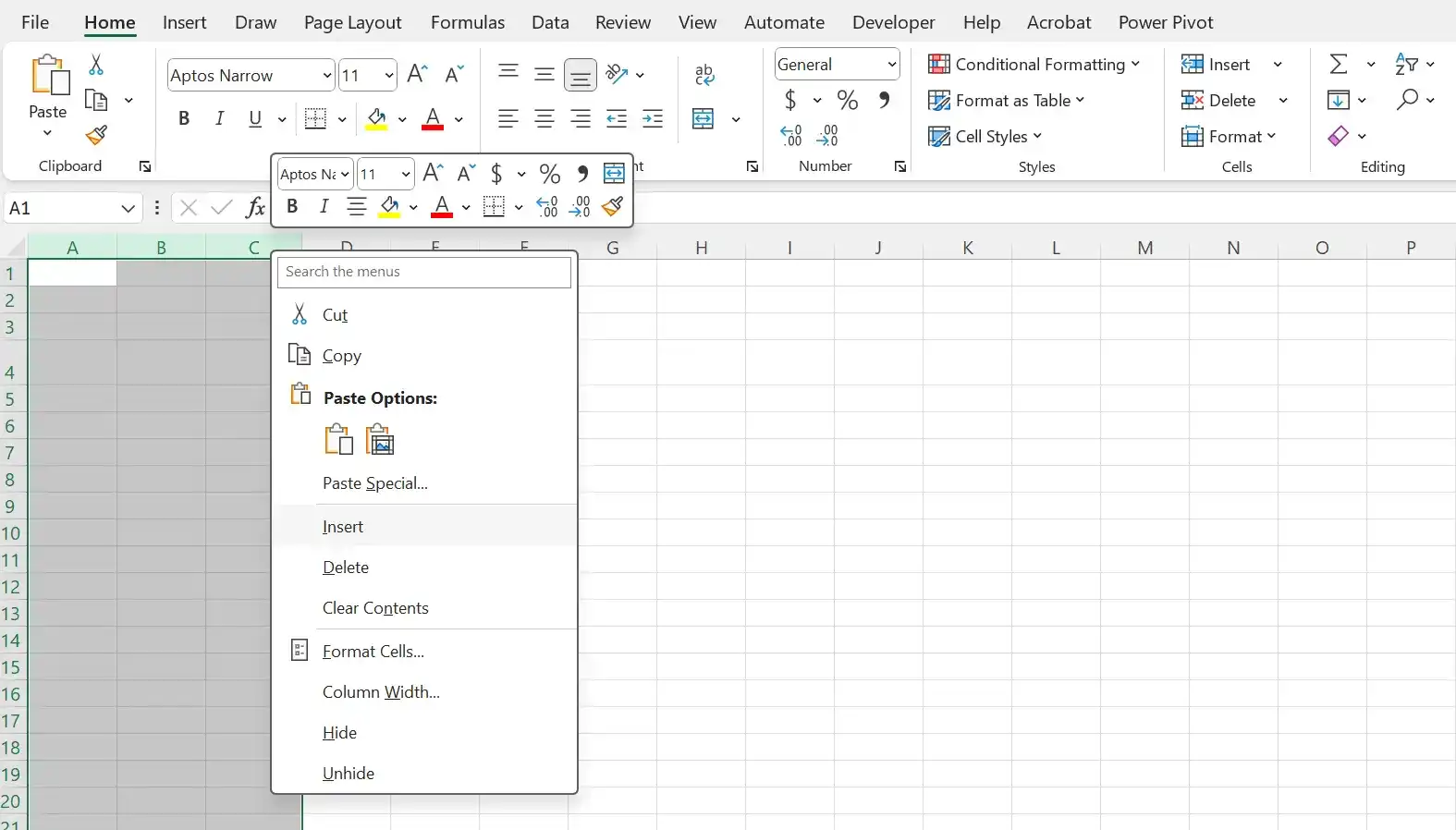
Video tutorial: How to insert multiple column’s in Excel desktop version
Insert a row
Right-click a row header, and then click Insert.
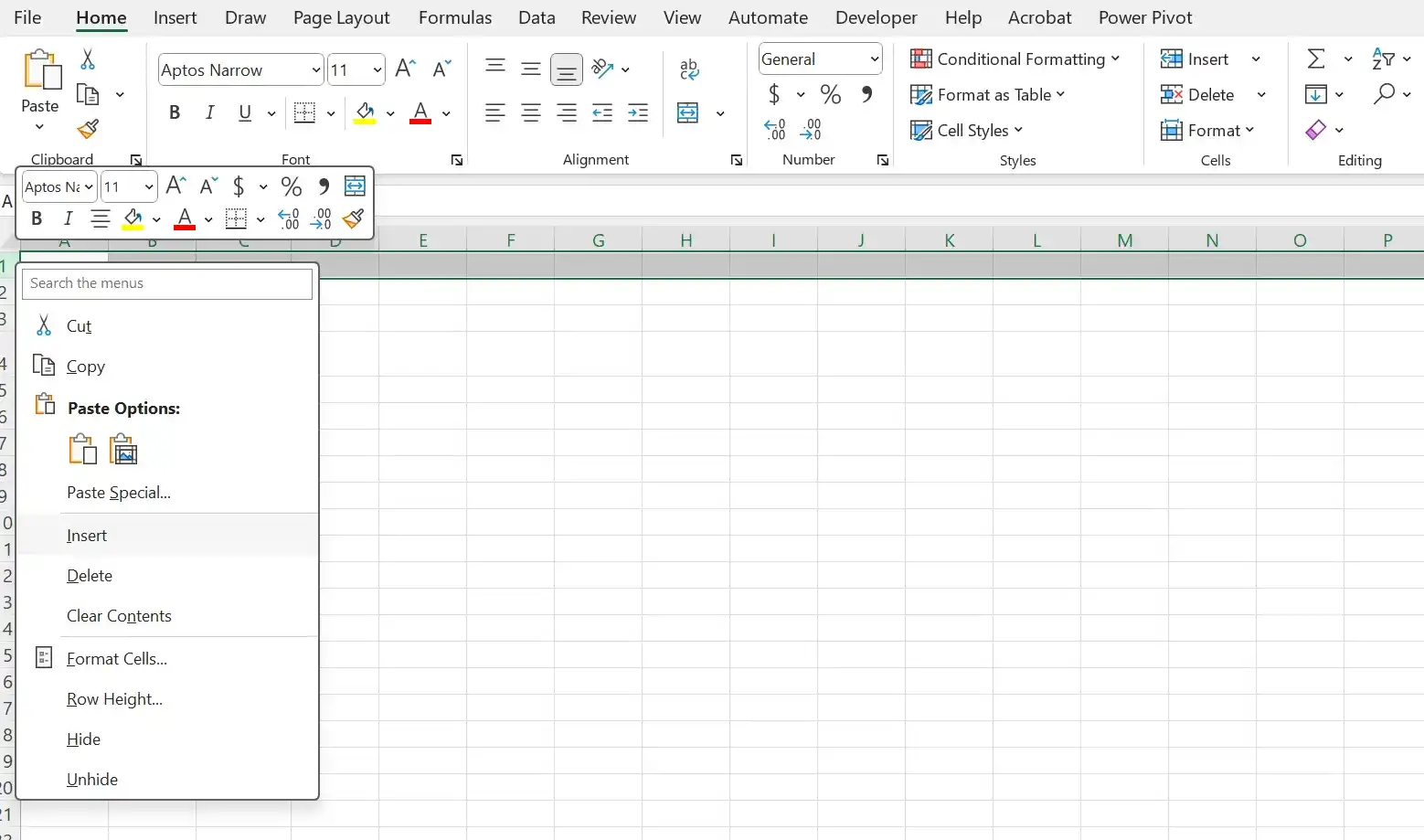
Video tutorial: How to insert a row in Excel desktop version
Insert multiple rows
Select a number of row headers equal to the number of rows you want to insert. Right-click any selected row header, and then click Insert.
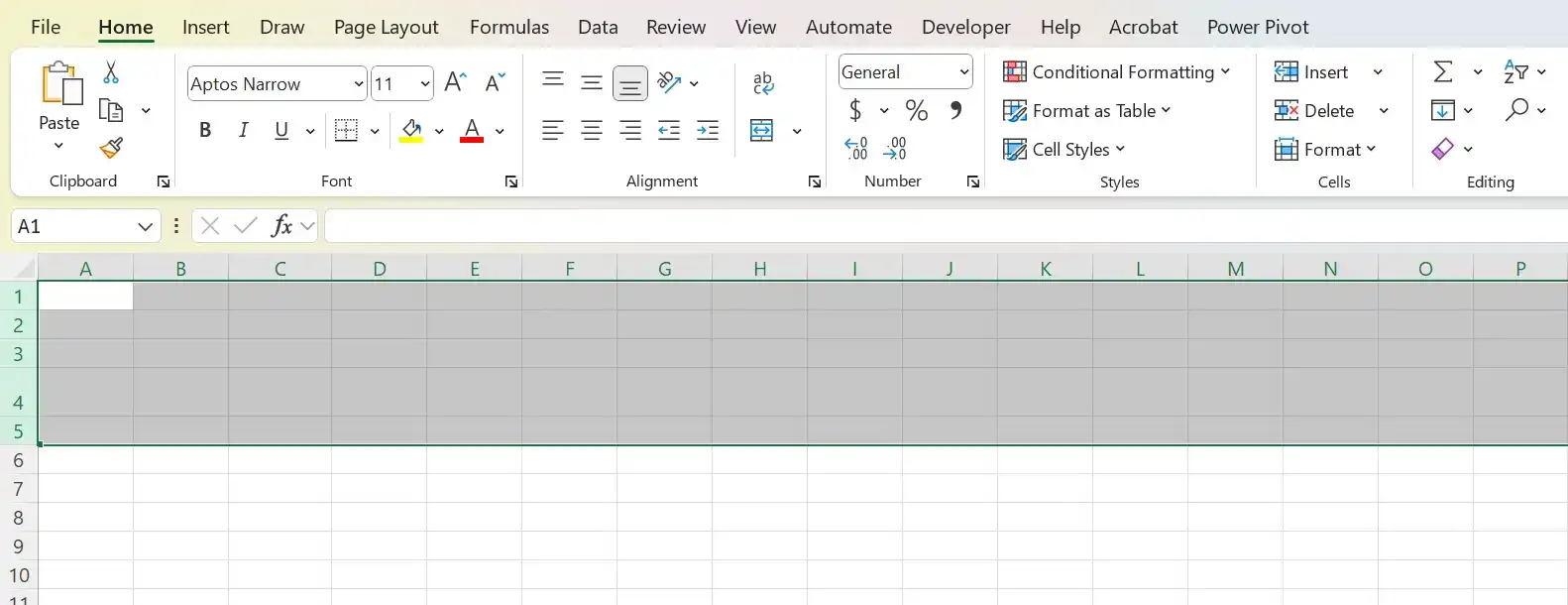
Video tutorial: How to insert multiple rows in Excel desktop version
Delete one or more columns
Select the column headers of the columns you want to delete. Right-click any selected column header, and then click Delete.
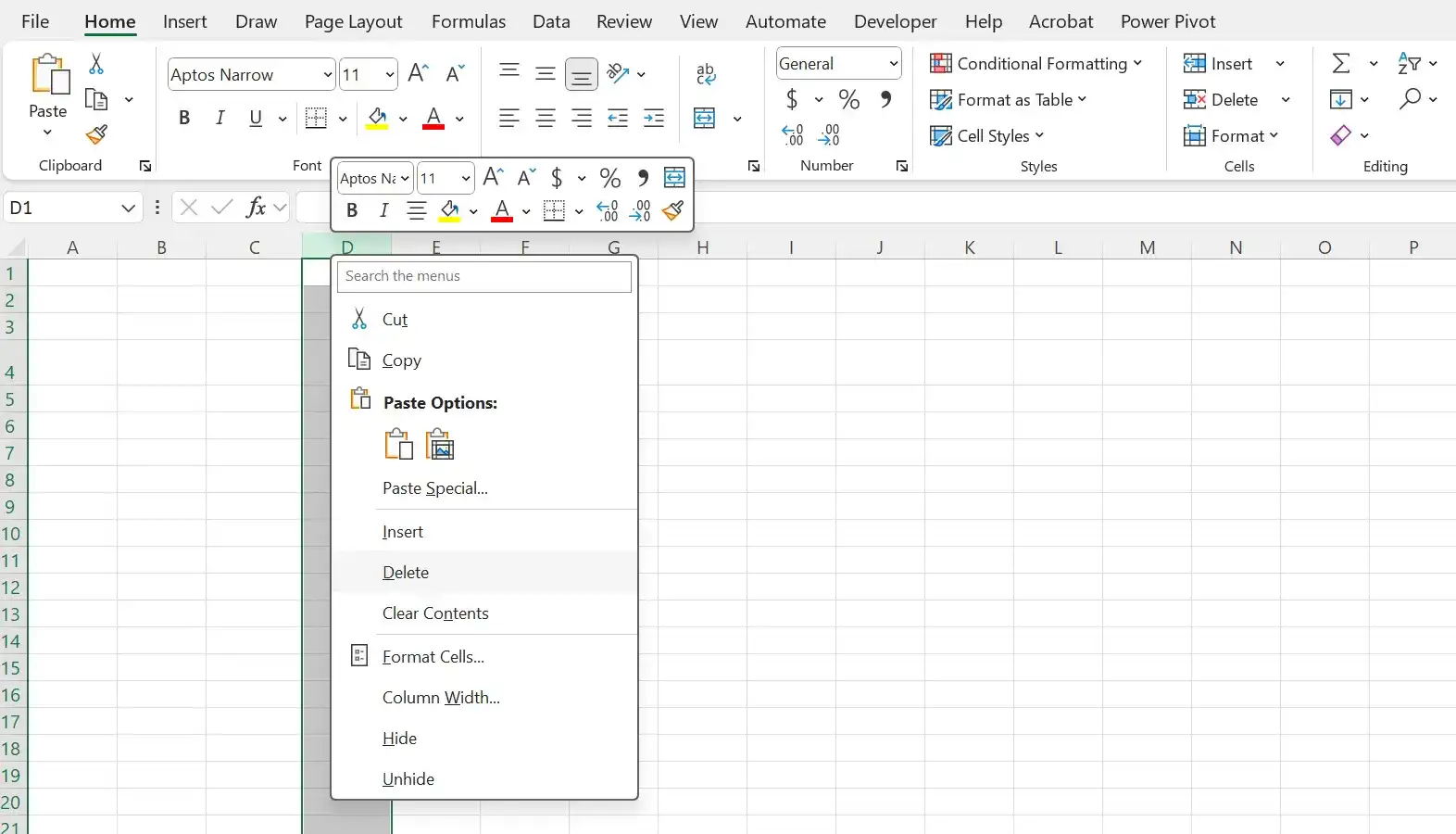
Video tutorial: How to delete a column in Excel desktop version
Video tutorial: How to delete multiple columns in Excel desktop version
Delete one or more rows
Select the row headers of the rows you want to delete. Right-click any selected row header, and then click Delete.
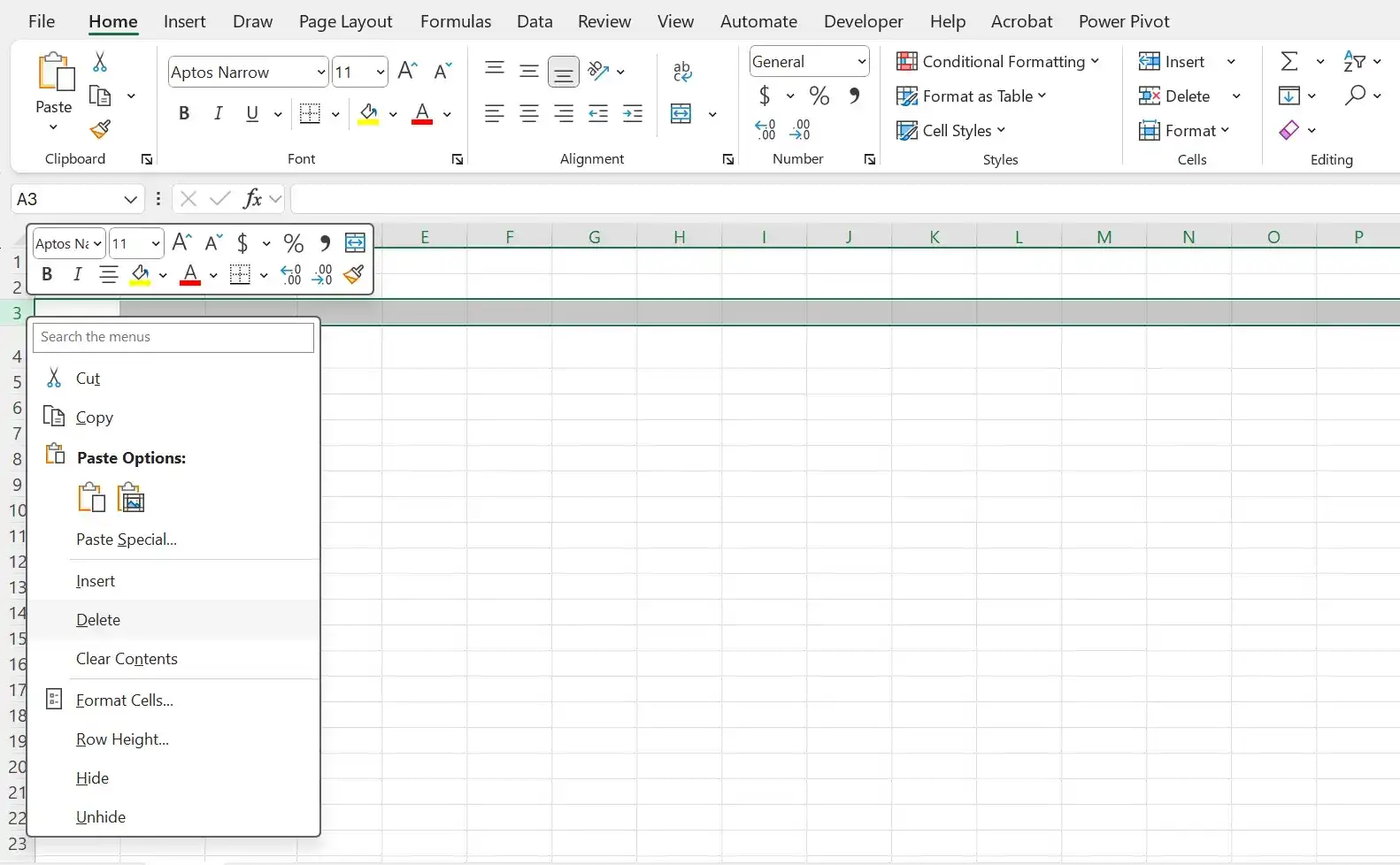
Video tutorial: How to delete a row in Excel desktop version
Video tutorial: How to delete multiple rows in Excel desktop version
Hide one or more columns
Select the column headers of the columns you want to hide. Right-click any selected column header, and then click Hide.
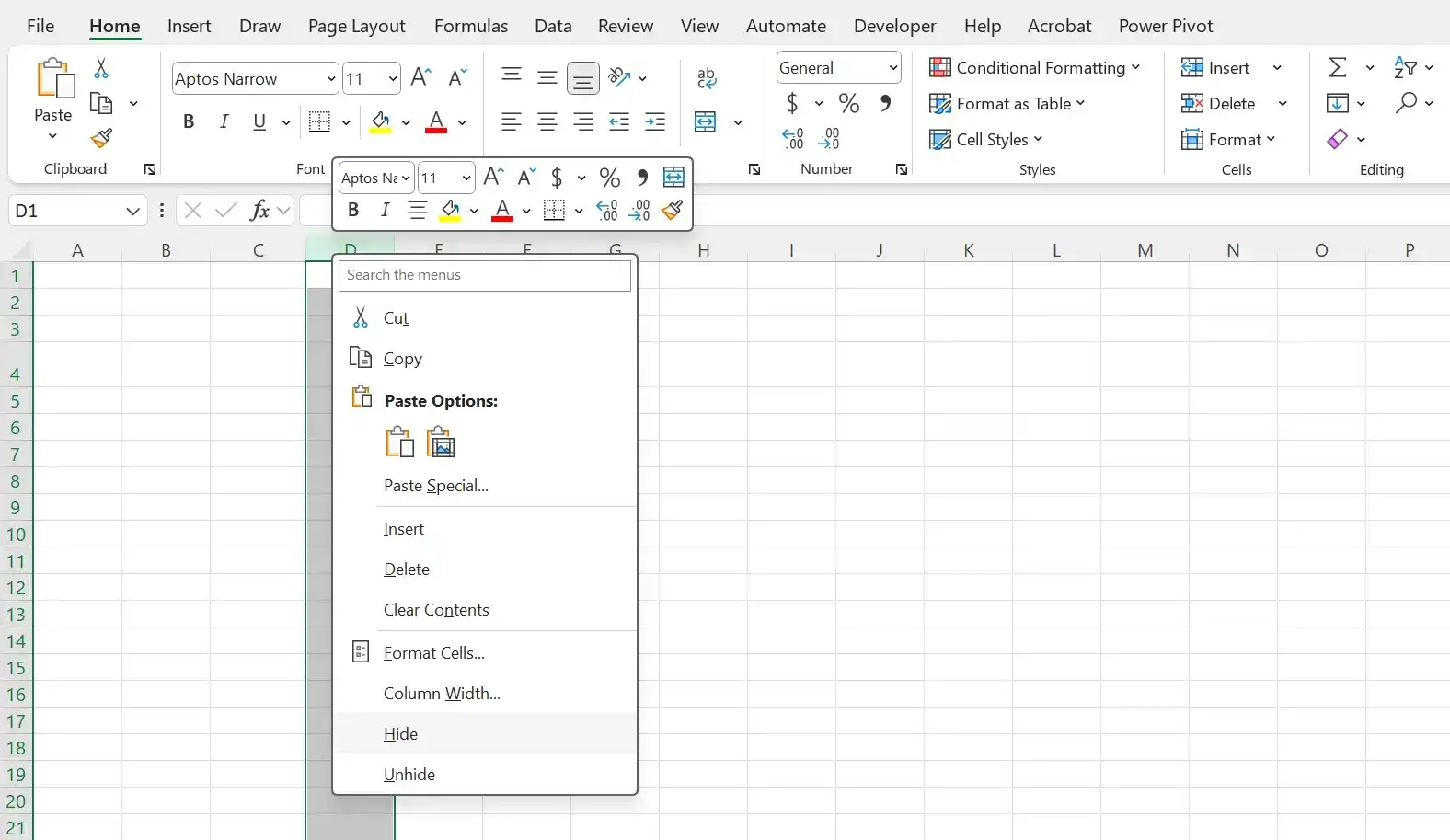
Video tutorial: How to hide a column in Excel desktop version
Hide one or more rows
Select the row headers of the rows you want to hide. Right-click any selected row header, and then click Hide.
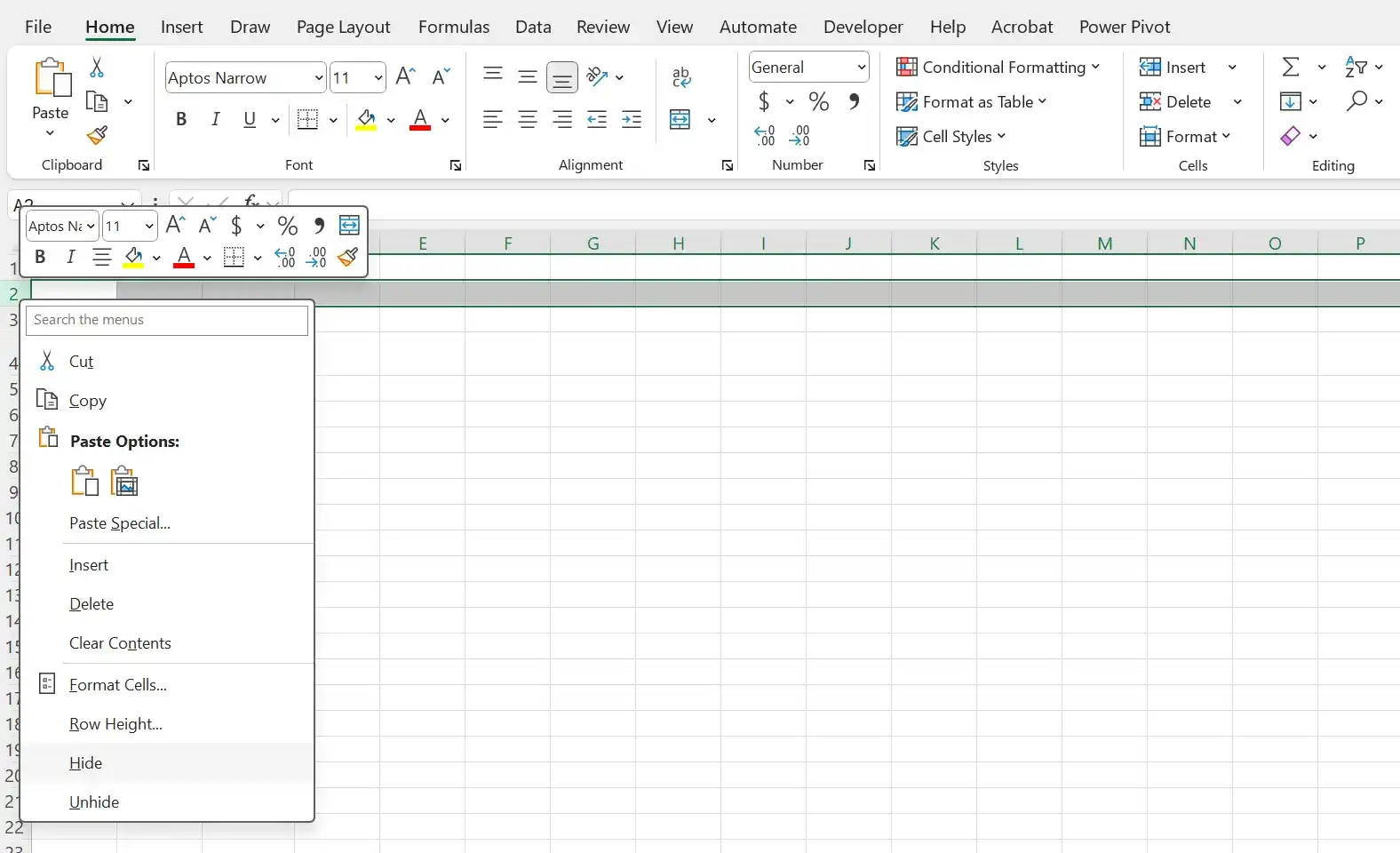
Video tutorial: How to hide a row in Excel desktop version
Unhide one or more columns
Select the column headers to the immediate left and right of the column or columns you want to unhide. Right-click any selected column header, and then click Unhide.
or
Press Ctrl+A to select the entire worksheet. Right-click anywhere in the worksheet, and then click Unhide.
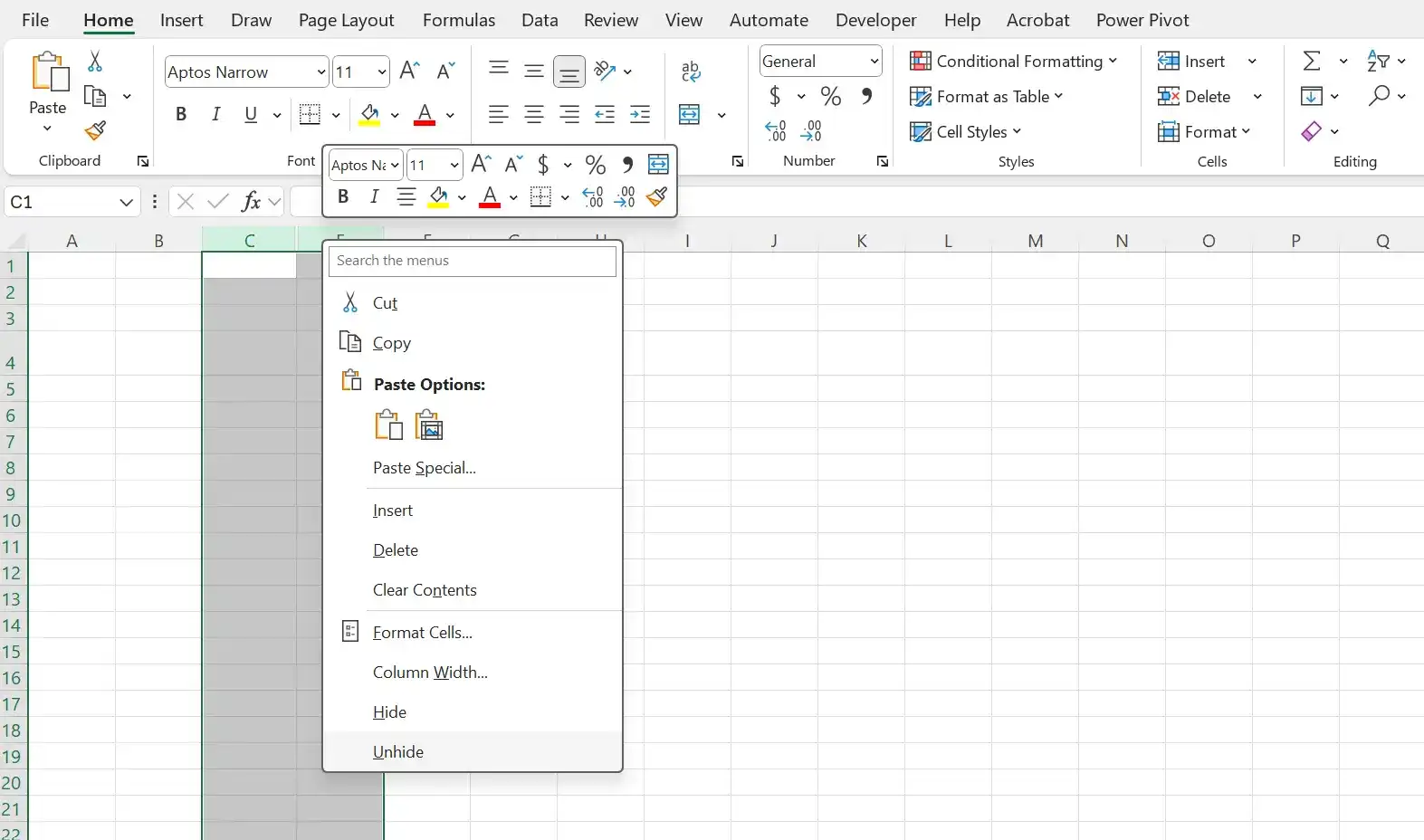
Video tutorial: How to unhide a column in Excel desktop version
Unhide one or more rows
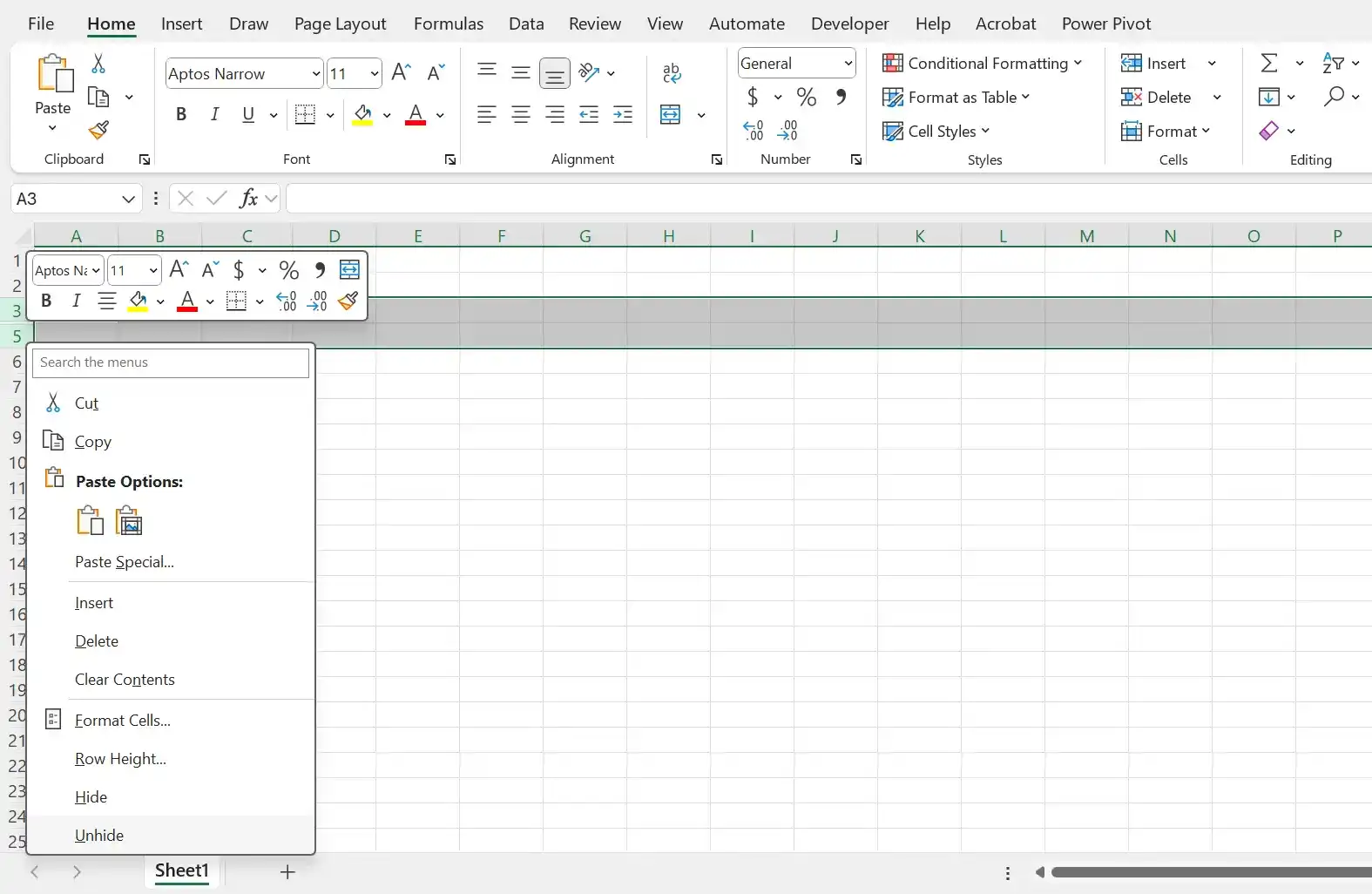
Select the row headers immediately above and below the row or rows you want to unhide. Right-click any selected column header, and then click Unhide.
or
Press Ctrl+A to select the entire worksheet. Right-click anywhere in the worksheet, and then click Unhide.
Move one or more cells within a worksheet
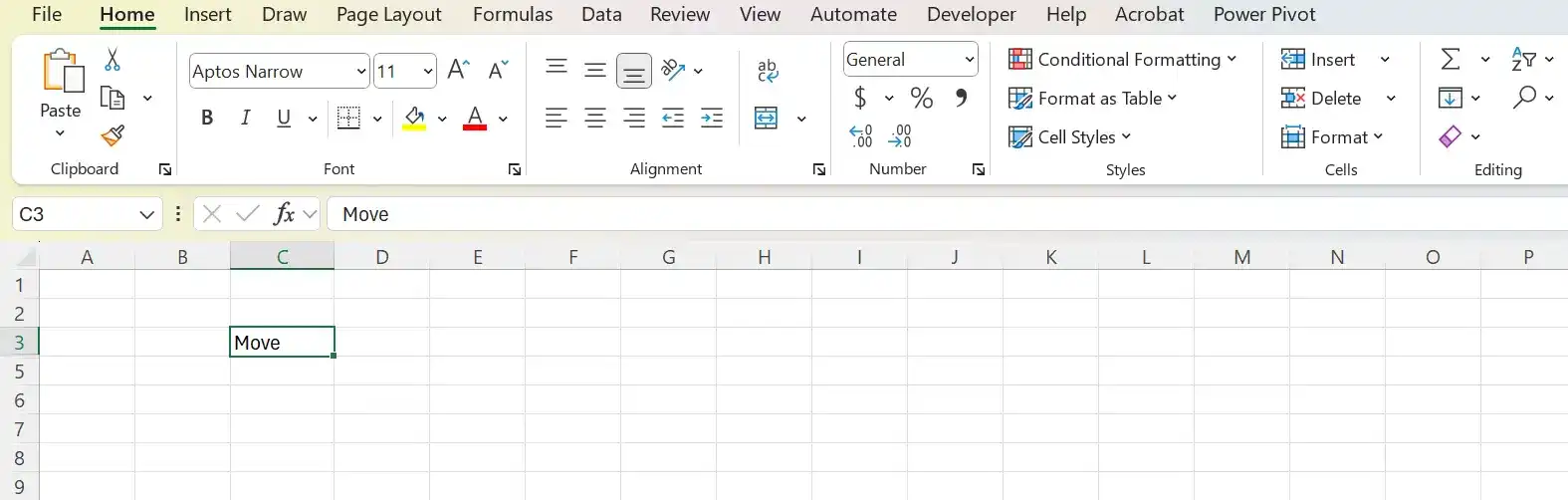
Select the cell range you want to move. Point to the edge of the selected range. When the pointer changes to a hand arrow, drag the cell range to its new position. If necessary, click OK to confirm that you want to delete data in the target cells.
Video tutorial: Move one or more cells within a worksheet
Feedback
Was this page helpful?